CTE Curriculum
Prepare learners with CTE curriculum aligned to industry standards.


1. Review Previously Selected Lessons
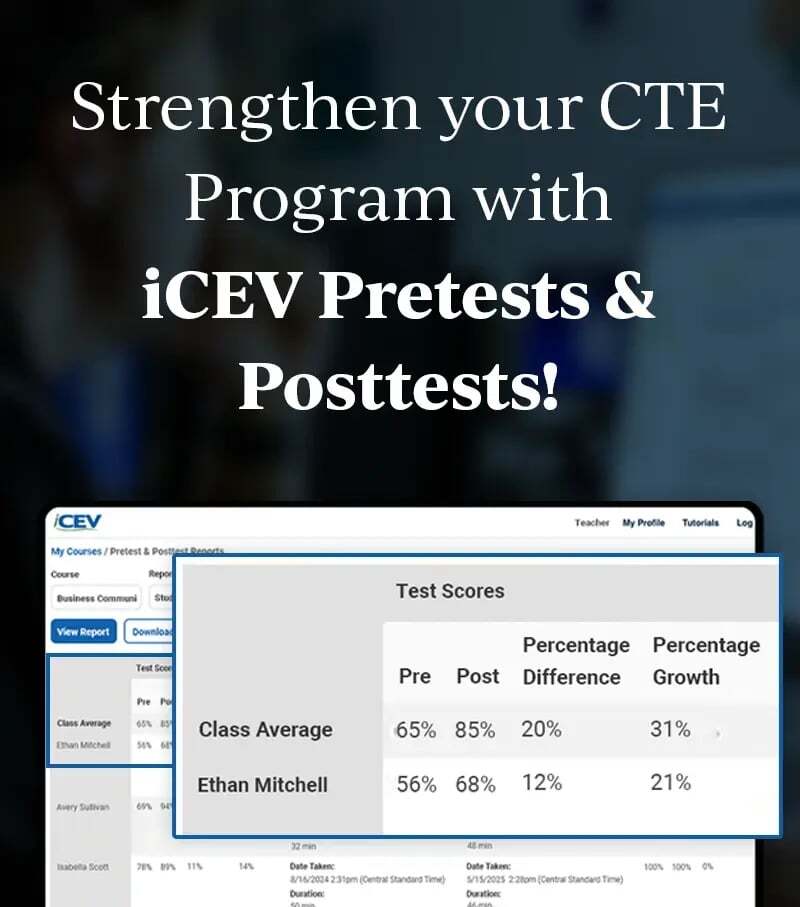
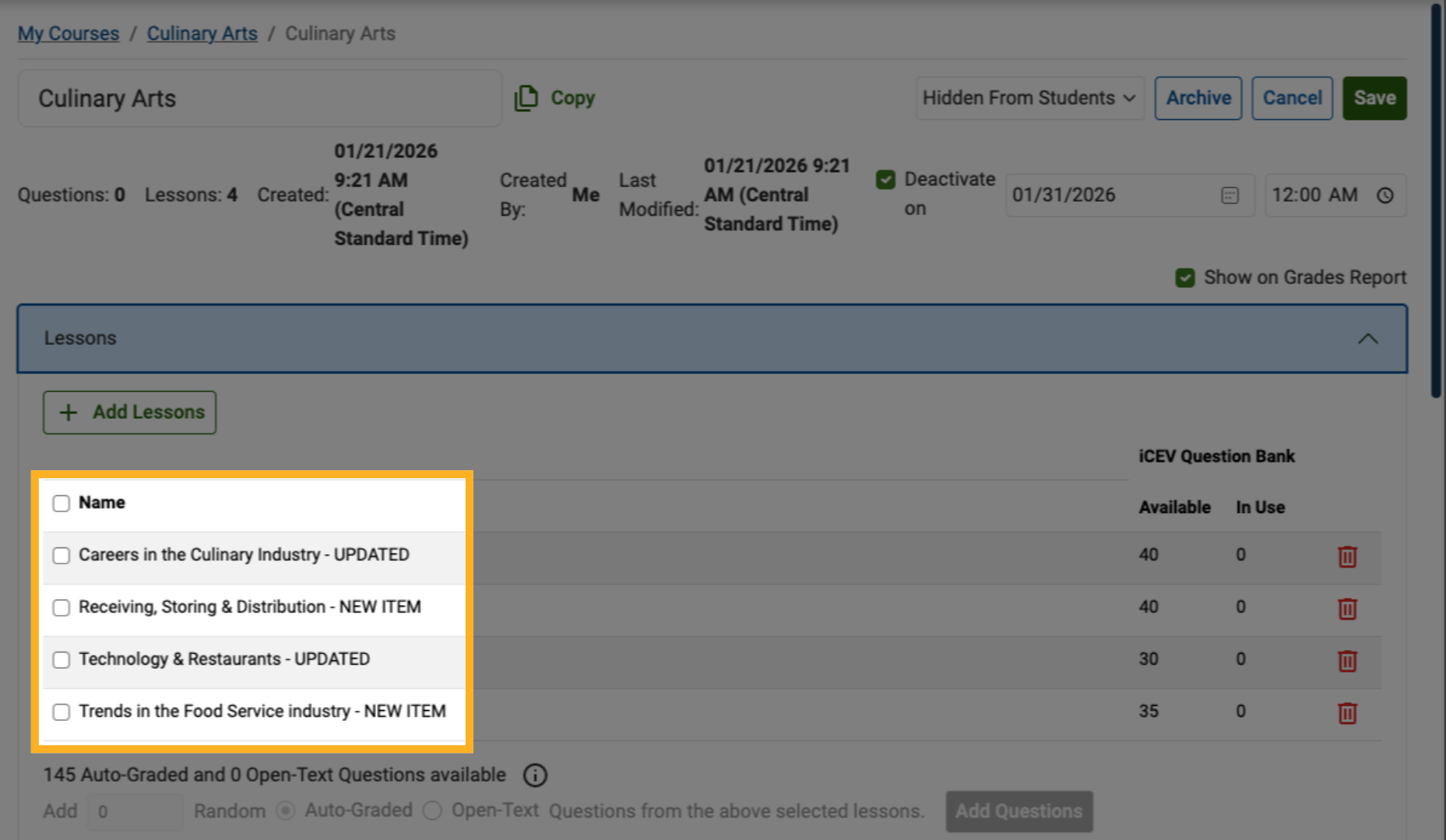
When you open your custom assessment, any lessons that were selected during creation will appear in the assessment dashboard.
In this example, the lessons Receiving, Storing & Distribution and Trends in the Food Service Industry were previously selected.
2. Add More Lessons
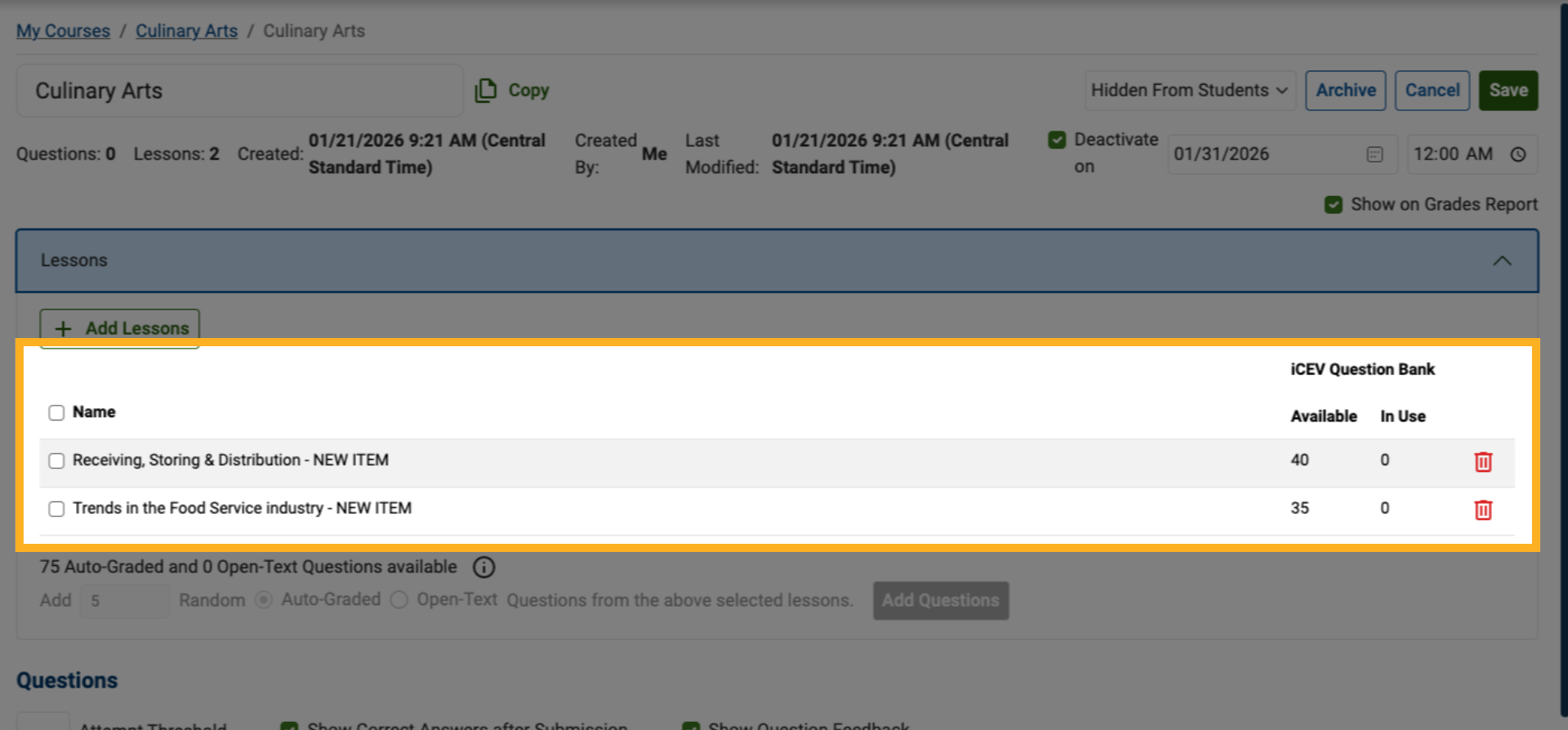
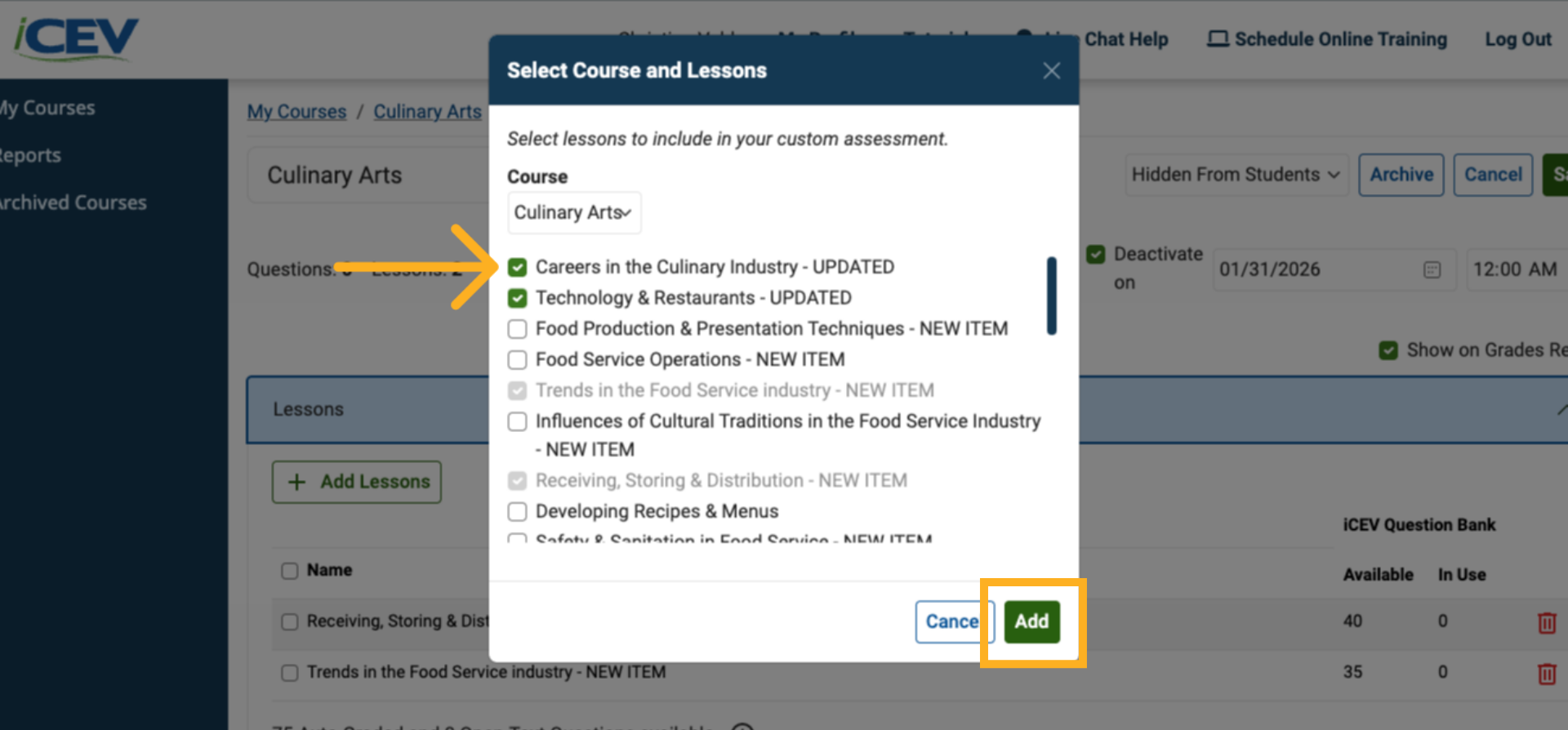
To include additional lessons from the course, click the Add Lessons button within the assessment.
3. Choose Additional Lessons
A list will appear showing:
-
Lessons already included in the assessment
-
Other lessons available from the course
Select any additional lessons you want to include, then click Add.
4. Confirm Lessons Added
After adding lessons, they will immediately appear in your assessment.
In this example, the assessment now includes four lessons total.
5. Review Question Availability
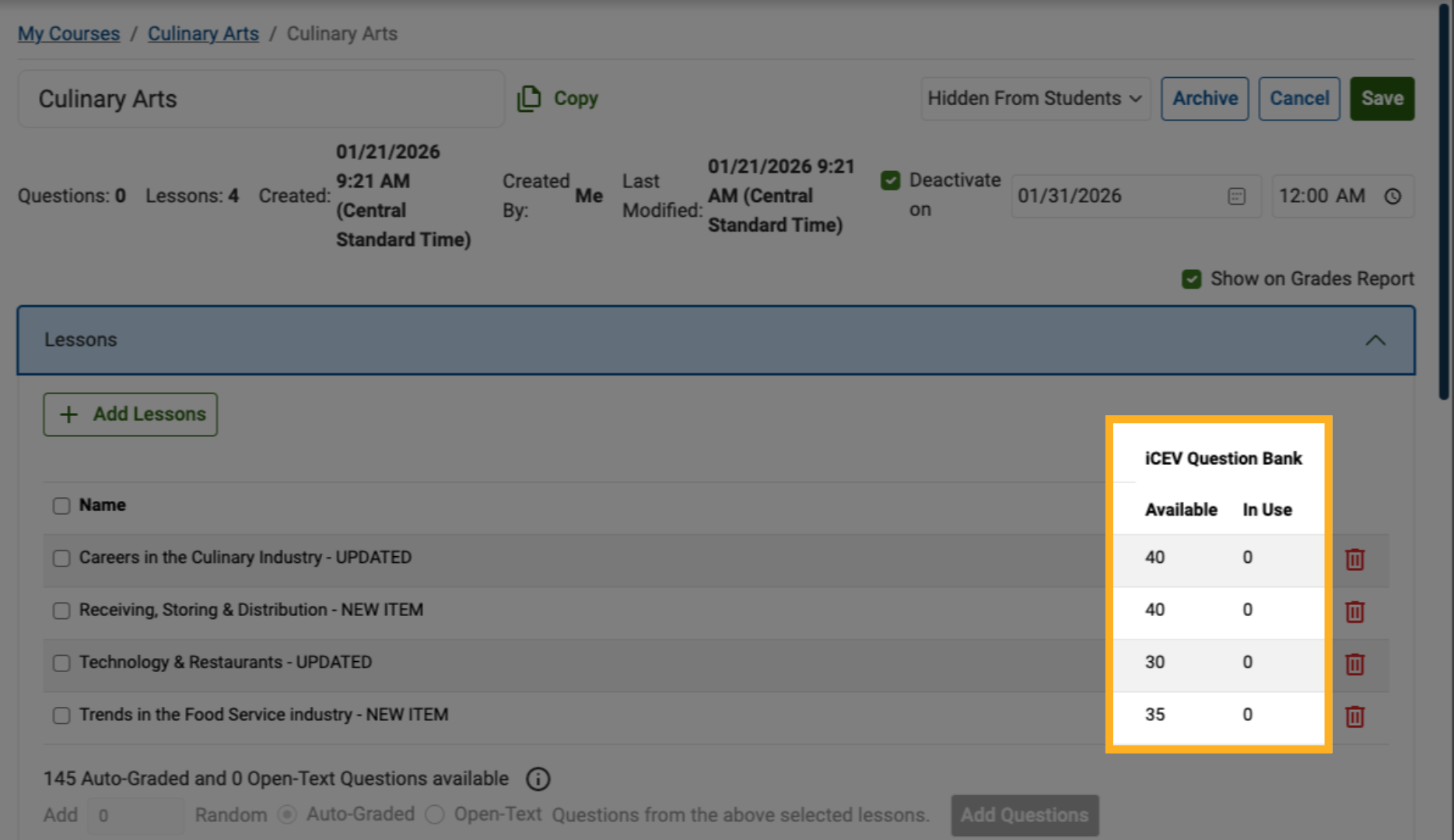
Each lesson displays:
-
The total number of iCEV questions available for that lesson
-
The In‑Use column, which shows how many questions you’ve selected from each lesson for the assessment
This helps you track question coverage and balance across lessons.
6. Remove Lessons if Needed
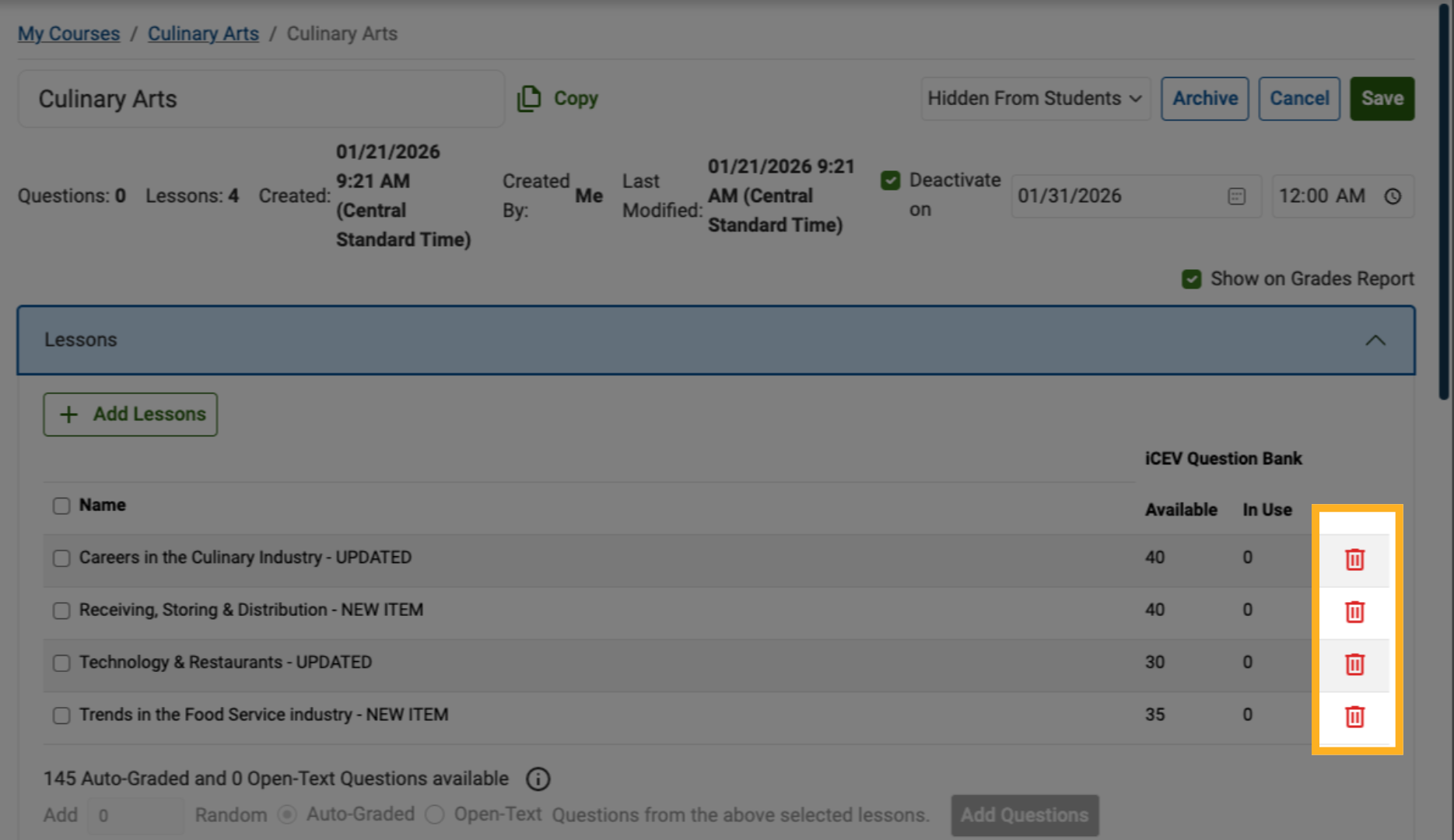
If you need to change which lessons are included, you can remove lessons from the assessment.
⚠️ Important: A custom assessment must always have at least one lesson associated with it.
7. Maintain Minimum Lesson Requirement
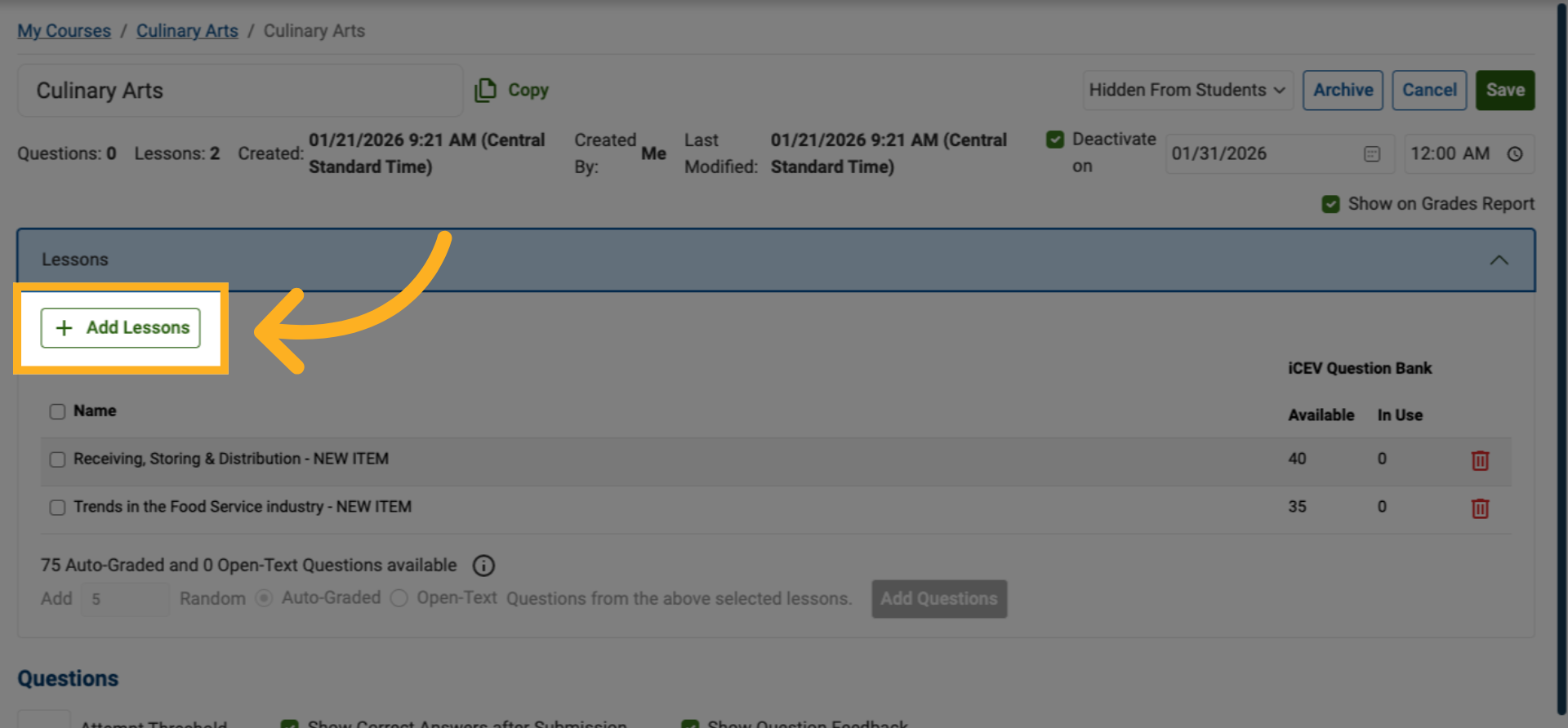
For example, if you want to remove the Careers in the Culinary Industry lesson, you must first add another lesson if it is the only one left.
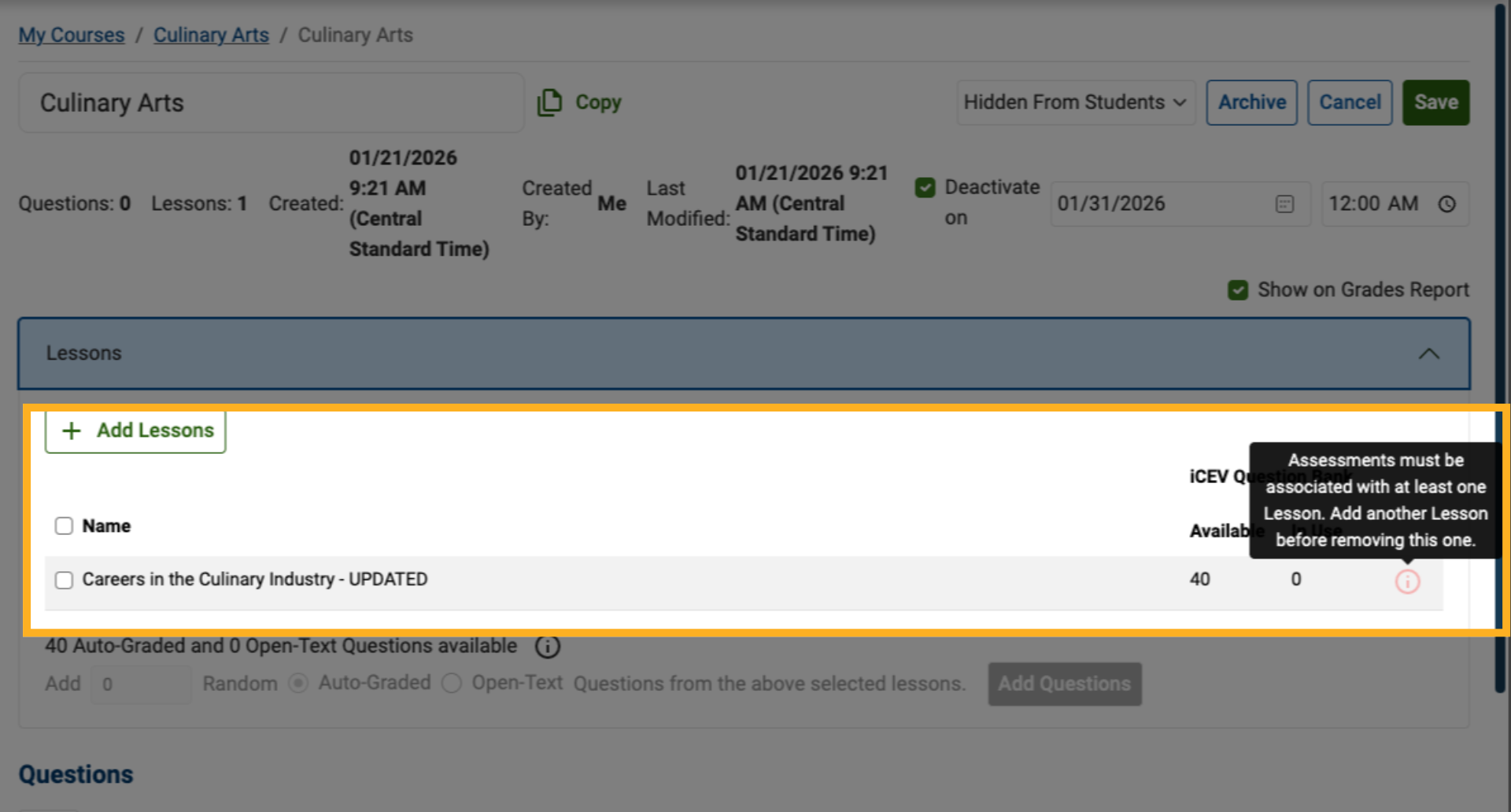
8. Add a Lesson, Then Remove the Lesson
After you add another lesson, you can remove the one you no longer need without breaking the minimum one‑lesson requirement.