CTE Curriculum
Prepare learners with CTE curriculum aligned to industry standards.


Creating Questions for a Custom Assessment
We’ll begin by reviewing how to create your own custom questions.
1. Review Your Assessment
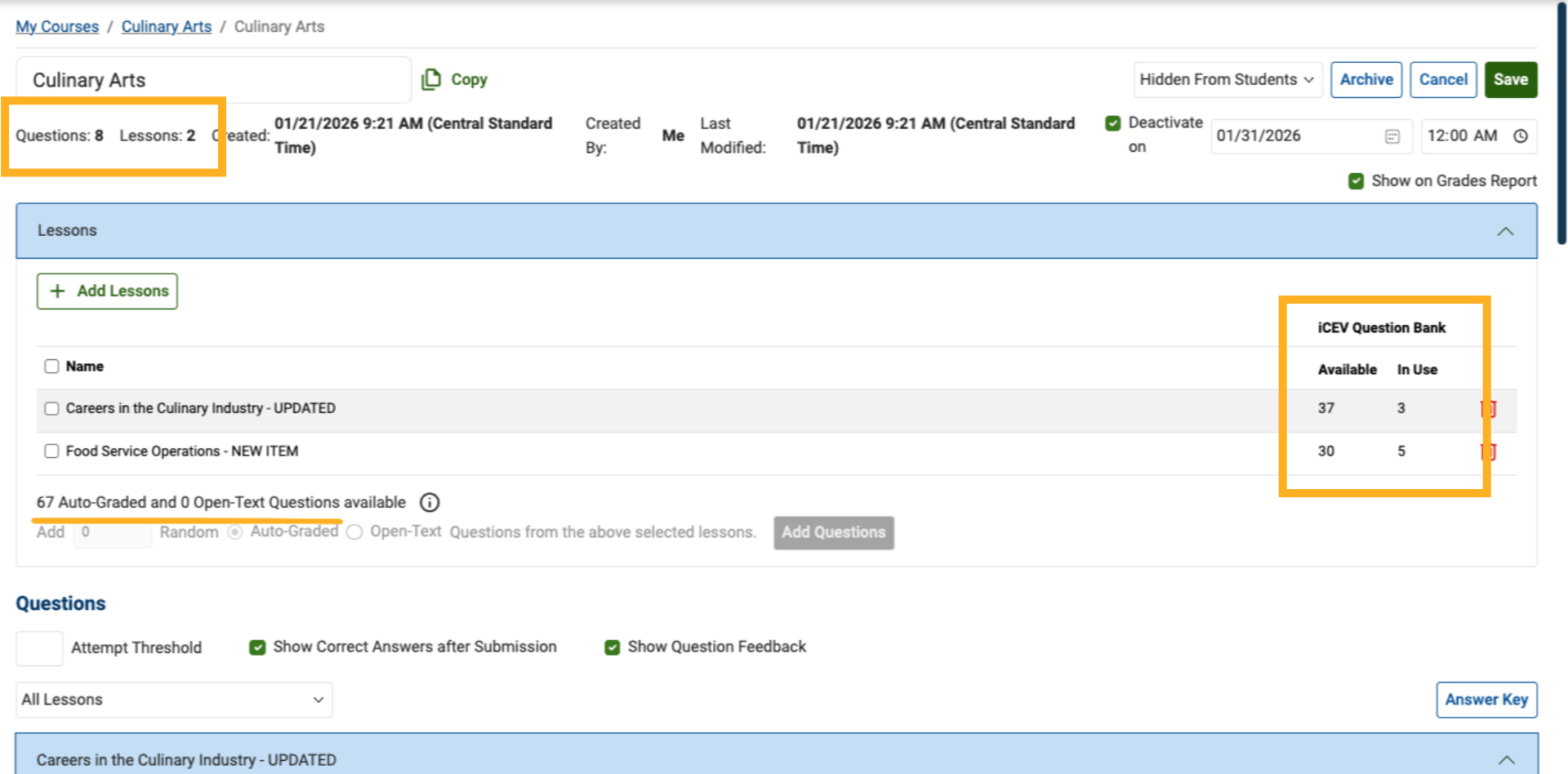
Before creating new questions, take a moment to review your assessment.
In this example:
-
The assessment includes eight questions
-
Those questions are associated with two lessons: Careers in the Culinary Industry and Food Service Operations
-
You can also see how many iCEV Question Bank items are in use and how many remain available
2. Select a Lesson for the Custom Question
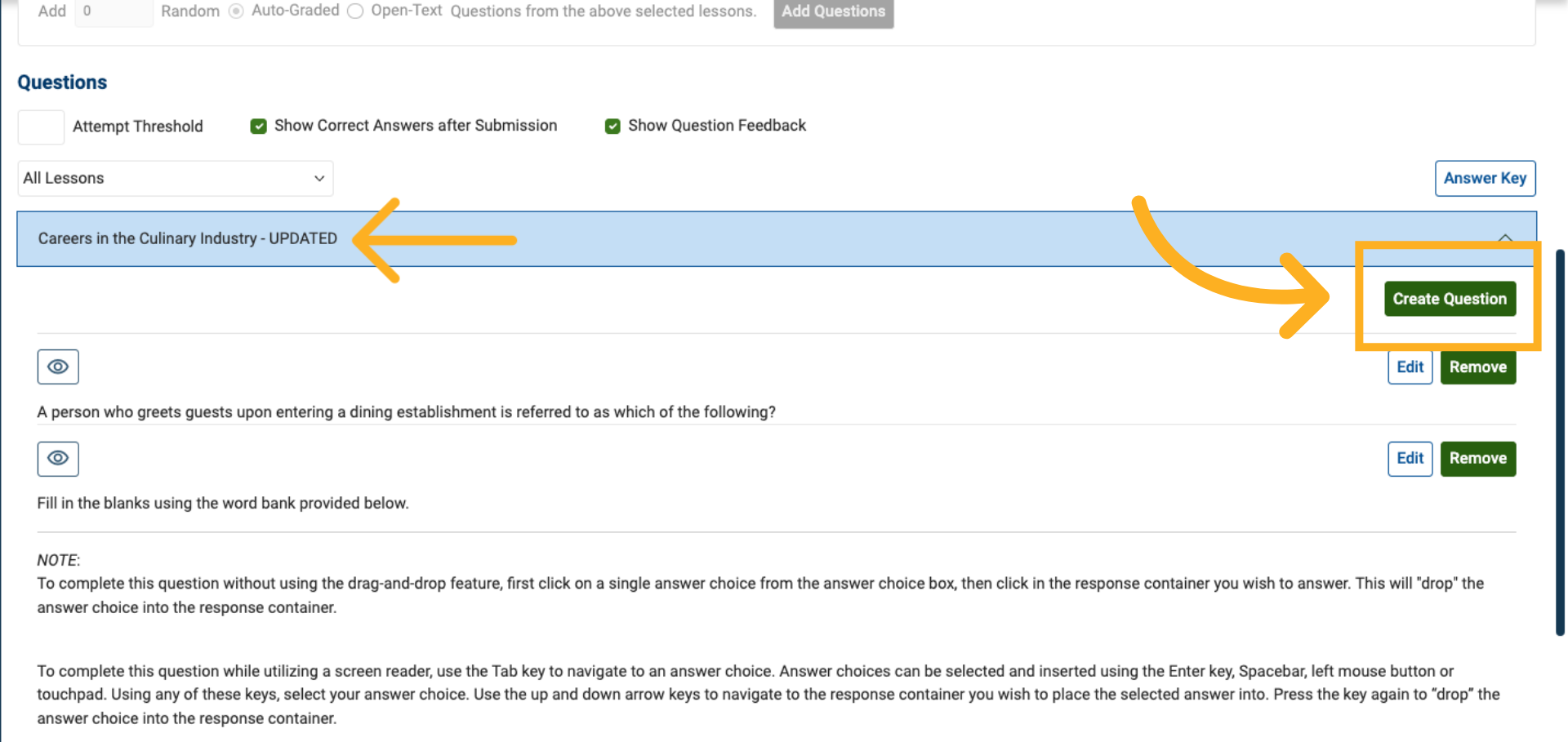
To create a custom question, select the lesson you want the question to be associated with.
In this example, we’ll create a question under Careers in the Culinary Industry.
From the Questions section, select Create Question.
3. Create a New Question
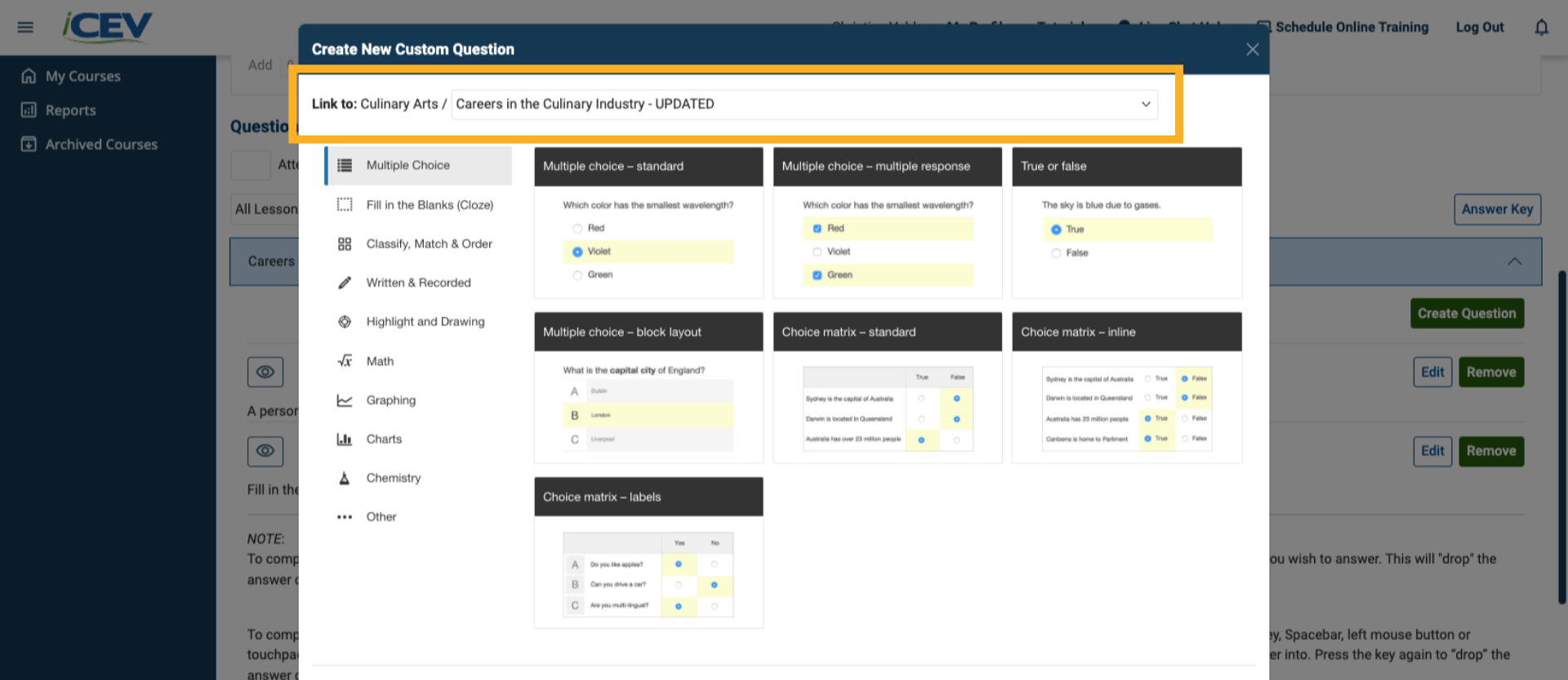
At the top of the creation screen, confirm that:
-
The course selected is correct
-
The lesson selected is correct
This ensures the question is linked properly.
4. Choose a Question Type
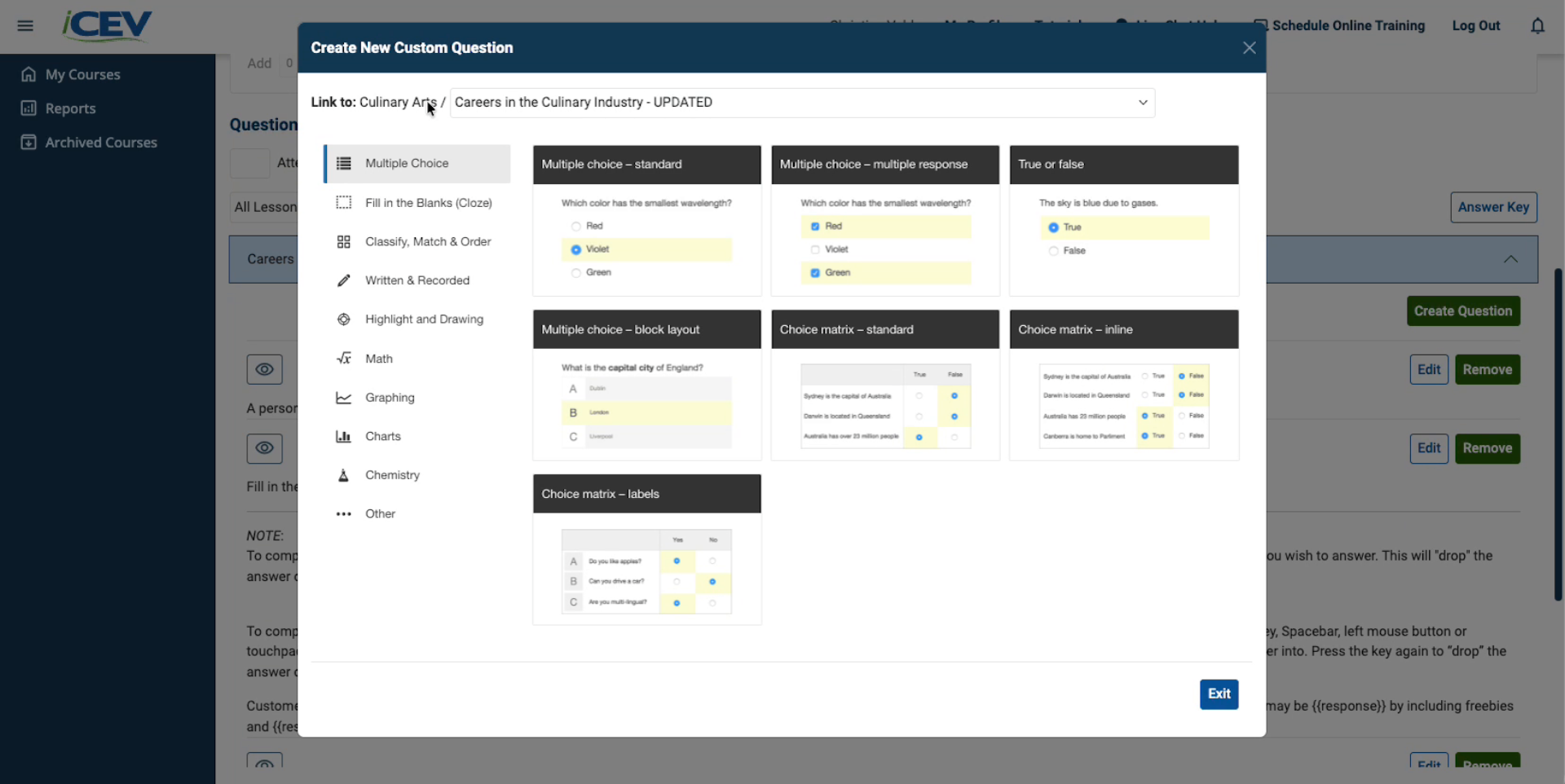
Next, choose your preferred question type from the list of available options.
5. Select a Sub‑Type
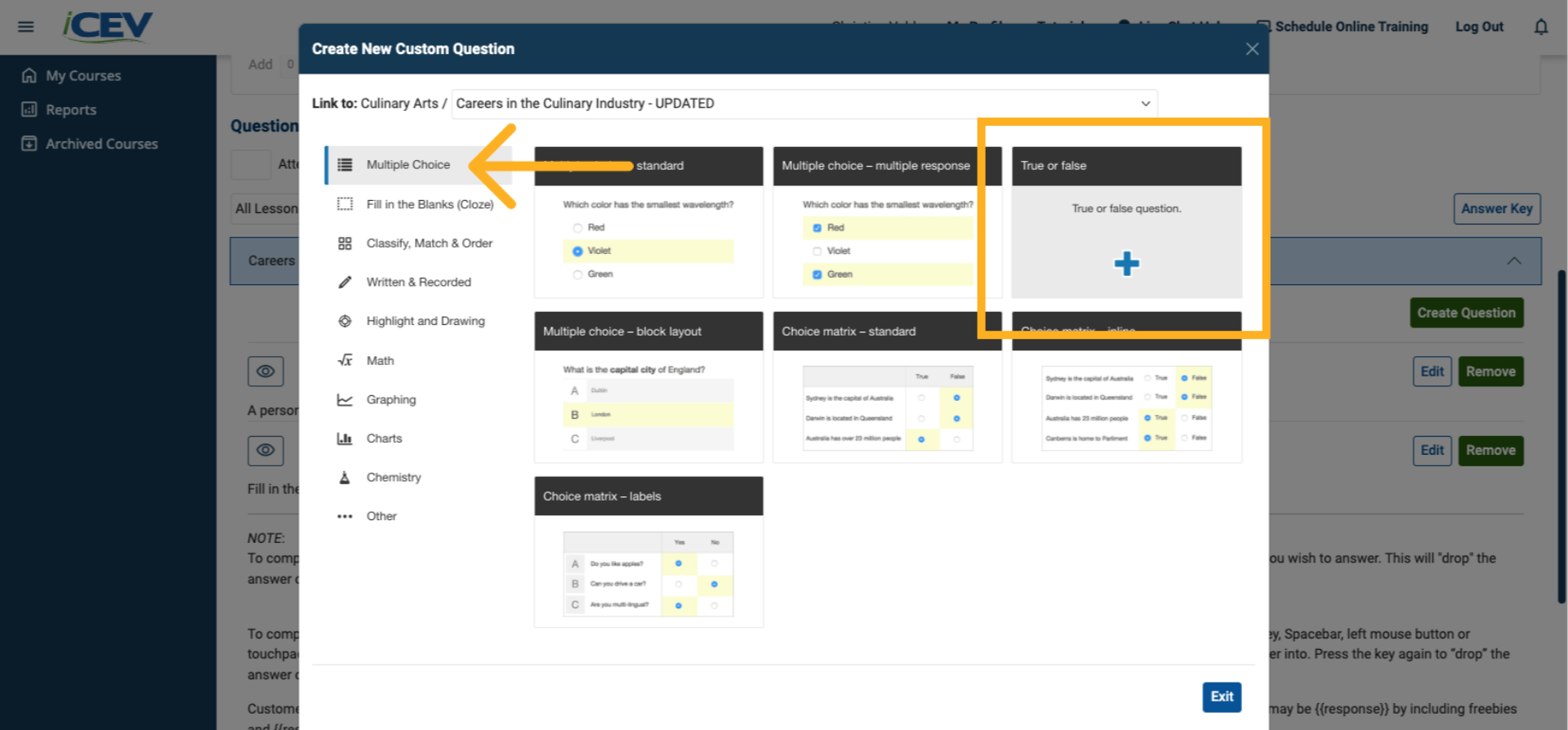
In this example:
-
We select a Multiple‑Choice question
-
Then choose True or False as the sub‑type
6. Enter Question Details
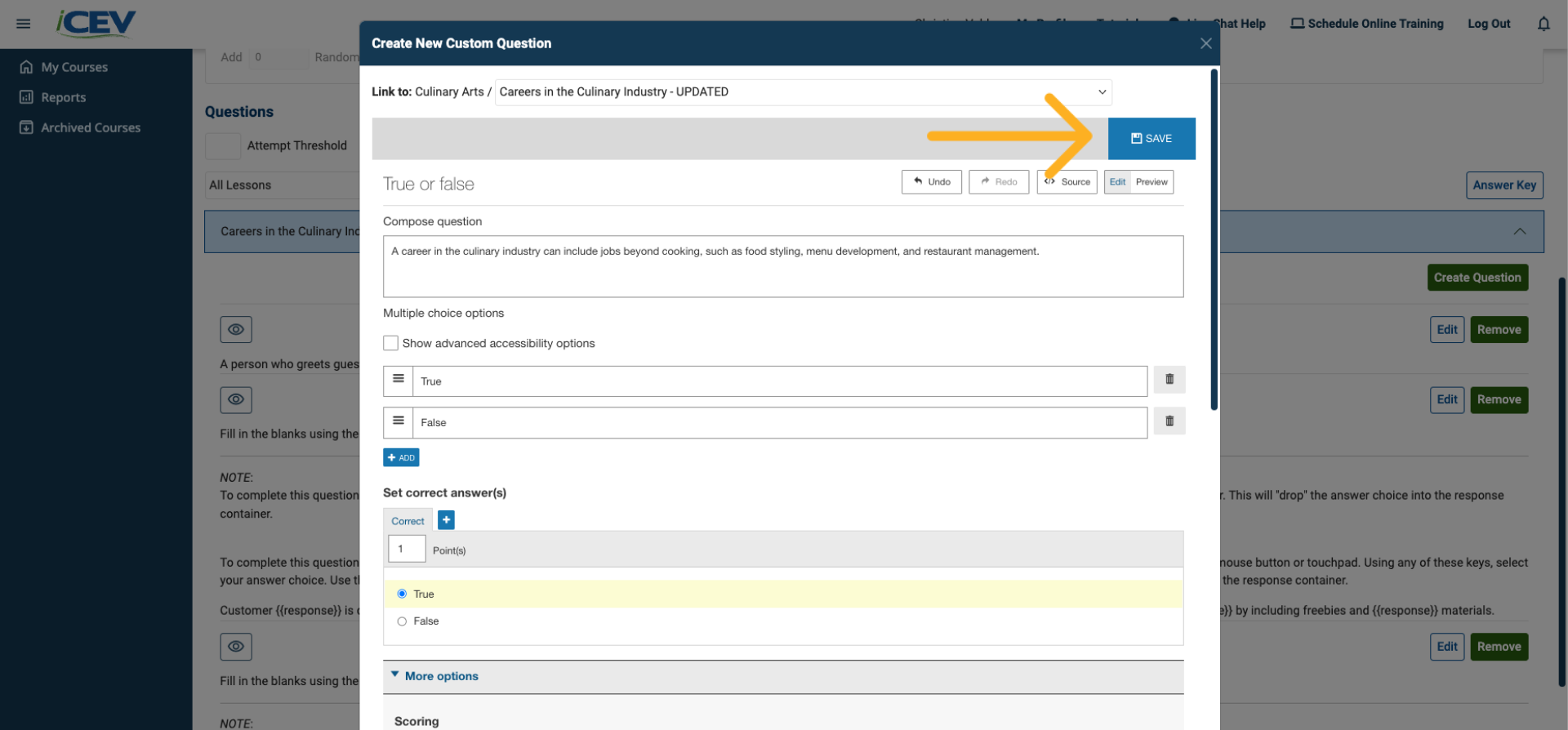
Enter all question details, including:
-
Question text
-
Answer choices
-
The correct answer
When finished, click Save.
7. Confirm the Custom Question
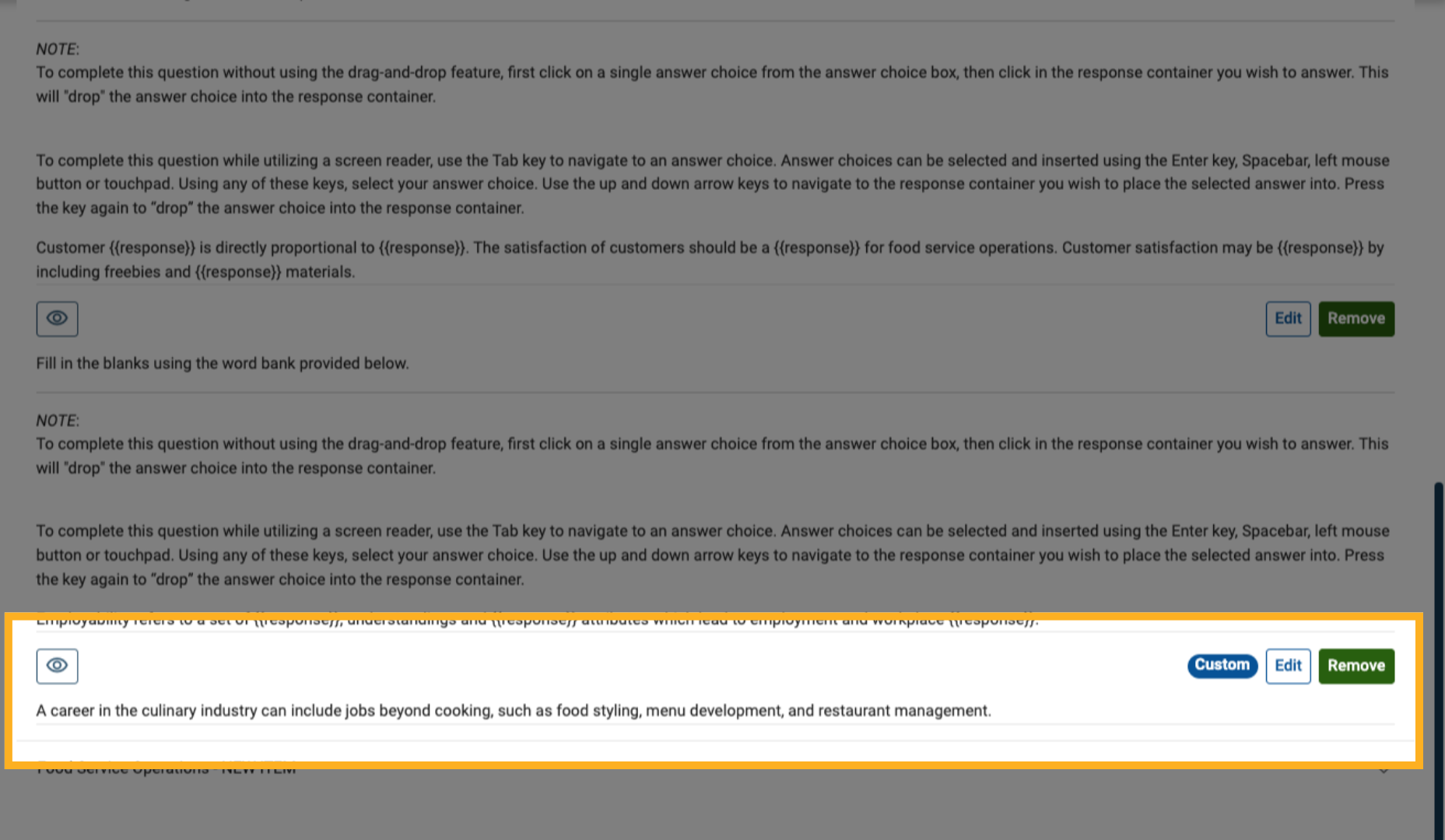
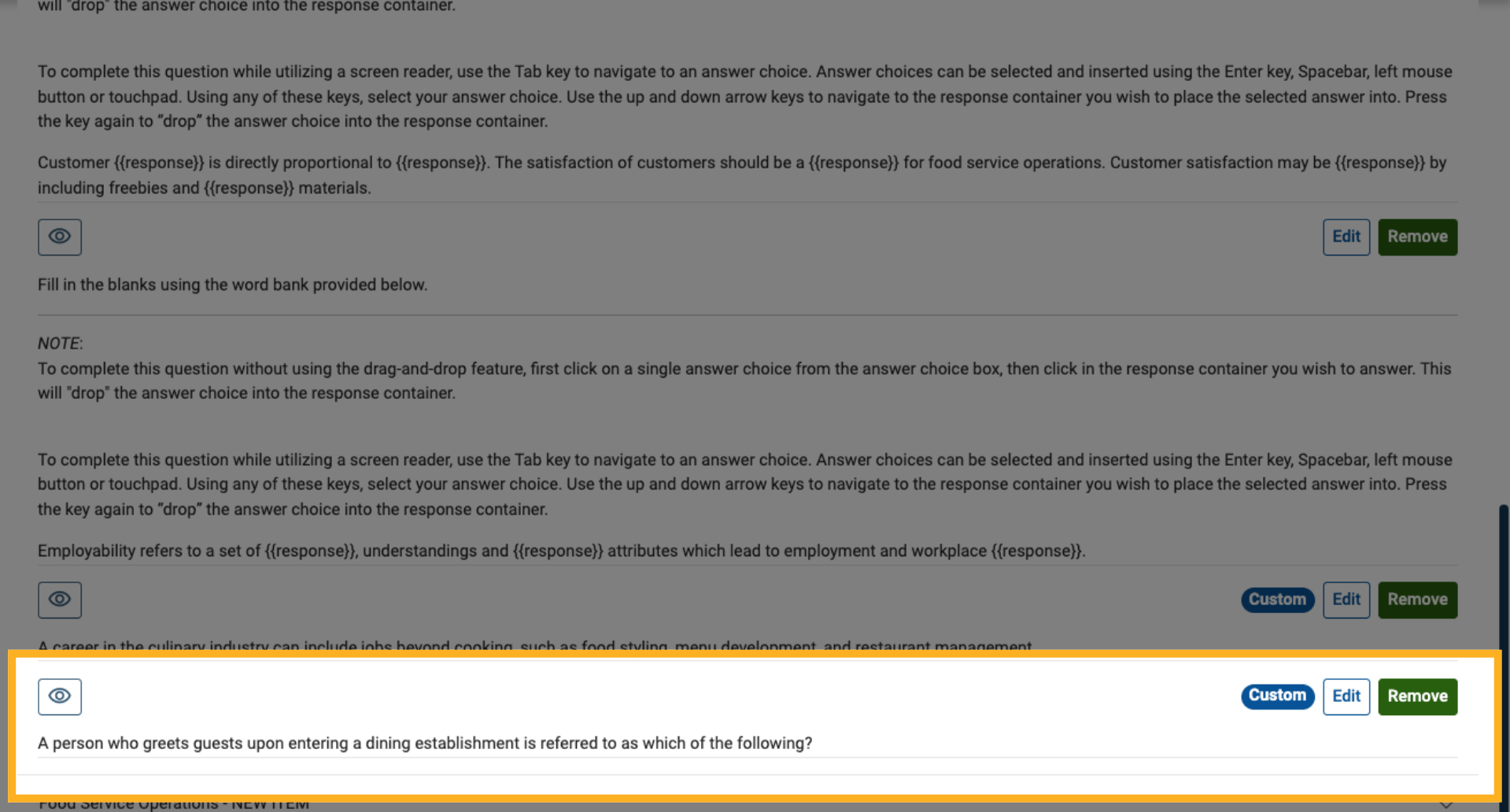
Your new question is now added to the selected lesson and labeled as a Custom Question.
Editing iCEV Question Bank Items
Next, we’ll look at how to edit questions originally sourced from the iCEV Question Bank.
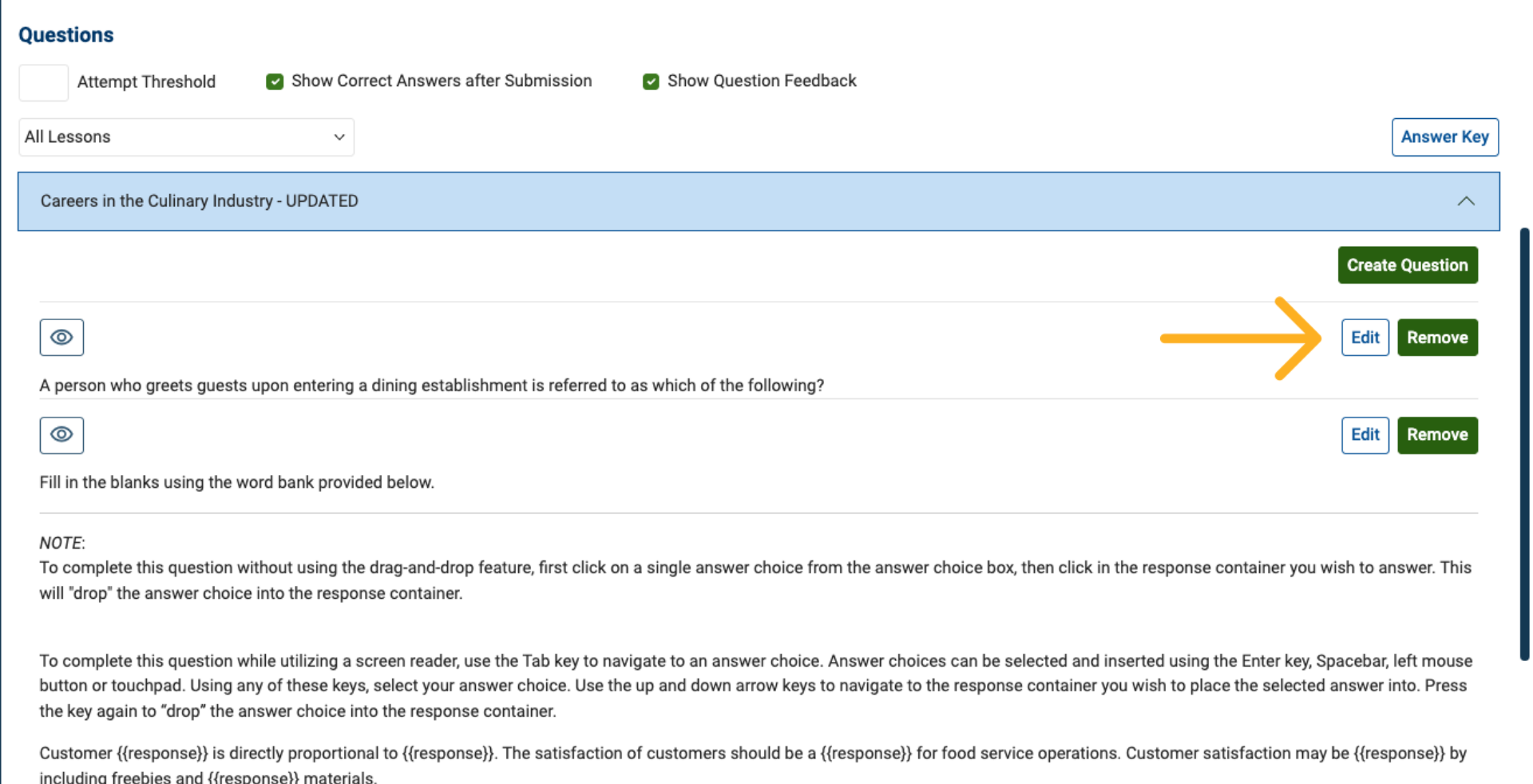
1. Select a Question to Edit
Locate the question you want to change and click Edit.
2. Confirm Question Edit Action
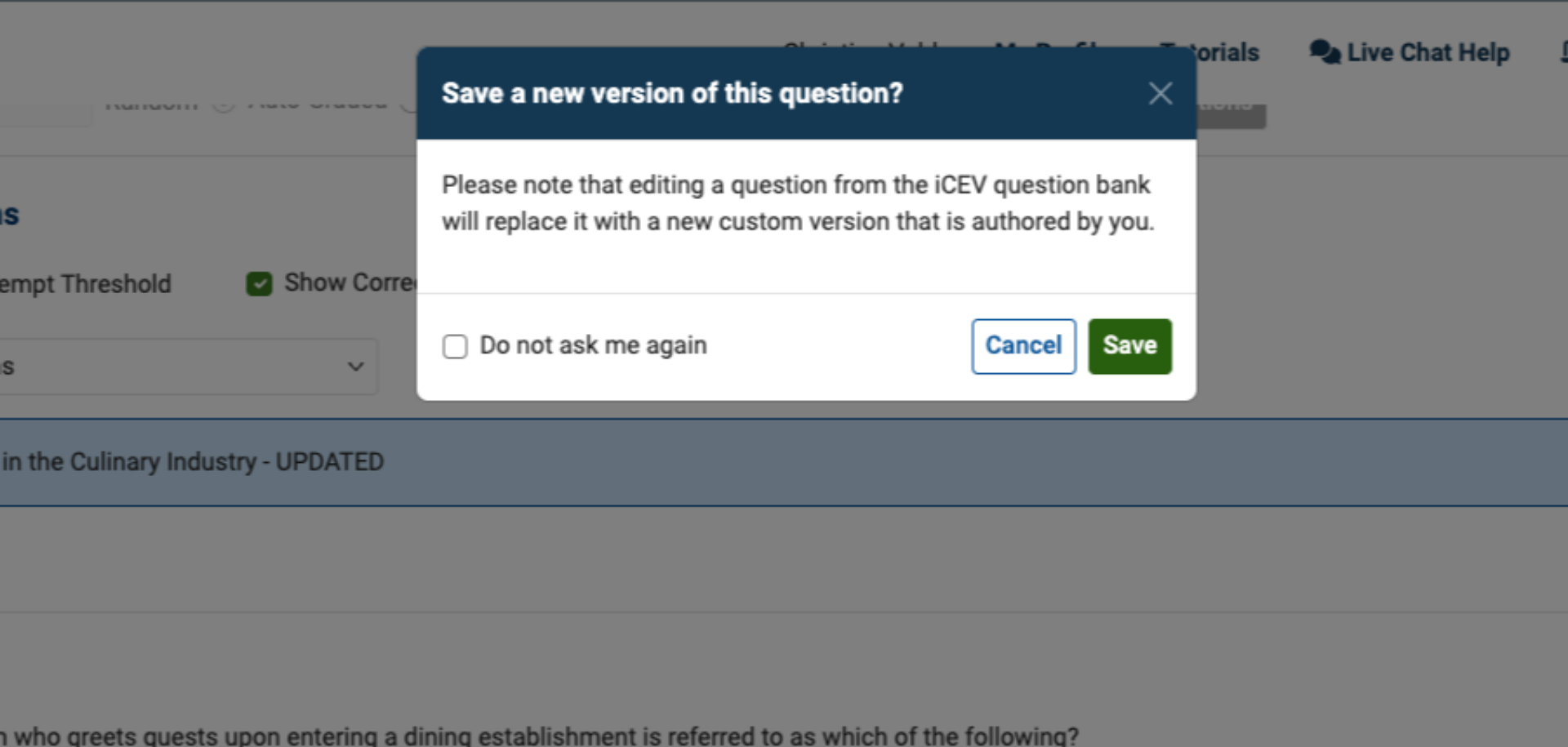
A modal appears explaining that editing an iCEV Question Bank item will convert it into a custom version.
You may check Do not ask me again to skip this message in the future.
Select Save to continue.
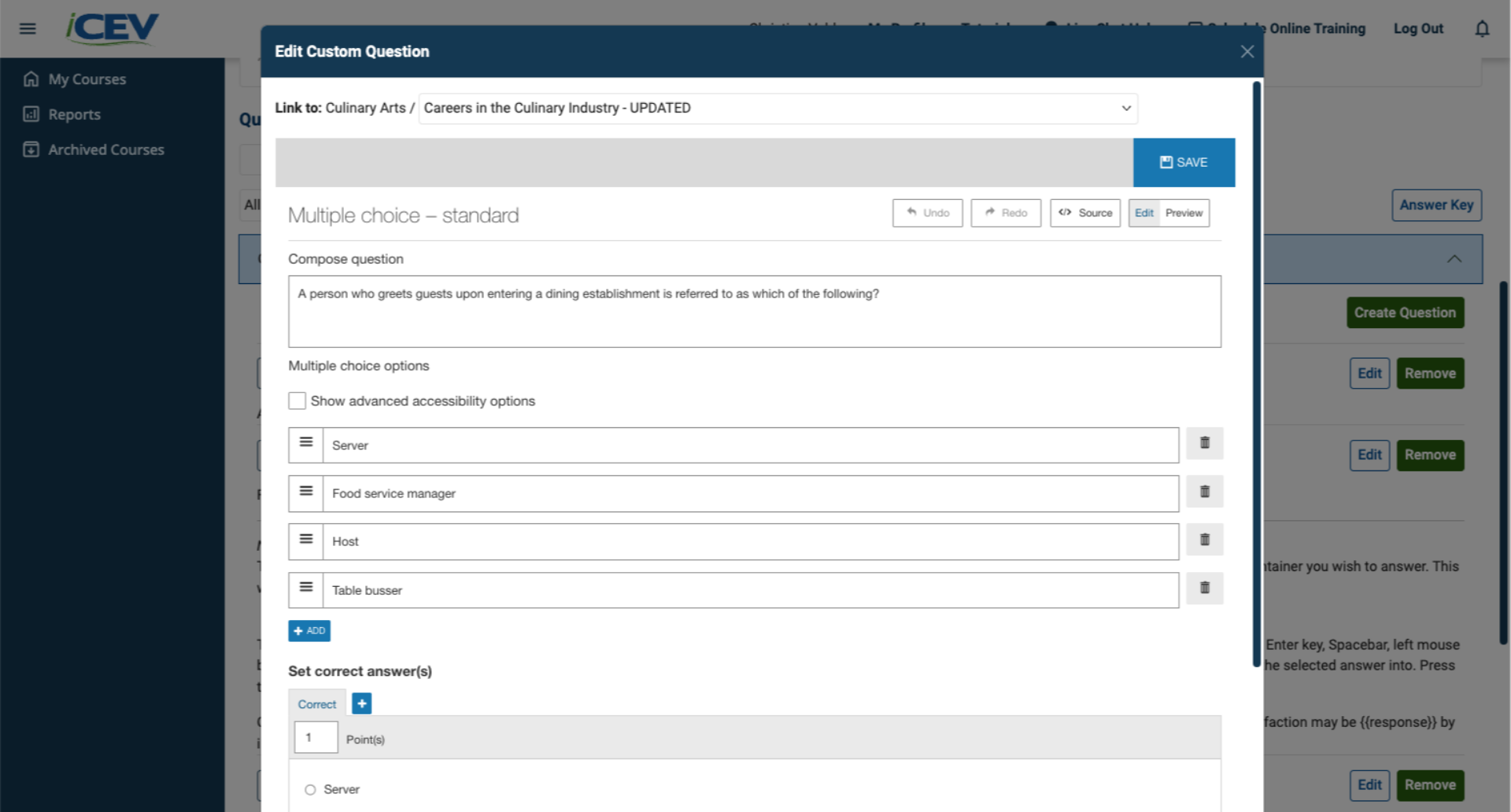
3. Edit Question Content
In edit mode, you can modify:
-
Question title
-
Any text or media content
-
Answer choices
-
Correct answer
-
Additional answer options
4. Save Changes
After saving your modified question, it is no longer considered a standard iCEV Question Bank item.
It is now treated as a custom question and labeled accordingly.
Editing Lesson-and-Question Associations
Now we’ll look at how to manage which lessons questions are associated with in your custom assessment and how to update those connections to better match your instruction.
1. Review Question Grouping
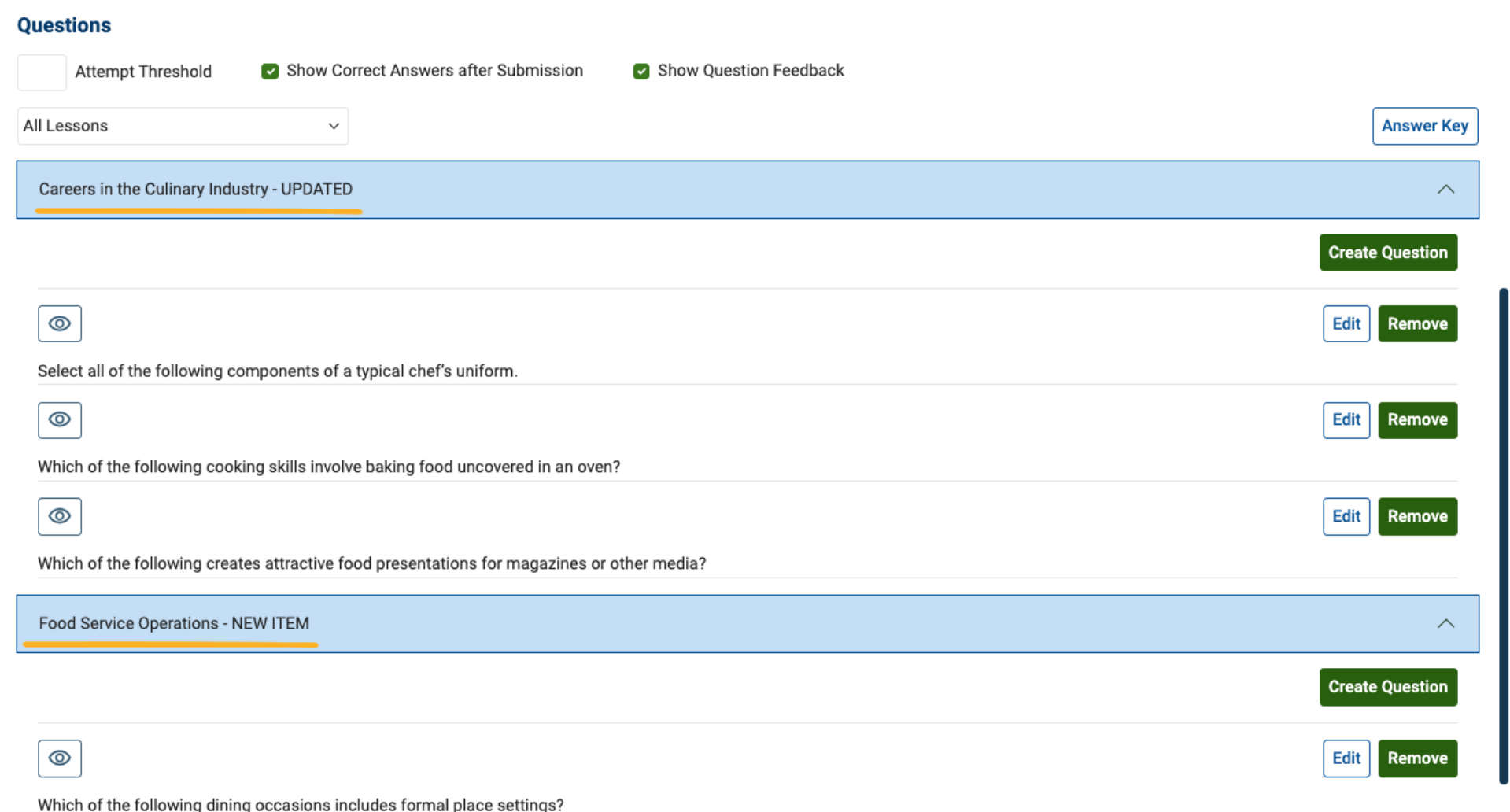
Questions are organized by lesson, with each group clearly labeled by its lesson title.
2. Change a Question’s Lesson Association
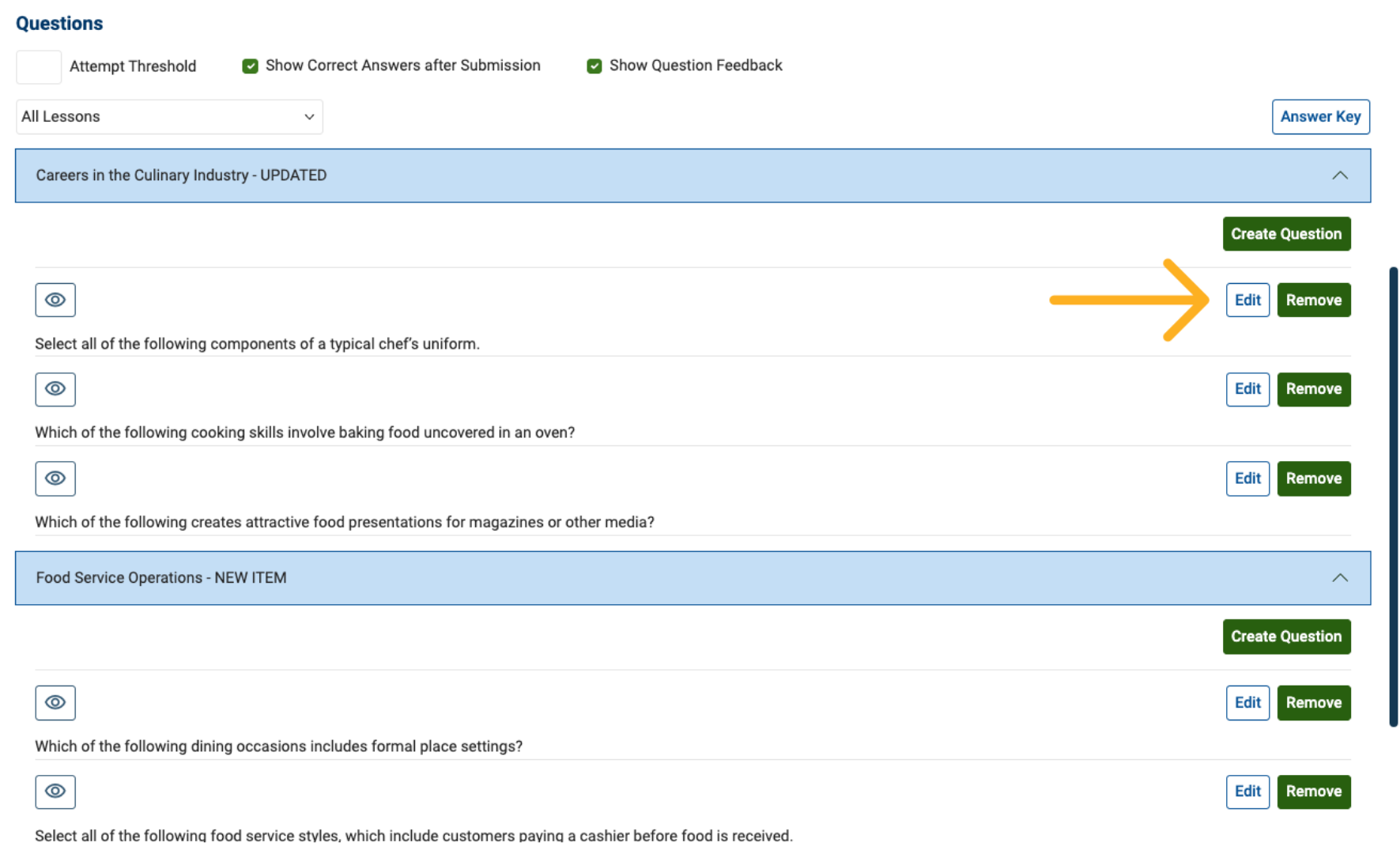
To move a question to a different lesson, click Edit on the question you want to reassign.
3. Open the Question Editing View
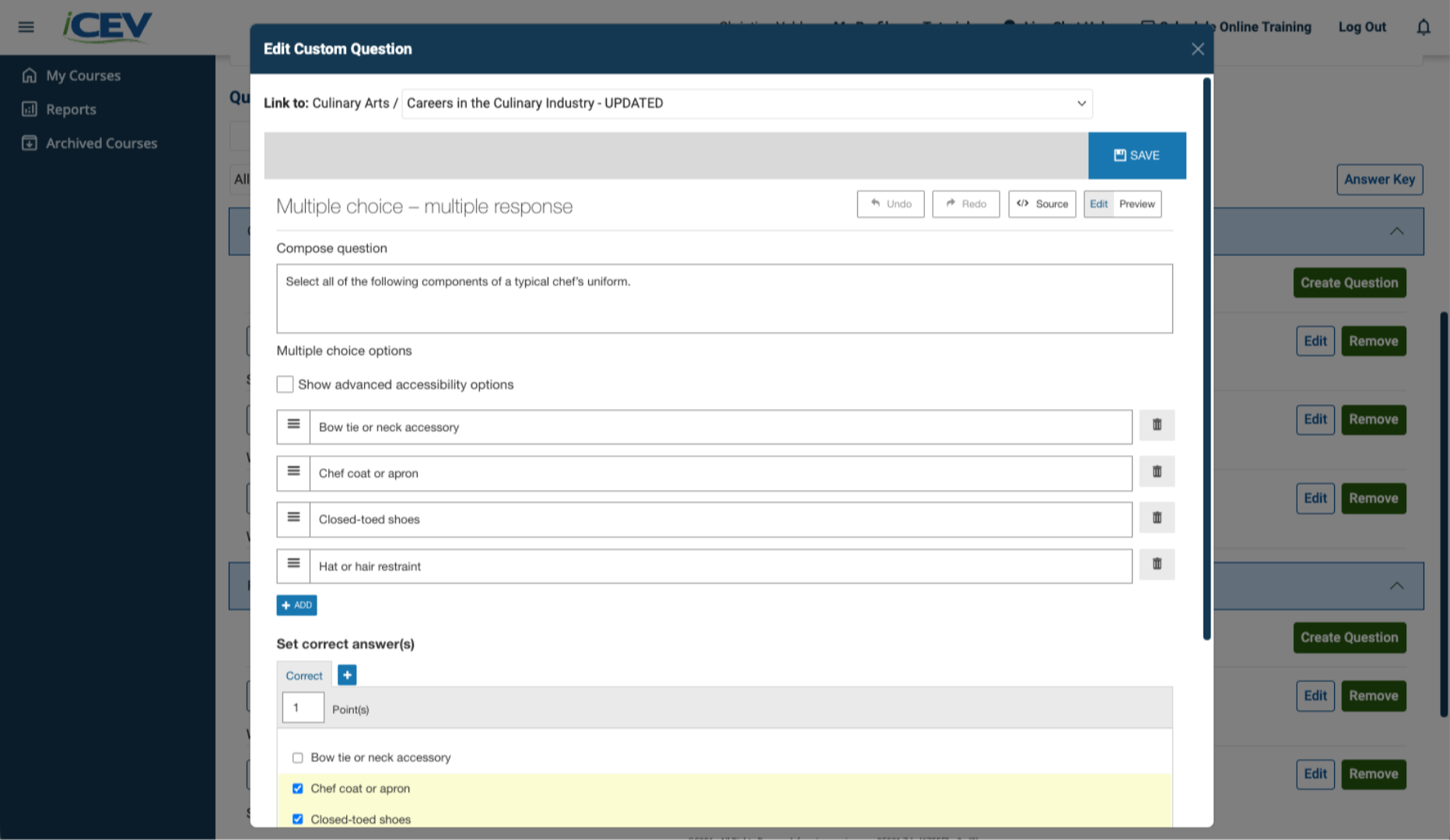
This brings you into the editing screen where lesson details can be adjusted.
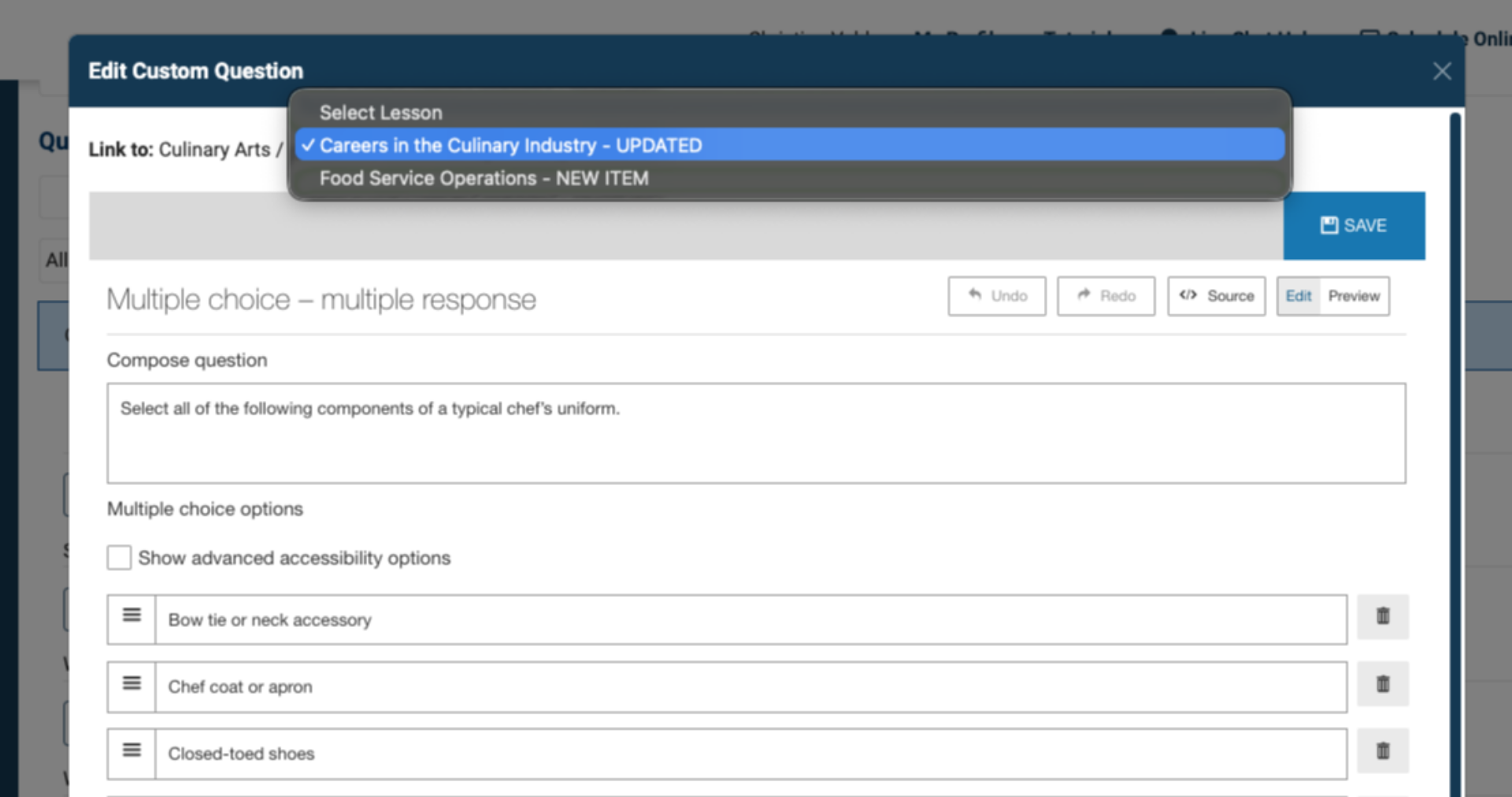
4. Select a New Lesson
Use the Lesson drop‑down menu to choose the new lesson you want to associate the question with.
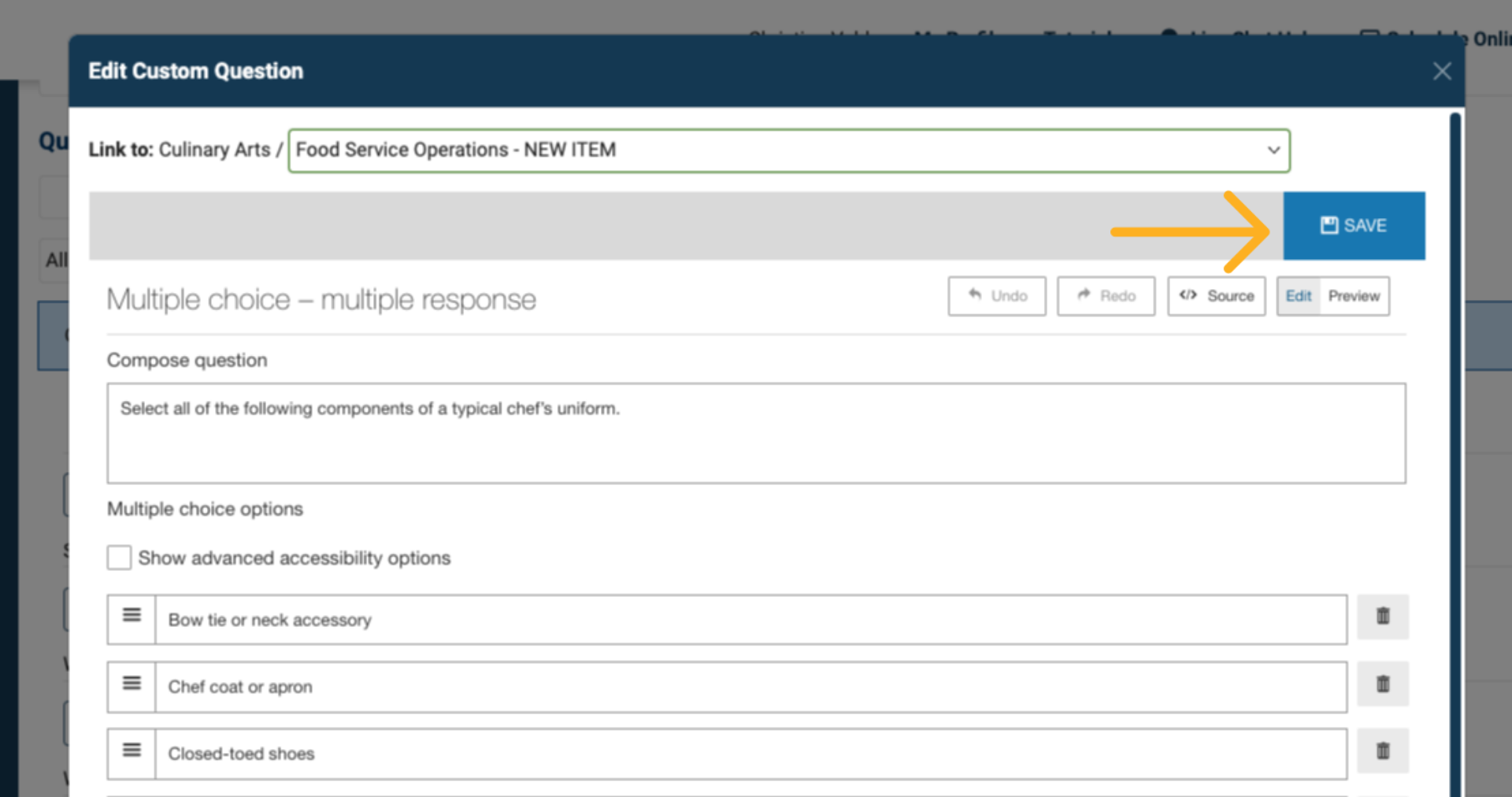
5. Save the Updated Association
Once the new lesson is selected, click Save.
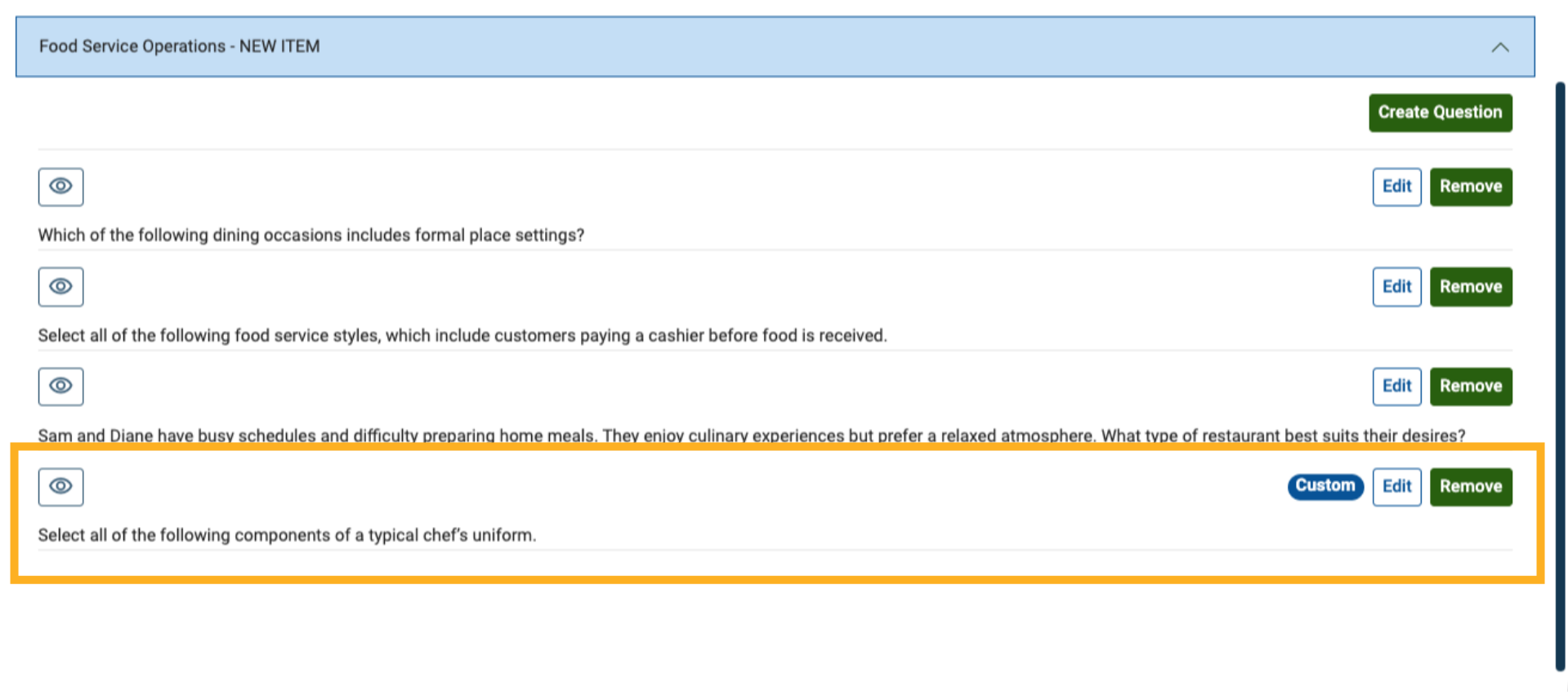
6. Confirm the New Association
The question is now grouped under the new lesson and labeled as a custom question, reflecting that its original lesson association was modified.
7. Repeat as Needed
You can update lesson associations for:
-
Custom‑created questions
-
iCEV Question Bank items that have been edited
at any time during the editing process.