CTE Curriculum
Prepare learners with CTE curriculum aligned to industry standards.


Copying a Custom Assessment
First, let’s look at how to reuse a custom assessment in a different course. Copying saves time and keeps your original assessment unchanged.
1. Open the Assessment to Be Copied
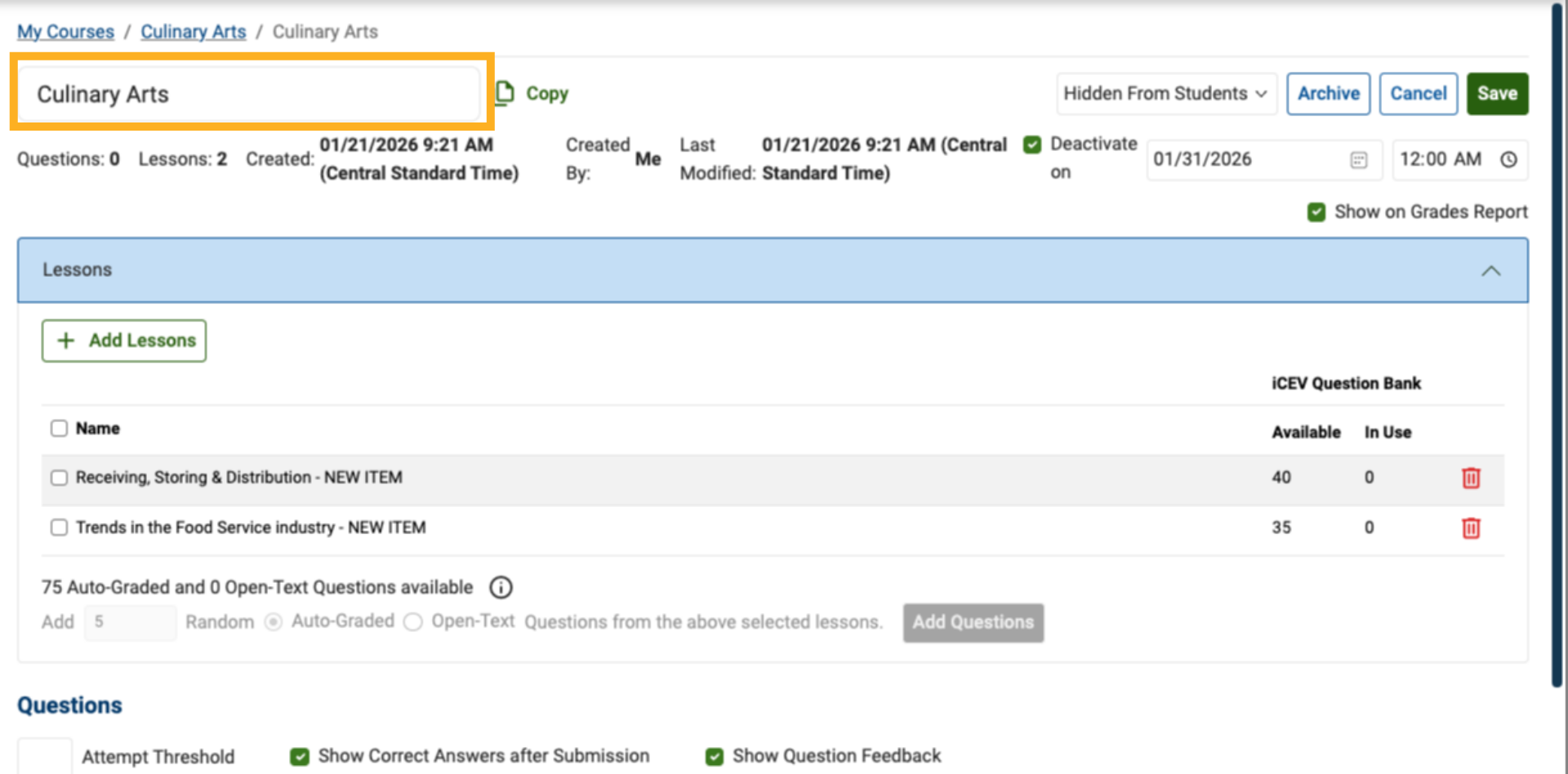
Locate the assessment you want to reuse. For example, we'll select the Culinary Arts assessment.
2. Select Copy Assessment
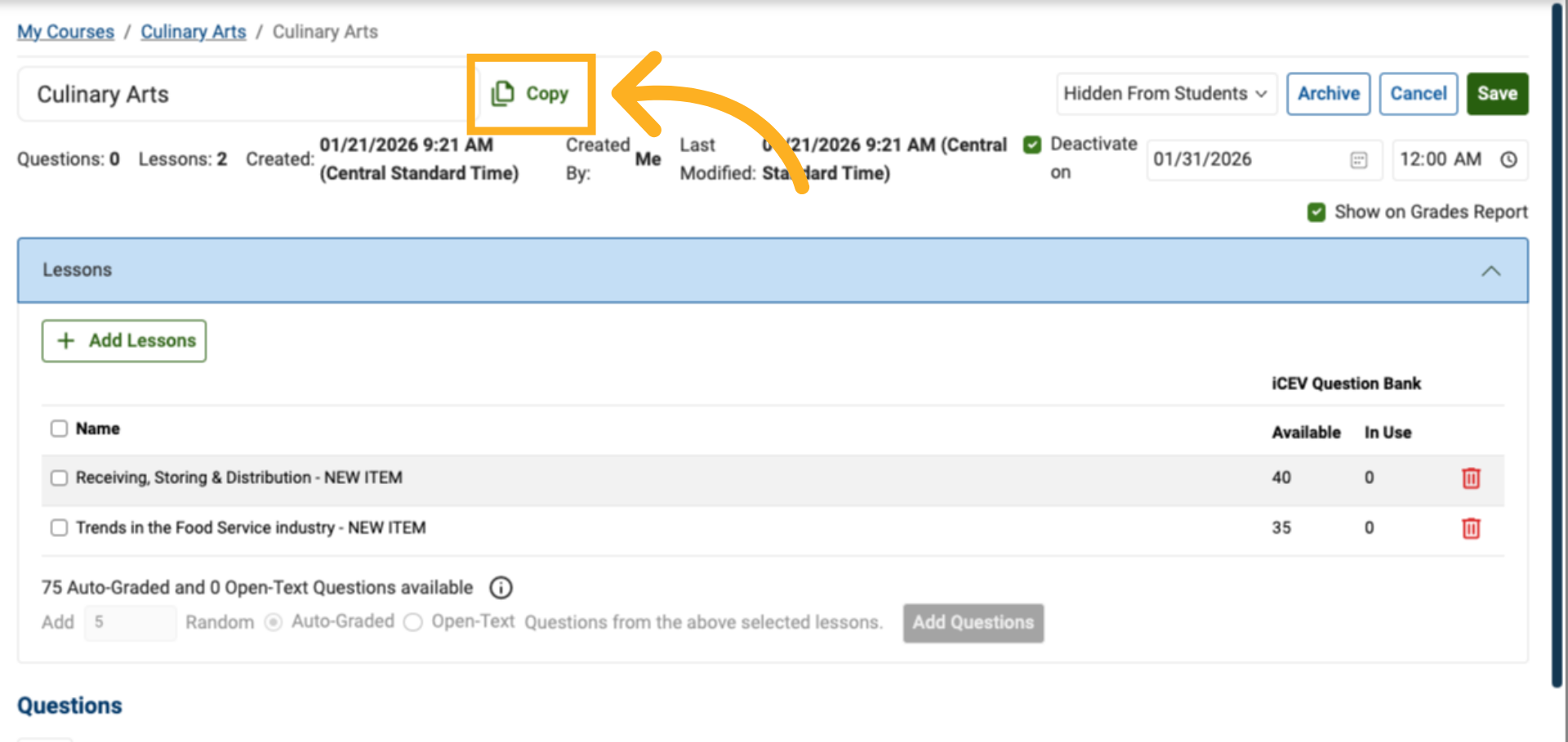
Choose the setting labeled Copy. This option creates a new copy in another course.
3. Choose the Destination Course
When the modal appears, select the course where you want the new copy to be stored.
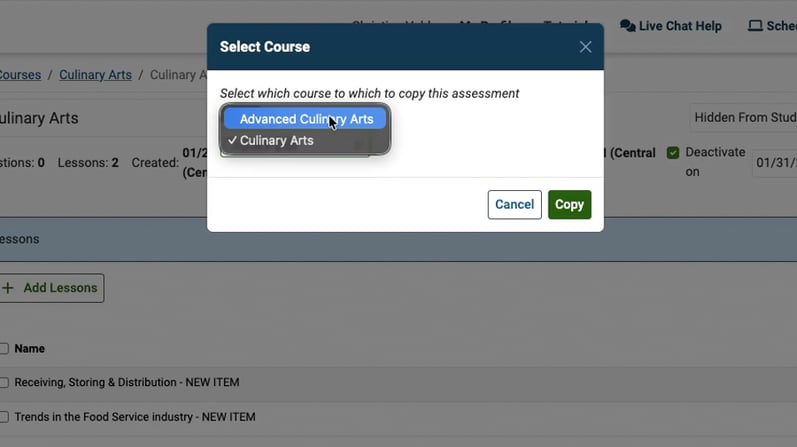
4. Choose the Destination Course
Click the Copy button.
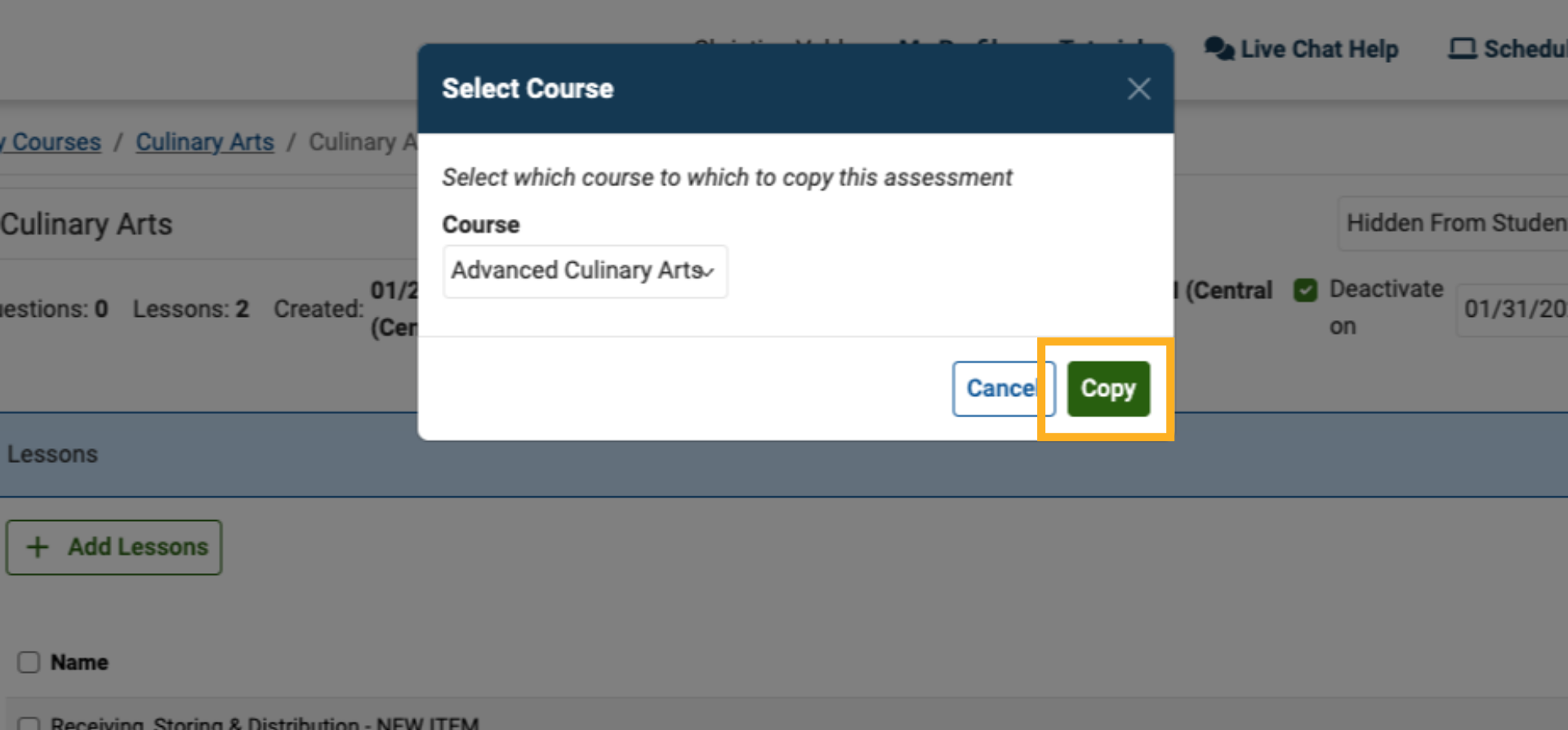
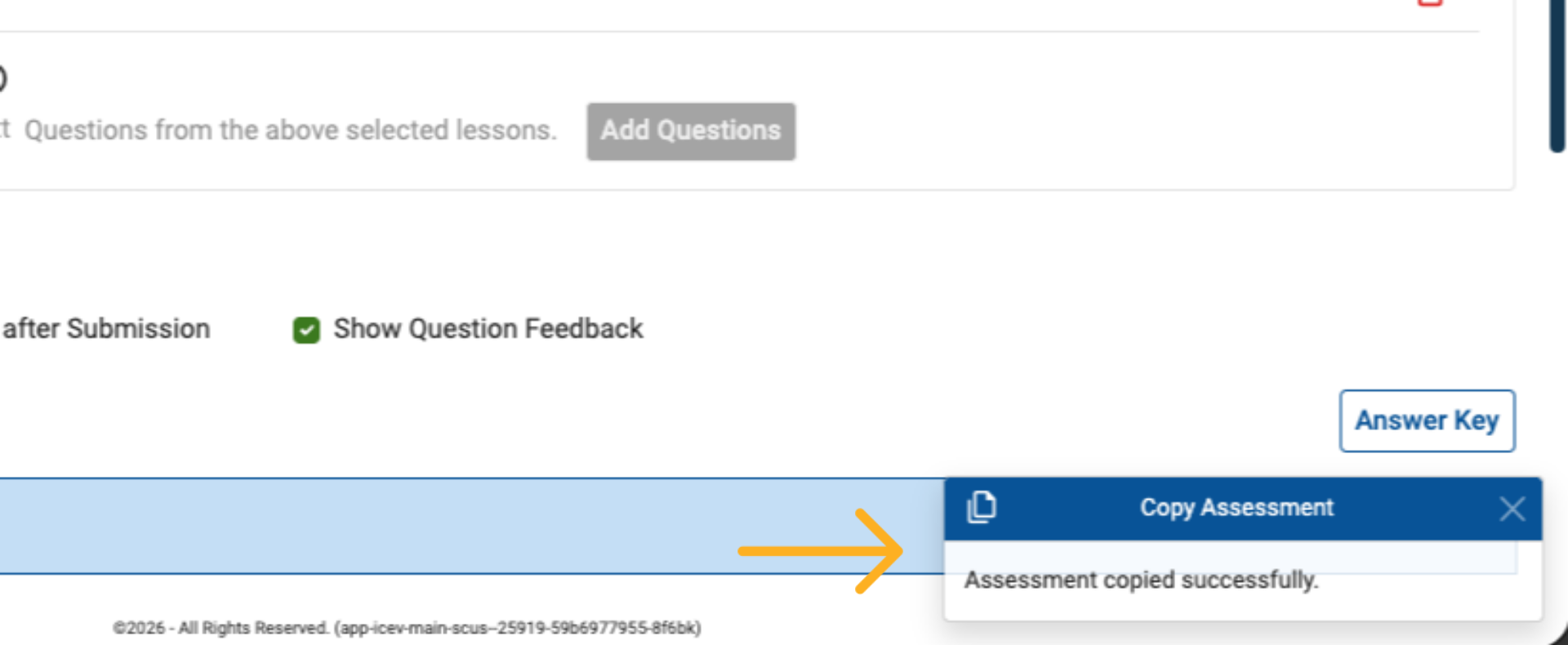
5. Confirm the Successful Copy
A confirmation message will appear at the bottom of the screen.
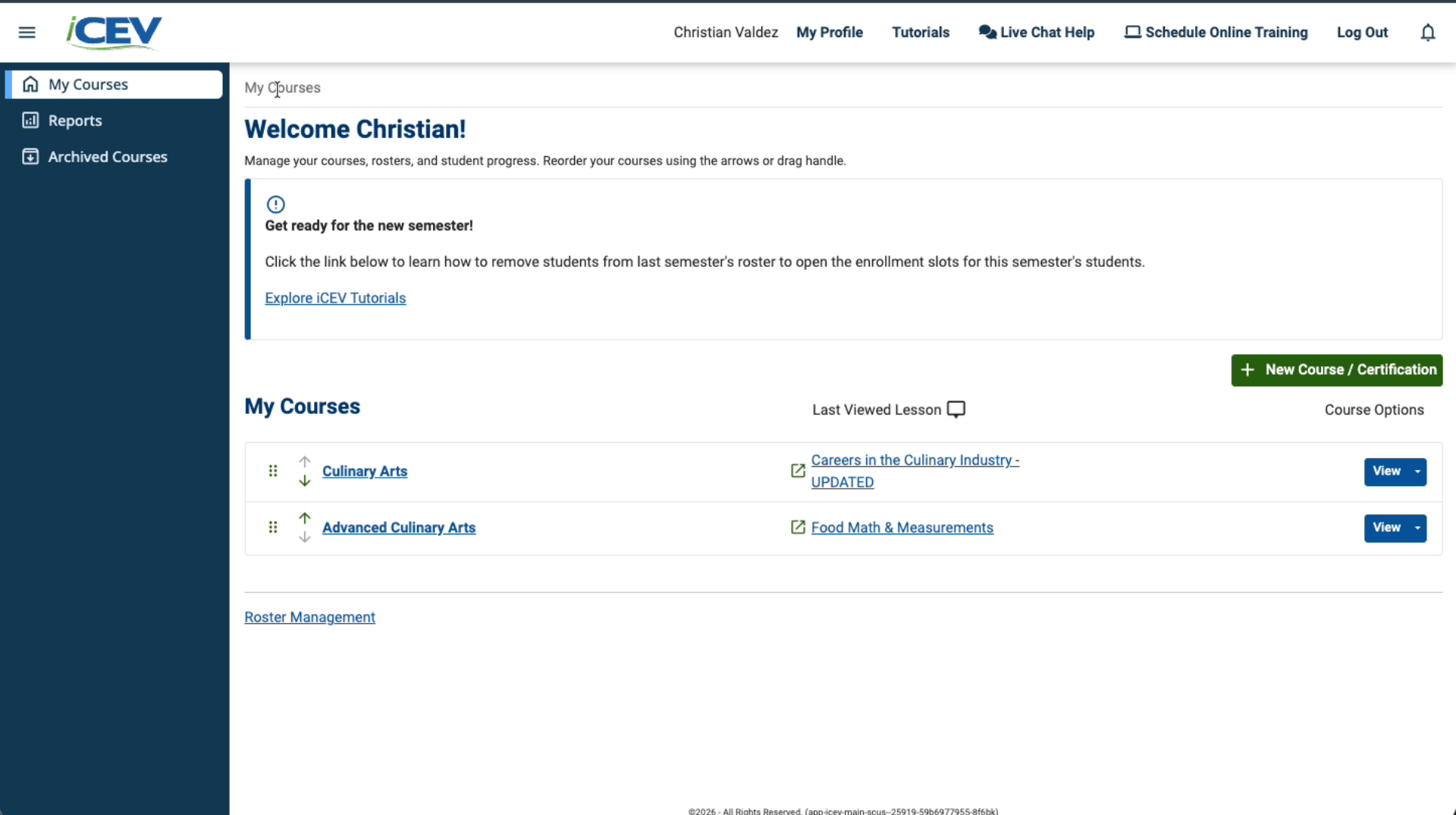
6. Verify the Copy
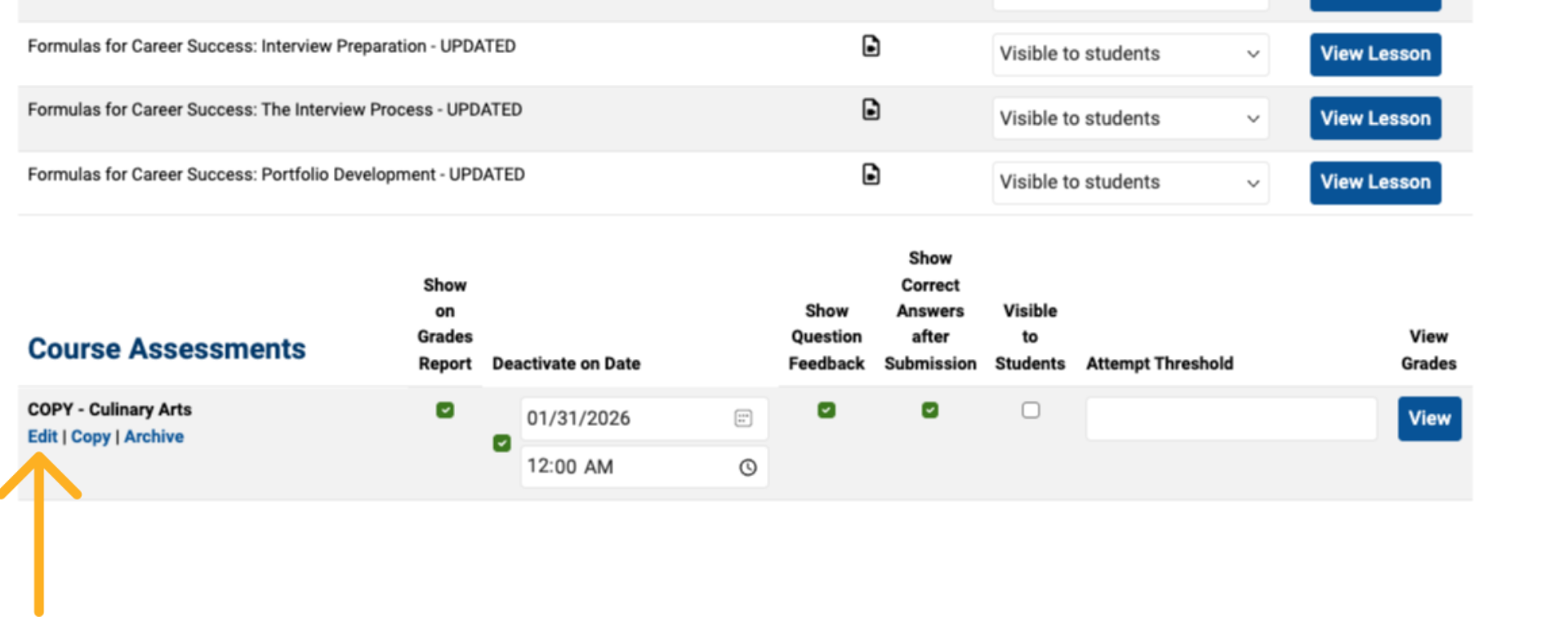
Navigate to the destination course. The copied assessment should now appear in the course’s assessment list.
7. Edit the Copied Version if Needed
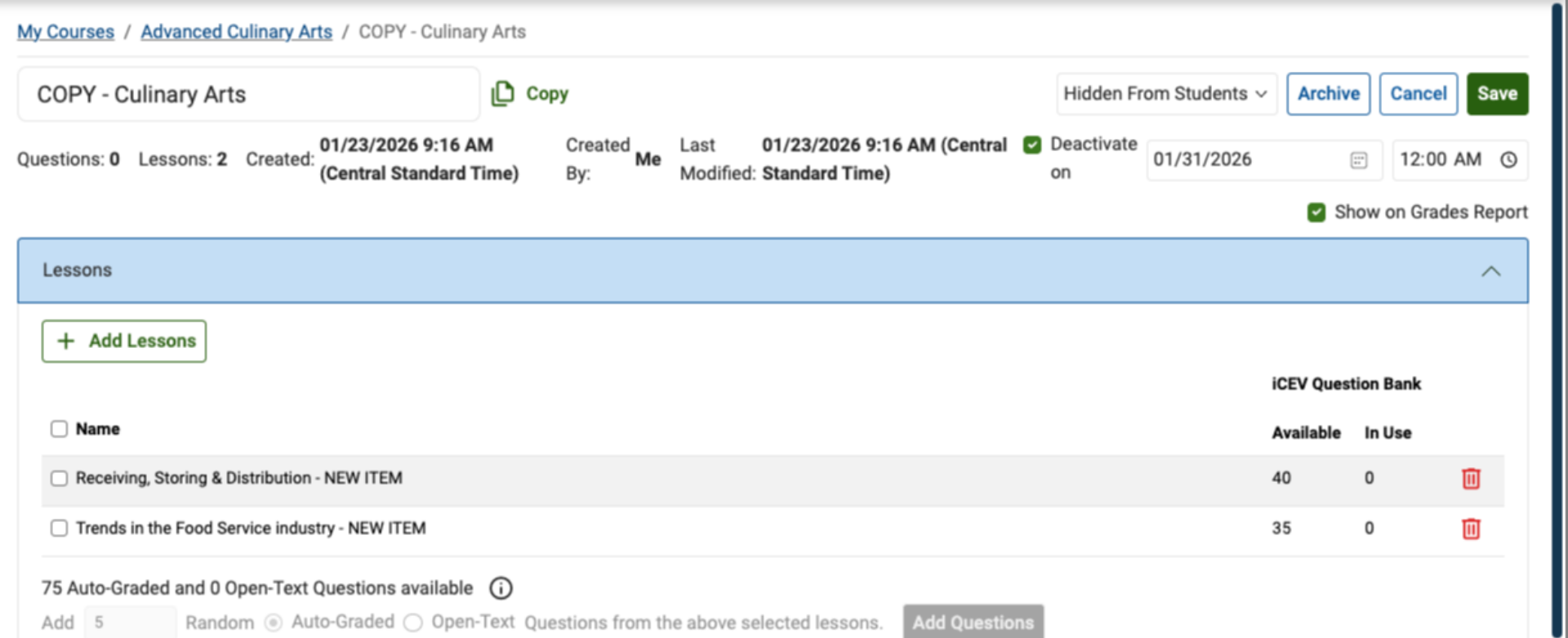
Click the Edit link beneath the copied assessment if you want to make changes.
8. Edit the Copied Version if Needed
Any edits will apply only to the copied version and will not affect the original assessment.
Archiving and Activating Assessments
Next, we will review how to archive assessments you are not currently using and how to bring them back when needed.
1. Understand What Archiving Does
Archiving hides an assessment from your active view while keeping it stored for later.
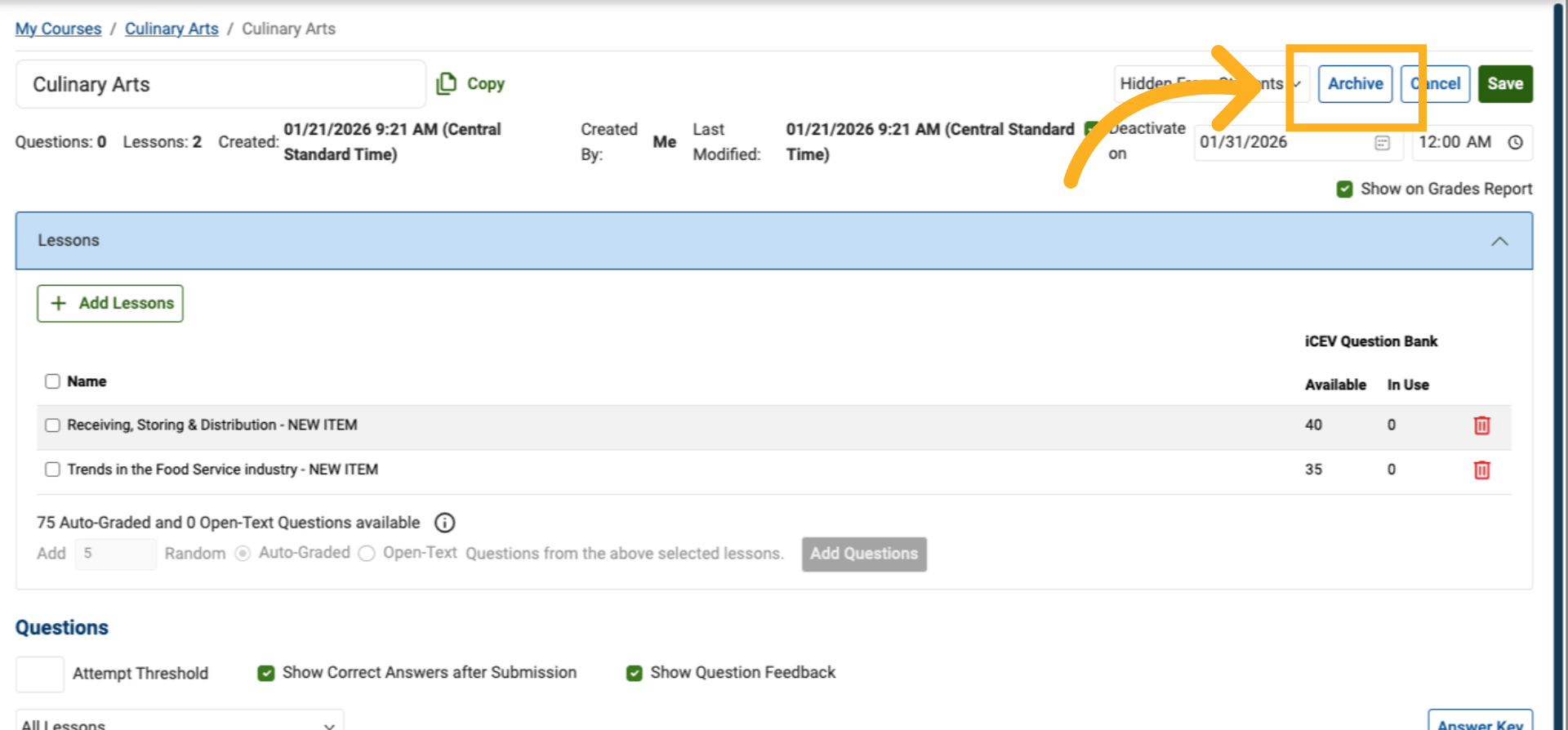
On the custom assessment dashboard, click the Archive button in the upper right area.
2. Archive an Assessment
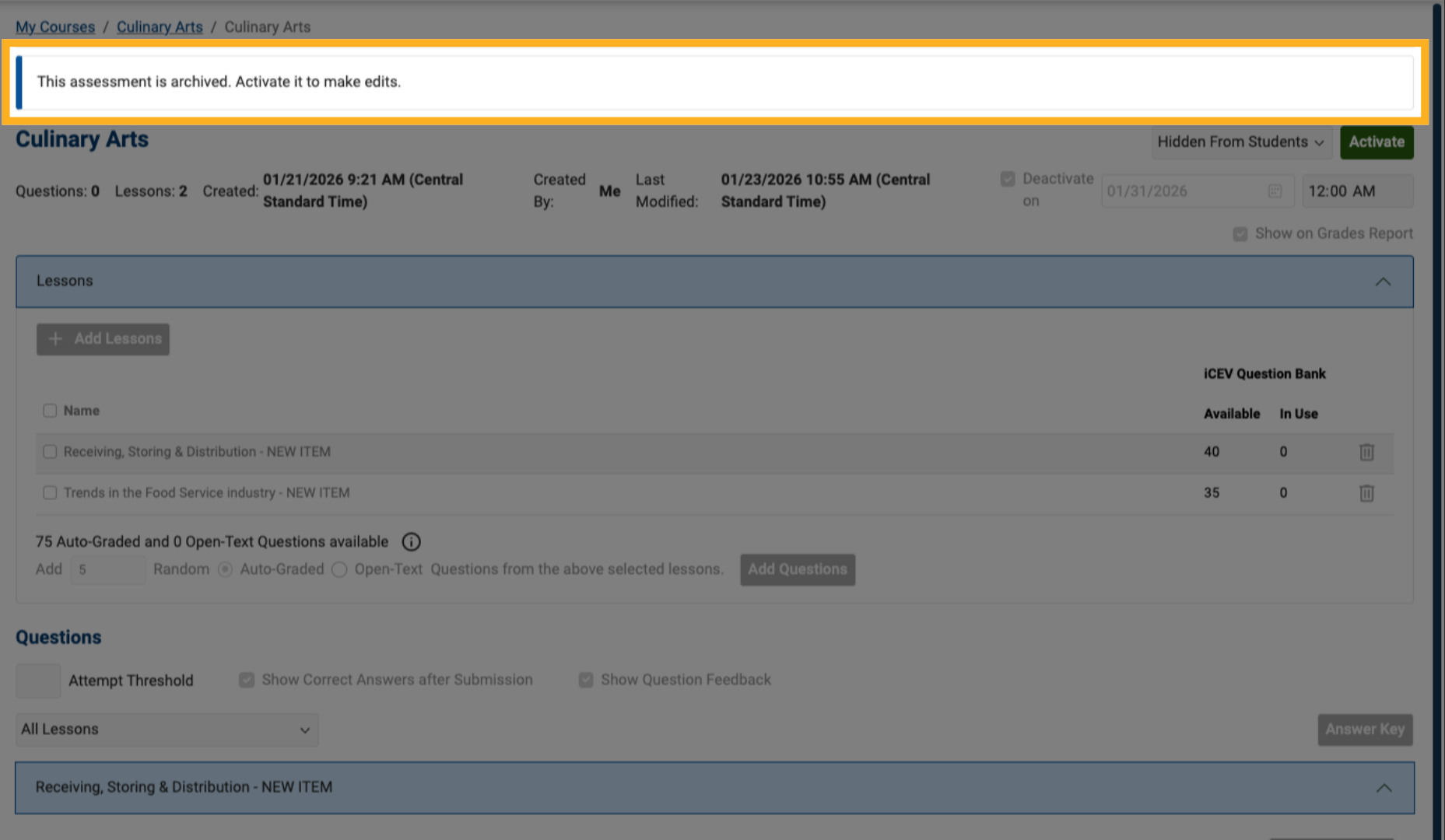
After clicking the archive option, the assessment immediately moves out of your active list. A message at the top of the page confirms the action.
3. Locate Archived Assessments
Go to the Course Management menu.
Select View Archived Assessments under instructional tools.
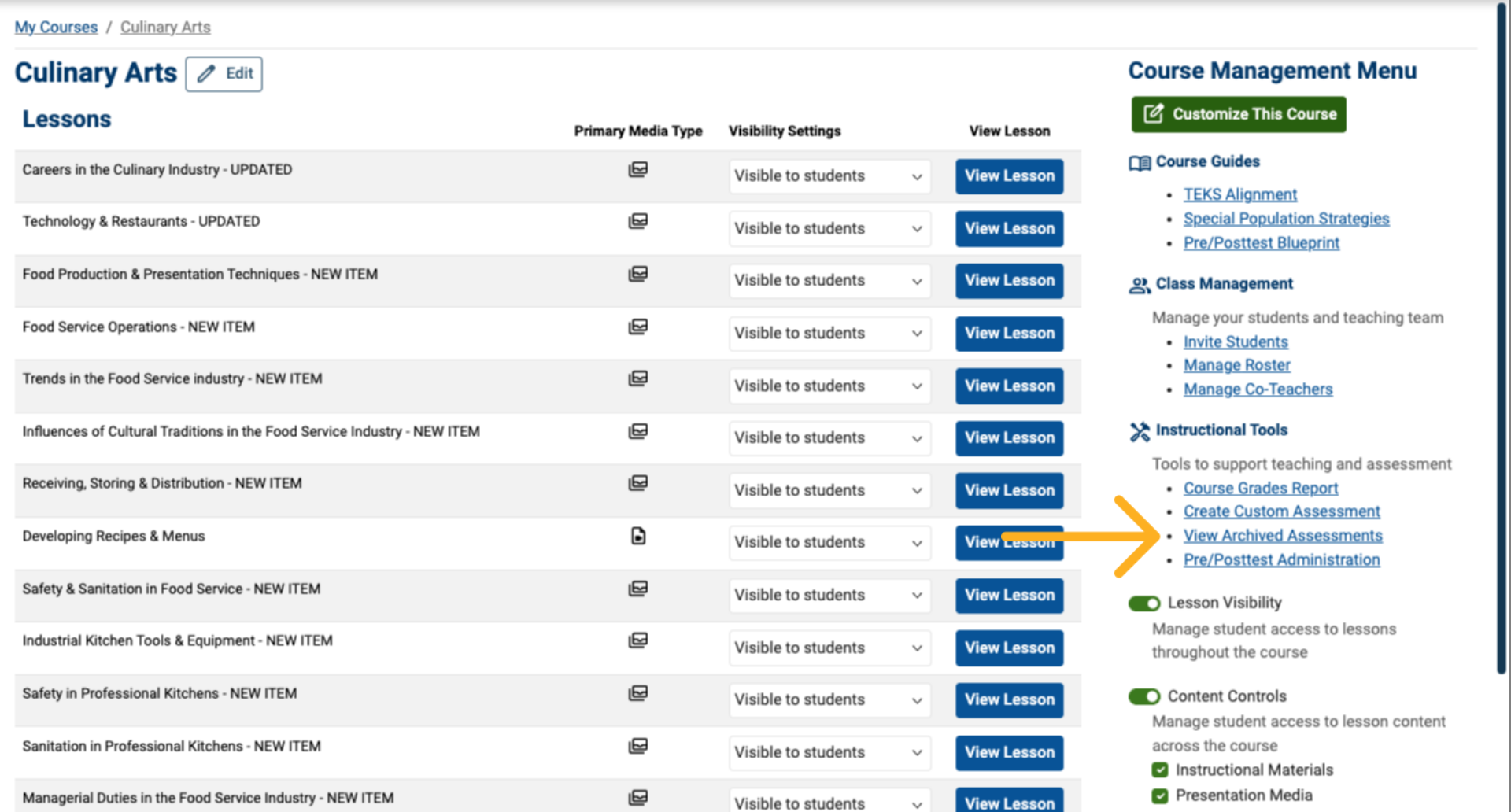
4. Review the Archived Assessments Page
This page shows all assessments you have archived in any course.
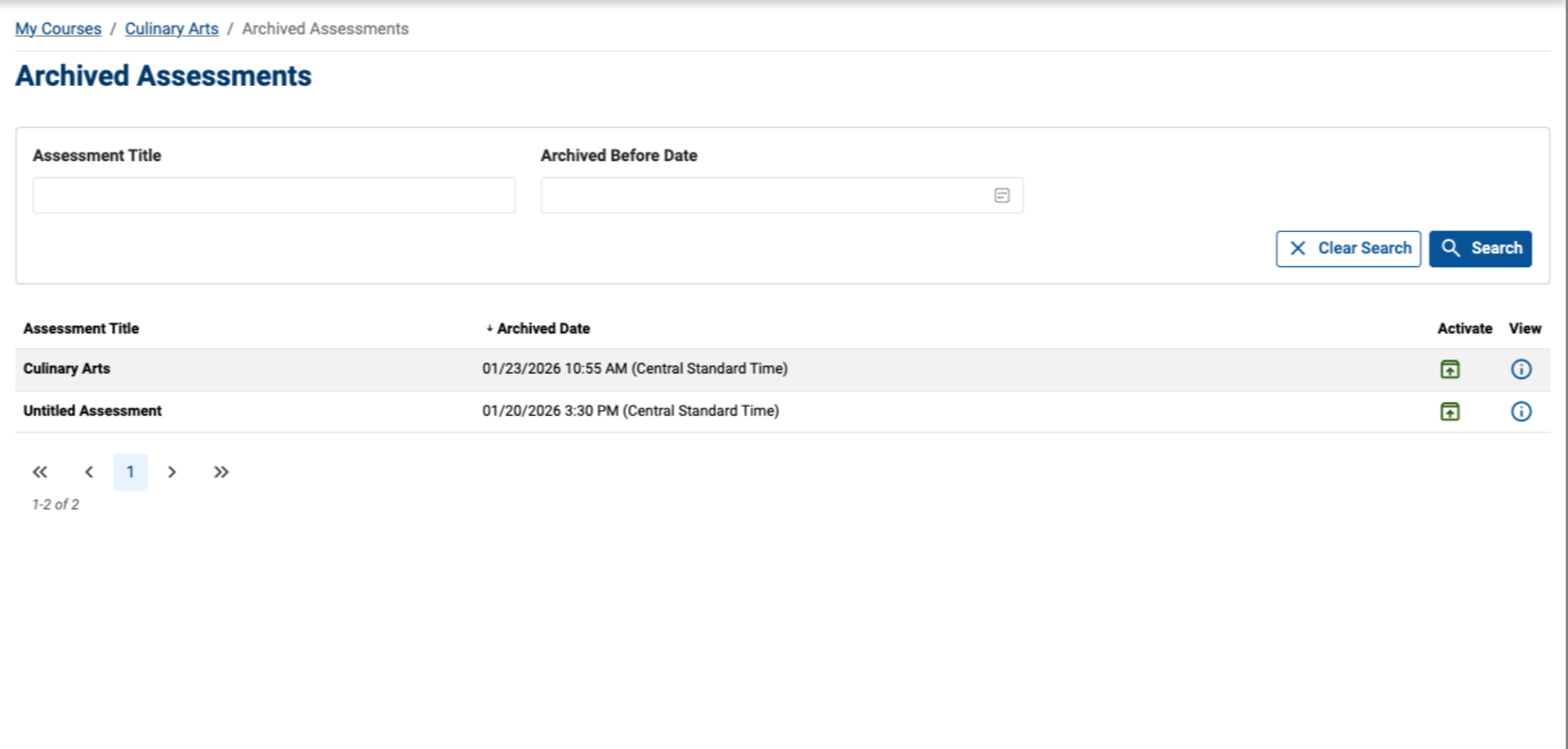
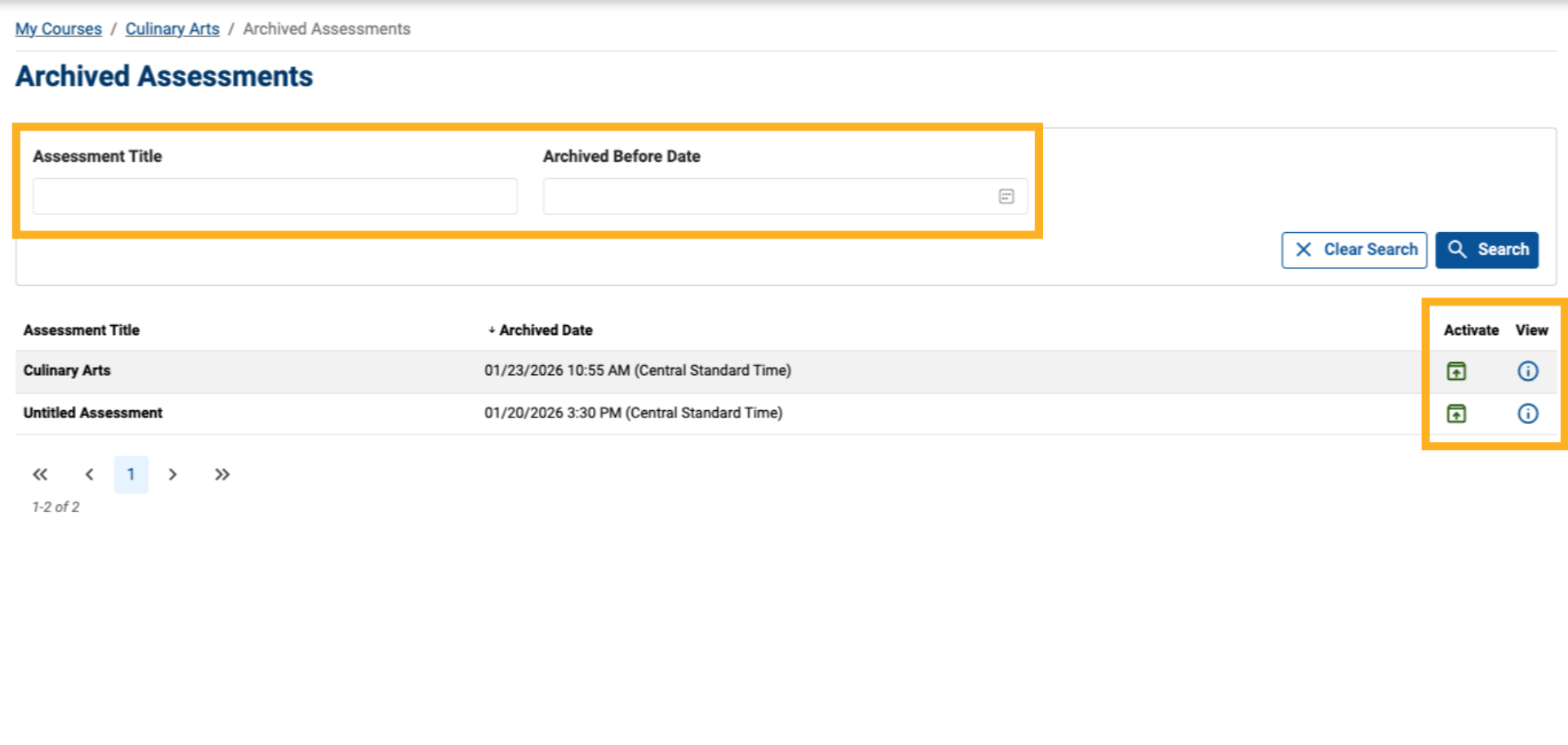
5. Search and Manage Archived Assessments
Search by title or archive date.
Open an archived assessment or select Activate to restore it.
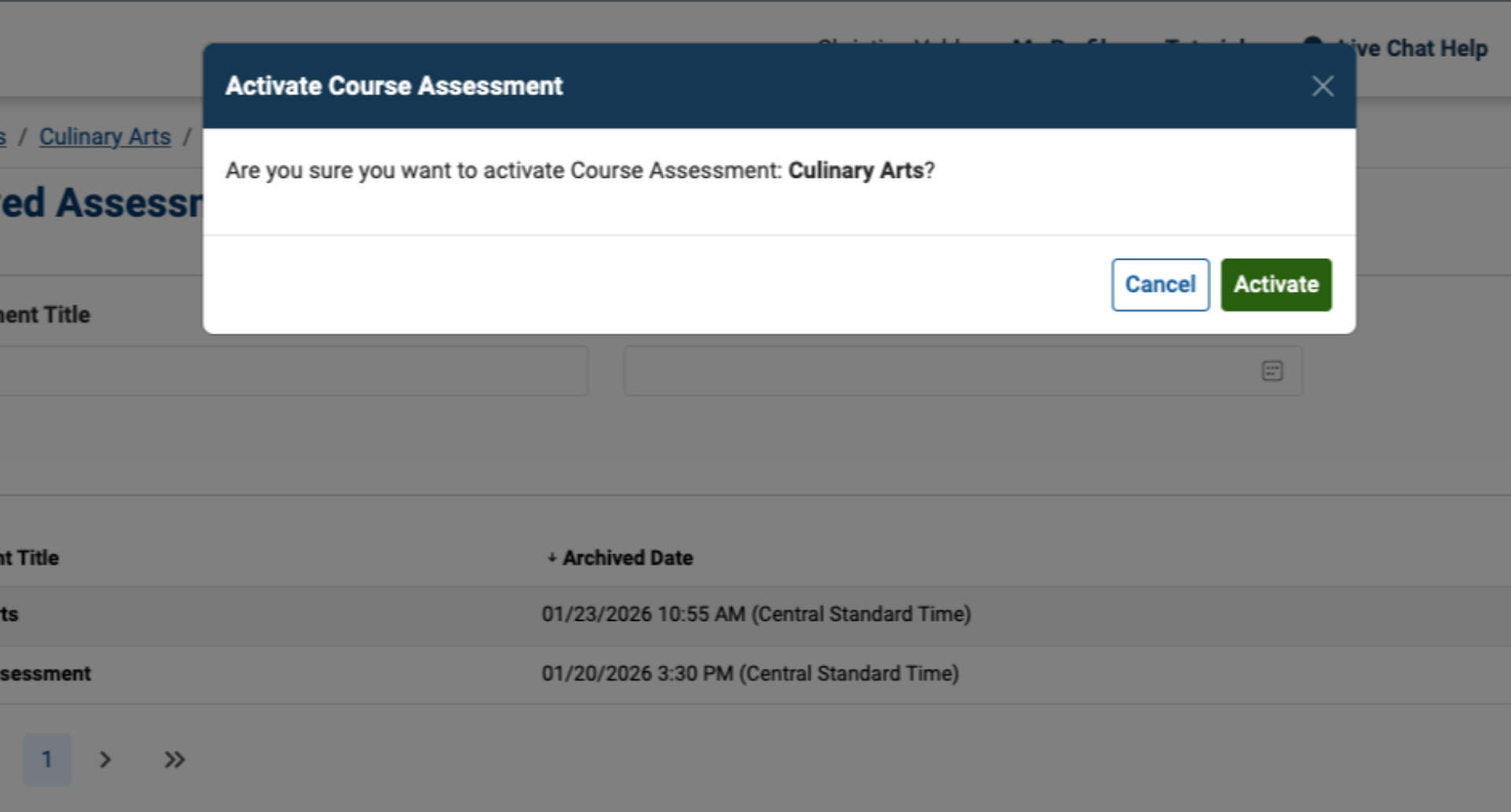
6. Activation Confirmation
A modal will ask you to confirm activation. Click Activate to complete the process.
7. Search and Manage Archived Assessments
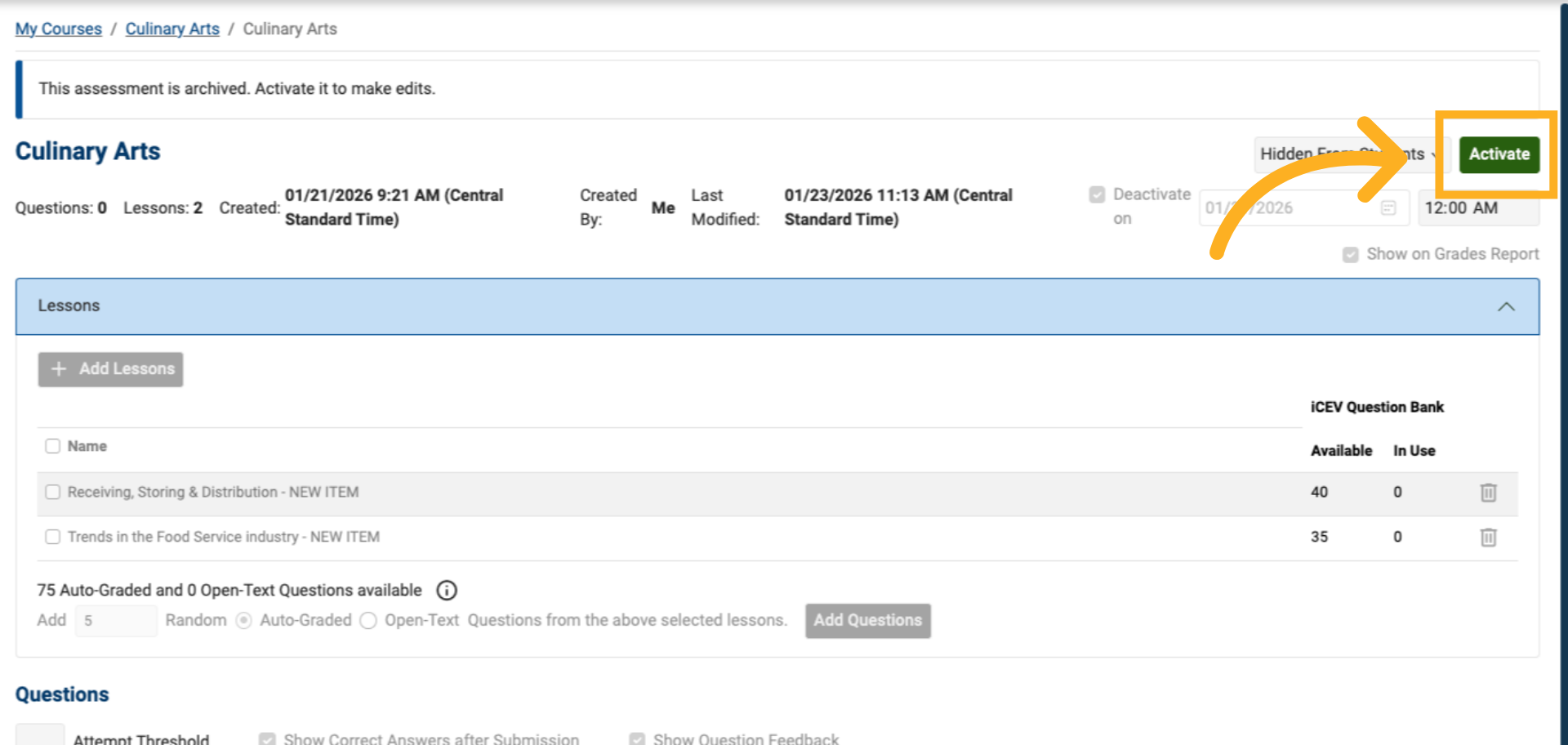
You can also activate an assessment from the editor by clicking the Activate button in the upper right corner.
8. Save Changes When Editing
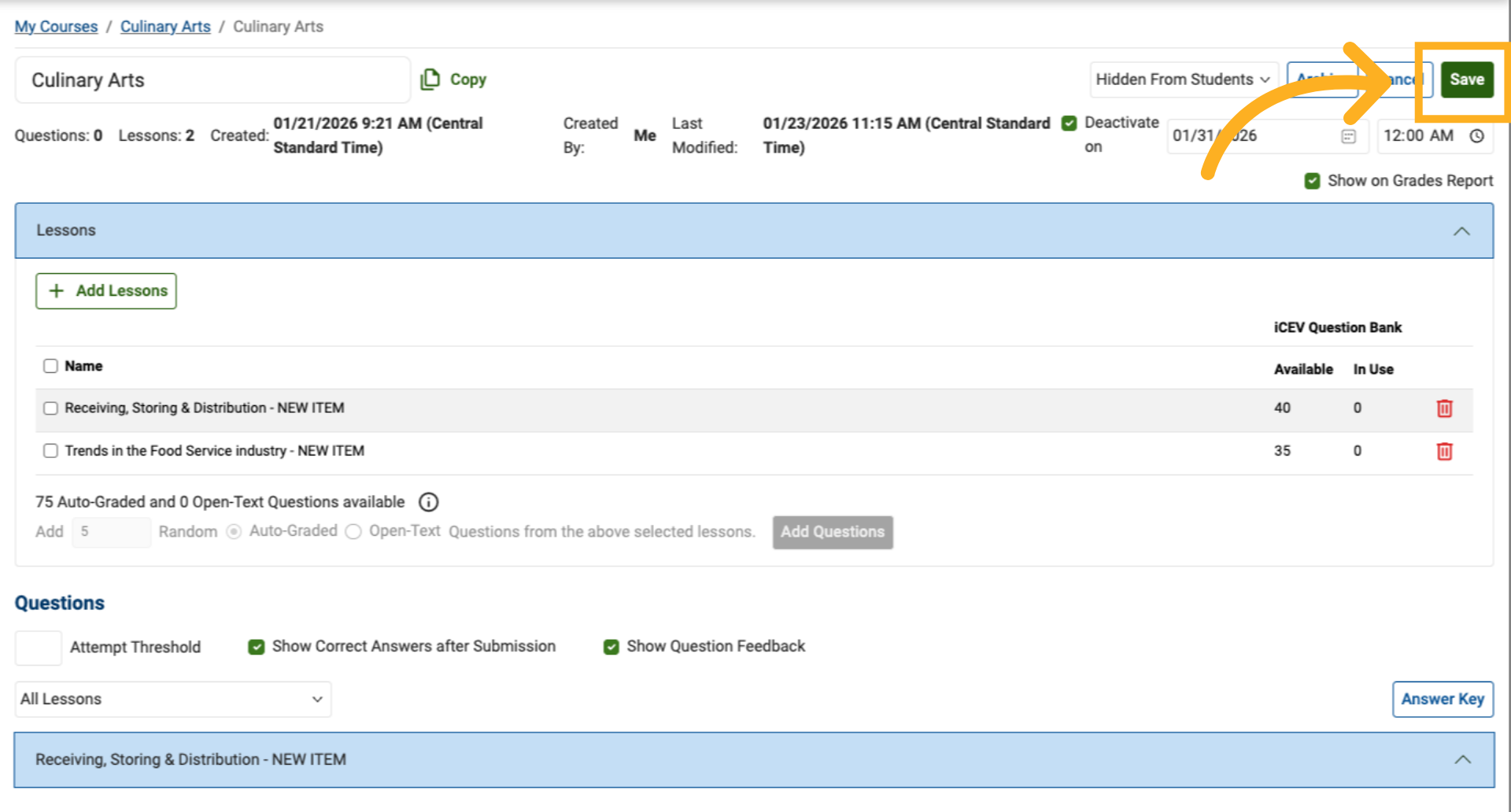
If you edit a reactivated assessment, remember to save your changes.
9. Verify the Archived Assessment
Check the chosen course. The assessment will appear again in the active list.