


CTE Curriculum
Prepare learners with CTE curriculum aligned to industry standards.


Administrators
⚠️ NOTE: This process should be completed by your IT Administrator.
For testing security within iCEV, IT Departments should ensure deployment and installation of the SMOWL browser extension on all student devices that will be used for certification testing. Please note that we recommend it also be installed on teacher/proctor devices, but it is not required.
To enable, you will need to either force install (recommended) or allow install in your Chrome or/and Edge browsers. Below is the extension information:
-
Extension ID: dmikmmbgppjjlgaoamkdbnfkddgnpenk
Add the following entries to the district content filter, firewall, and any proxy or DNS filtering service, and allow HTTPS traffic to all of them. Apply the rules to both wired and wireless networks used for testing, and to any device-level filtering agent installed on student Chromebooks or laptops.
- smowl.net
- smowltech.com
- cdn.smowl.net (extension assets)
- api.smowl.net (monitoring and incident reporting)
- https://*.amazonaws.com/
- https://*.smowltech.net/
- Allow HTTPS traffic for these domains
- 52.18.192.66
- 52.49.188.196
- 34.249.54.16
⚠️ NOTE: You may also need to add these as allowed in your Google Admin Console.
Teachers/Proctors
This guide is for after the extension has been added and students are ready to sit for the exam.
Please ensure teachers/proctors are aware of and will follow the Certification Testing Guide in addition to the following.
⚠️ NOTE: We recommend that students complete their SMOWL registration prior to the date/time that they will be sitting for the exam to ensure any technical difficulties are addressed prior to the date/time of testing. Students only need to register SMOWL to their iCEV account once, and the registration will be ready for all future iCEV certification exams.
During the exam, SMOWL will monitor the students' testing sessions for infractions that are generally considered intent to cheat or compromise the integrity of the exam.
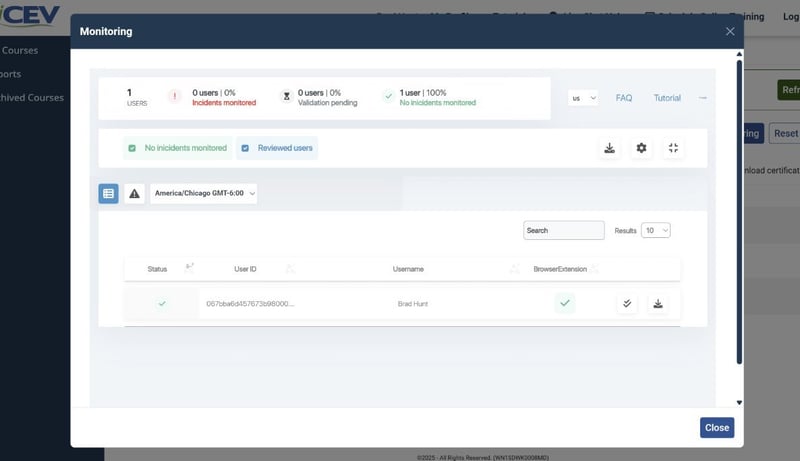
Teachers/Proctors will use the Lockdown Monitoring button to view SMOWL's incident reports.

Teachers/Proctors can download incident reports for record-keeping if needed.
What to do if a student is expelled from an exam
- If a student is expelled, please review the reason/incidents under your Lockdown Monitoring button by selecting the student and expanding the details to make a judgement based on your district's policies.
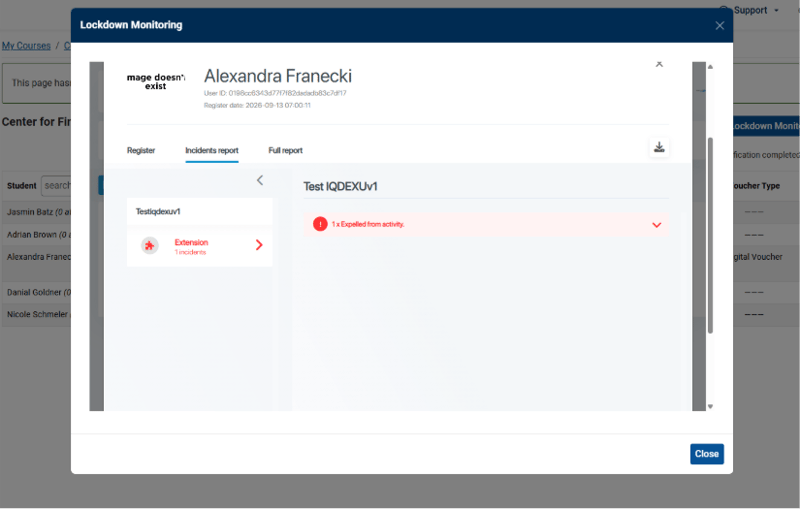
(The student named in the image is a product of sample data and not a real student.)
- If you have deemed it appropriate to give the student another chance, you may click Reset Lockdown Expulsion button to allow them to continue where they left off. A student can be reset up to 3 times for the same session.

Please note that this must be completed within 20 minutes of expulsion or the student will need to be scheduled for a retake and the assessment will be automatically submitted with the grade they would have earned based on the assessment completion prior to expulsion.
What to do if a student is retaking an exam at a later date
If a student is retaking an exam in the same iCEV course, click the reset lockdown expulsion button to prompt a new session with SMOWL, will then need to check in again for the teacher/proctor to assign another voucher. The student will not need to reregister SMOWL.
If a student is retaking an exam in another iCEV course, they can just check in when ready and will not need to reregister SMOWL.
Why was the student expelled?
The following are what we deem violations that will result in expulsion from the exam:
- The student has more than one monitor or screen connected before beginning the exam or plugged in an additional monitor during the exam
- The student attempted to leave the testing window
- The student attempted to take screen captures
- The student disconnected screen sharing
Students
This guide is for after the extension has been added and students are ready to sit for the exam.
Step 1: Complete All Required Materials for the Certification
Step 2: Register with SMOWL
- At the bottom of the iCEV Certification Course, click Register.
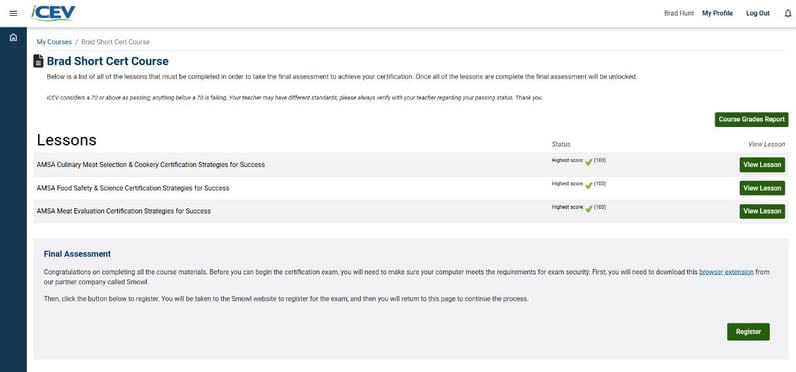
- Check the box to select the privacy policy and select Next Step.
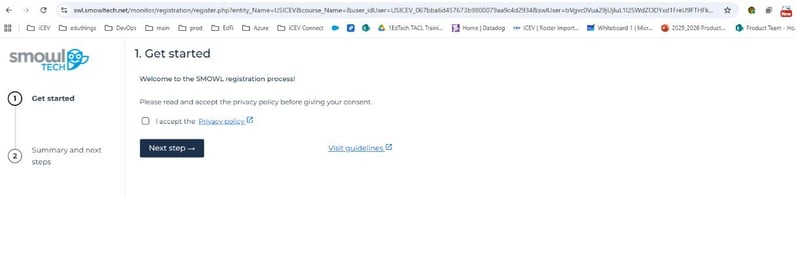
- Select Finish and return to menu to complete the registration.
⚠️ NOTE: This is recommended to be completed prior to the date/time the student will sit for the exam.
Step 3: Check In and Enable Screen Sharing
- Check the box on the left to confirm your identity and select the Check in button on the bottom right.
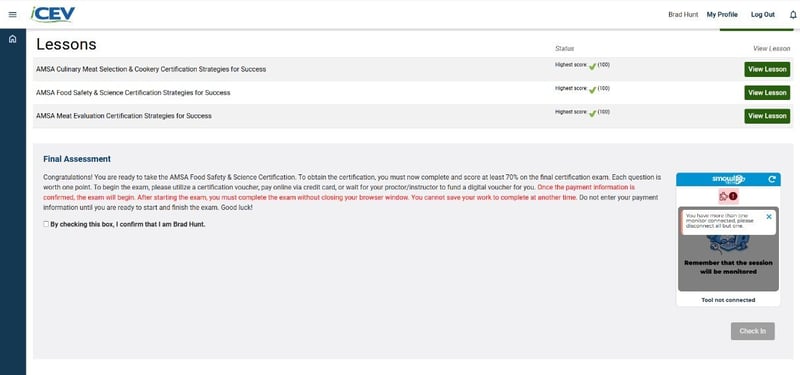
- When prompted, select Entire Screen (not just a tab or window).
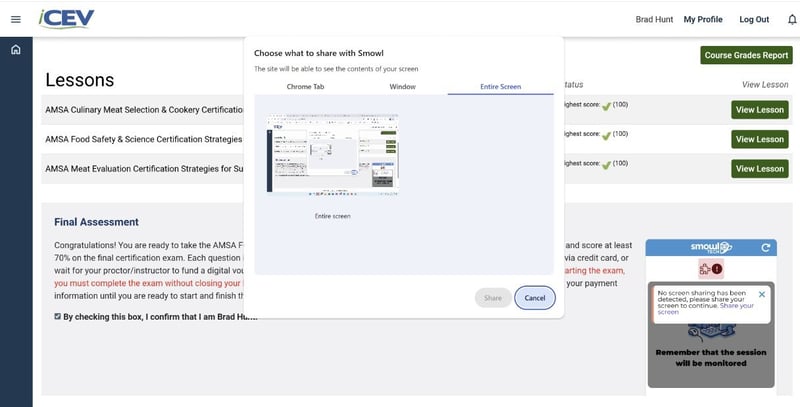
Confirm that the SMOWL widget shows no errors before proceeding.
Step 4: Exam Workflow
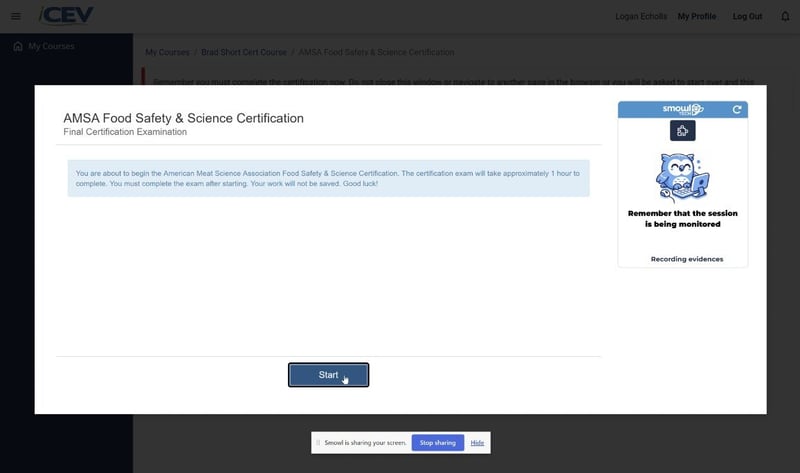
- Wait for the proctor to approve your exam start. When approved, select Next. The browser will switch to full-screen mode when the exam begins.
- Select Launch Exam.
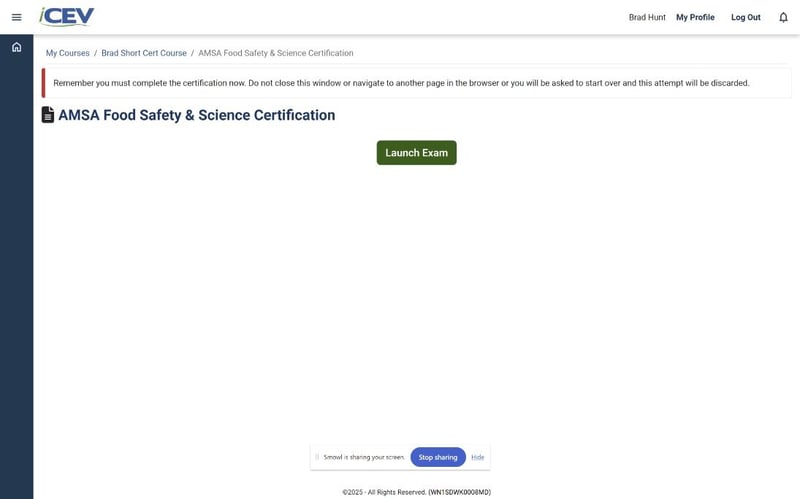
- Select Start.
Step 5: Avoid Violations
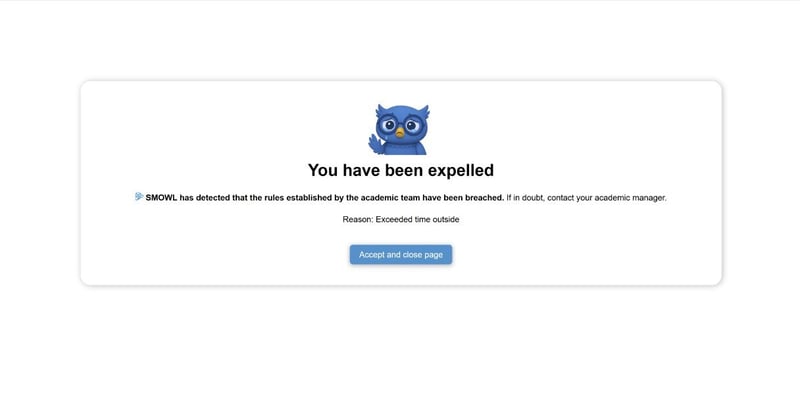
The following are what we deem violations that will result in expulsion from the exam:
- The student has more than one monitor or screen connected before beginning the exam or plugged in an additional monitor during the exam
- The student attempted to leave the testing window
- The student attempted to take screen captures
- The student disconnected screen sharing
If the student is expelled, they will need to select Accept and reach out to their proctor before they can make another attempt or return to their iCEV account.
Troubleshooting
Below are the most common scenarios that can happen with SMOWL implementation on the iCEV Testing Platform. If you are experiencing one of these scenarios, please review the What to do column. If the scenario you are experiencing is not listed below, please reach out to our support team.
| Symptom | What to do |
|---|---|
| The SMOWL widget shows an error | Confirm screen sharing is set to Entire Screen and that the extension is installed and enabled. |
| More than one monitor is detected | Disconnect all displays except one, then reload the exam page. |
| The SMOWL site is blocked | Ask IT to add the domains and IP addresses in the Administrator section to the allowlist and to allow HTTPS traffic to them. |
| A student was expelled from the exam | The proctor resets the lockdown expulsion, only if they deemed the student can be let back into the exam per district policies. |
Questions and Support
For technical requirements and support resources, visit www.icevonline.com/system-requirements or contact iCEV at 800.922.9965. Districts are encouraged to complete the IT steps and run a test-day rehearsal well before the first scheduled certification exam.