CTE Curriculum
Prepare learners with CTE curriculum aligned to industry standards.


1. Navigate to Student Management
-
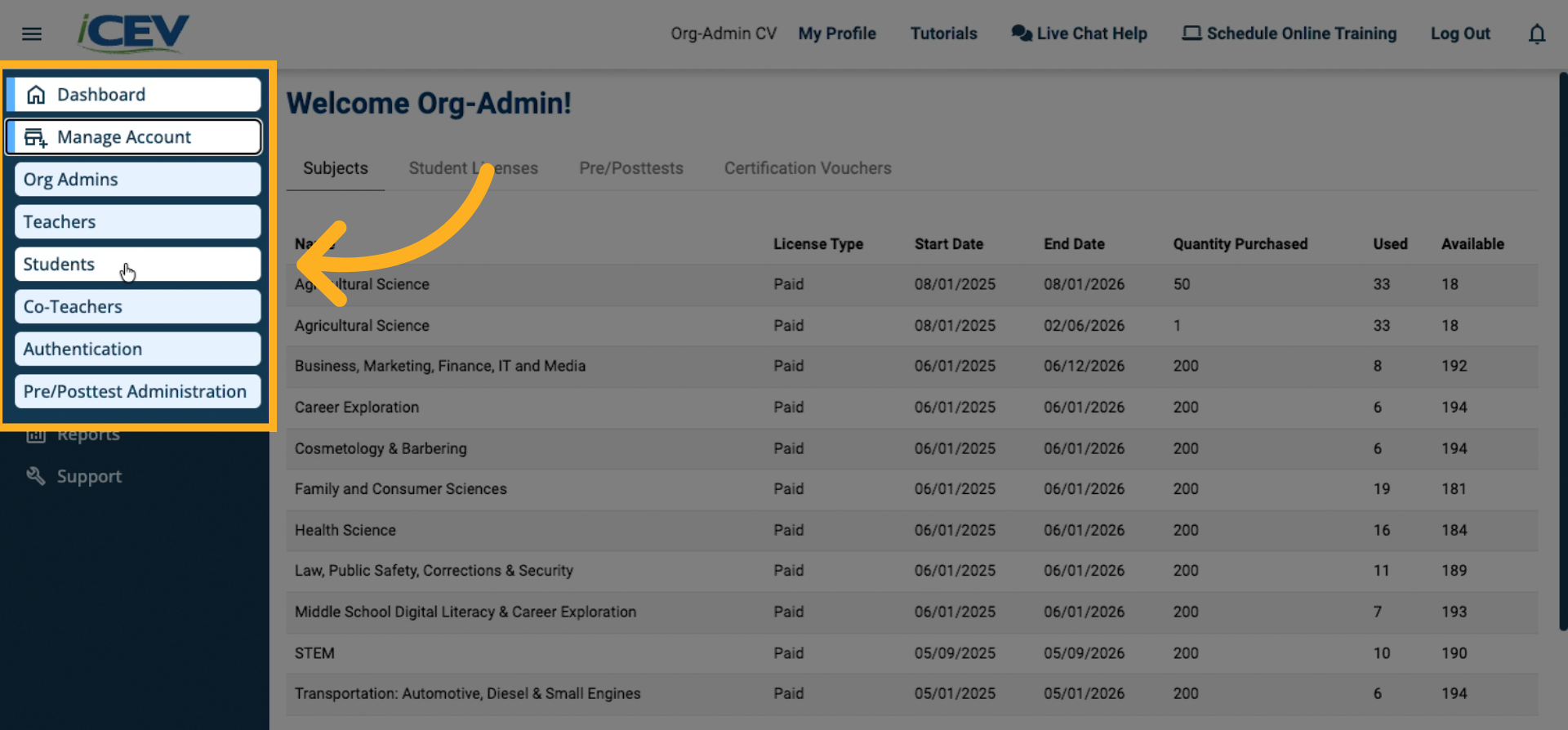
Log in to your Org Admin account.
-
On the left sidebar, click Manage Account to expand the menu.
-
Select Students to open the Student Management dashboard.
2. Use the “Import” Button
-
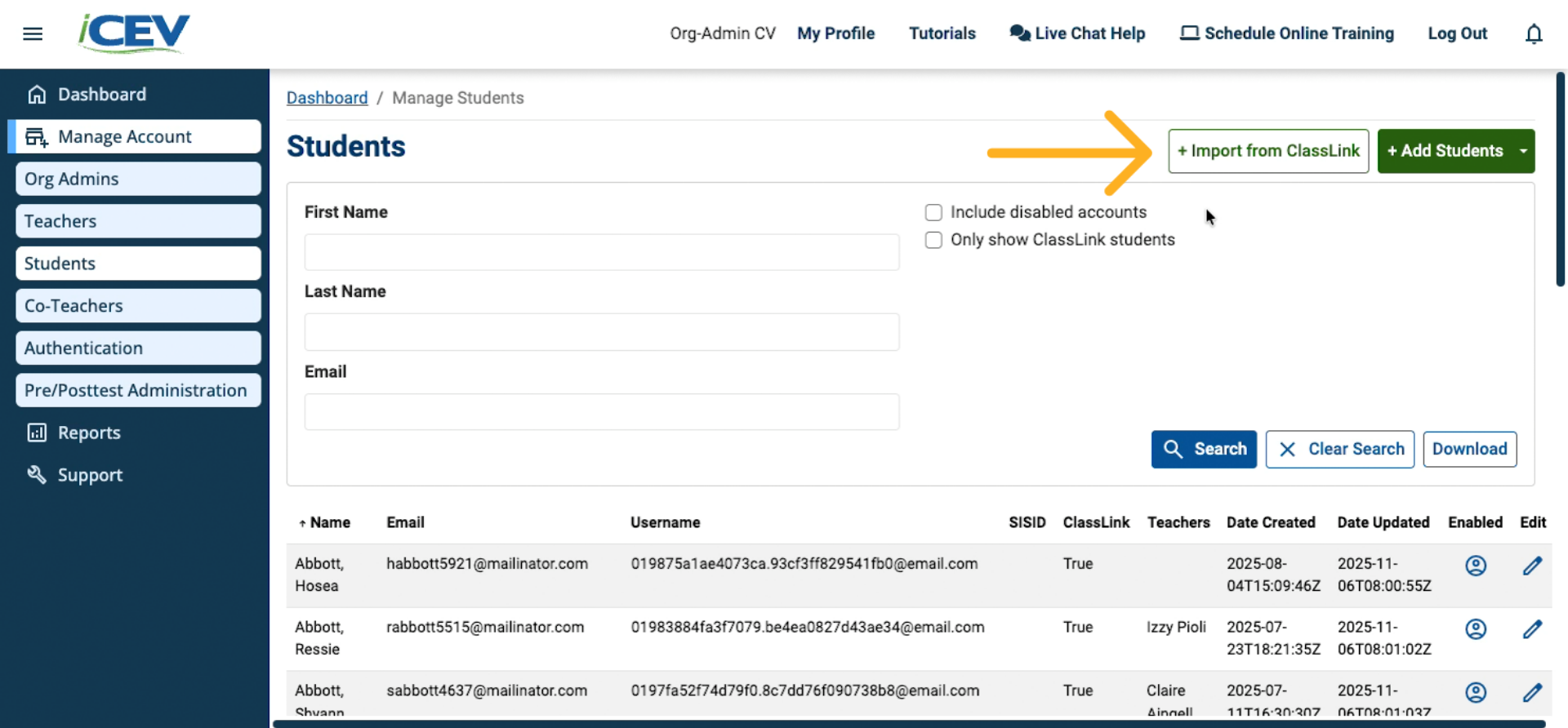
In the Student dashboard, locate the Import button.
-
The button will display ClassLink or Clever, depending on your integration.
-
Click the button to begin the import process.
3. Review Your SIS Roster
-
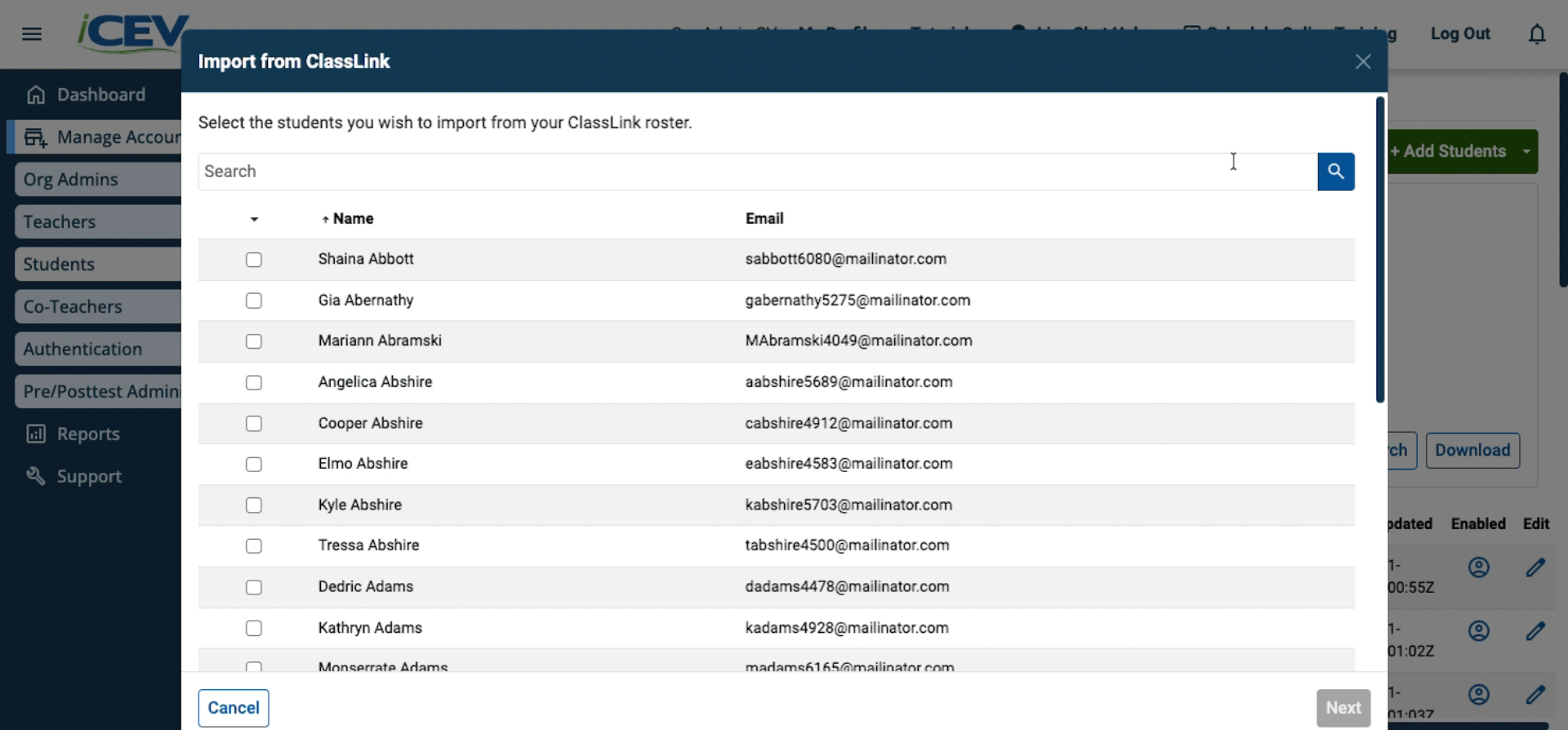
A modal window will appear showing your SIS roster.
-
Review the list of students available for import.
4. Select Students
You can:
-
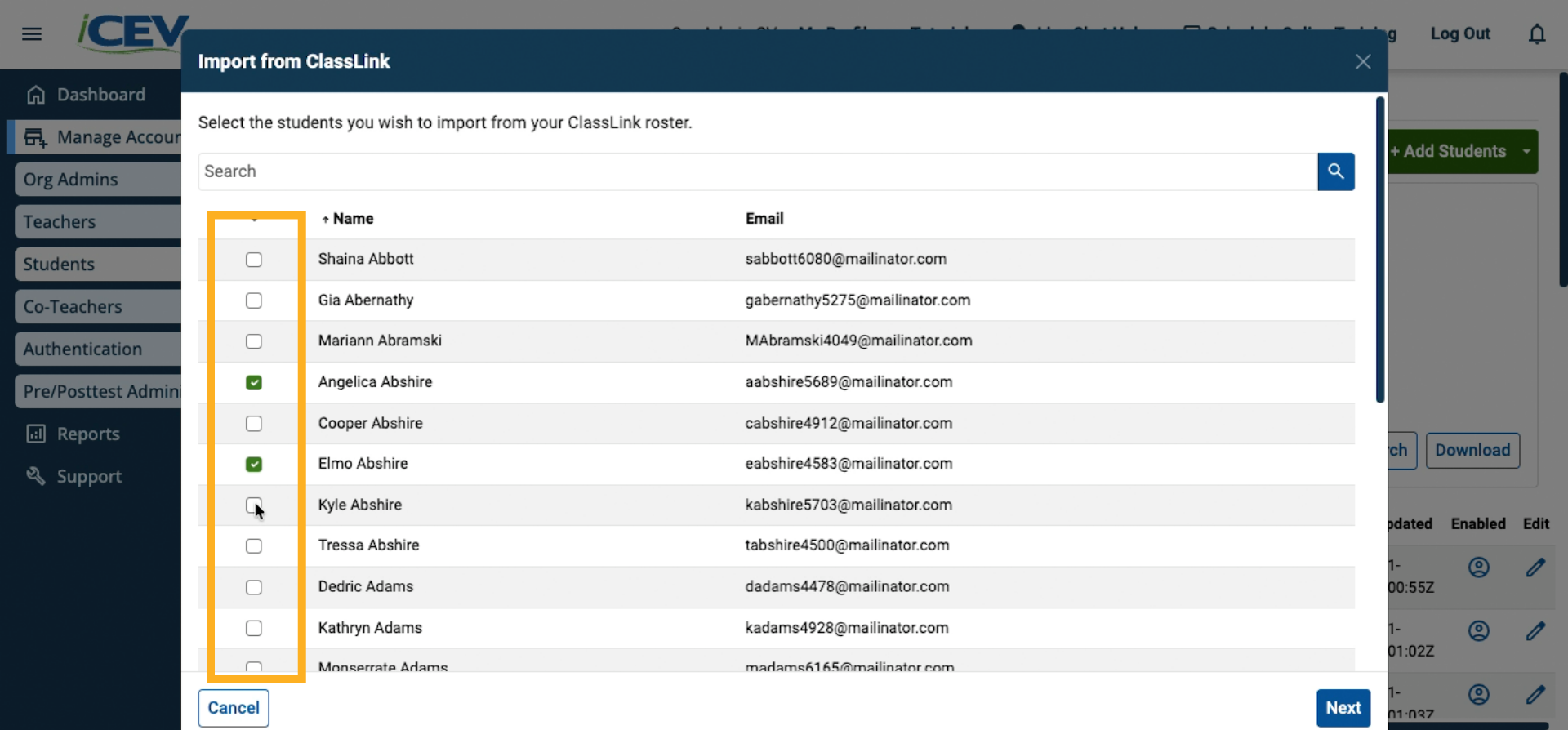
Search for specific students using the search field.
-
Or select students from the displayed list by checking the boxes next to their names.
5. Confirm Selected Students
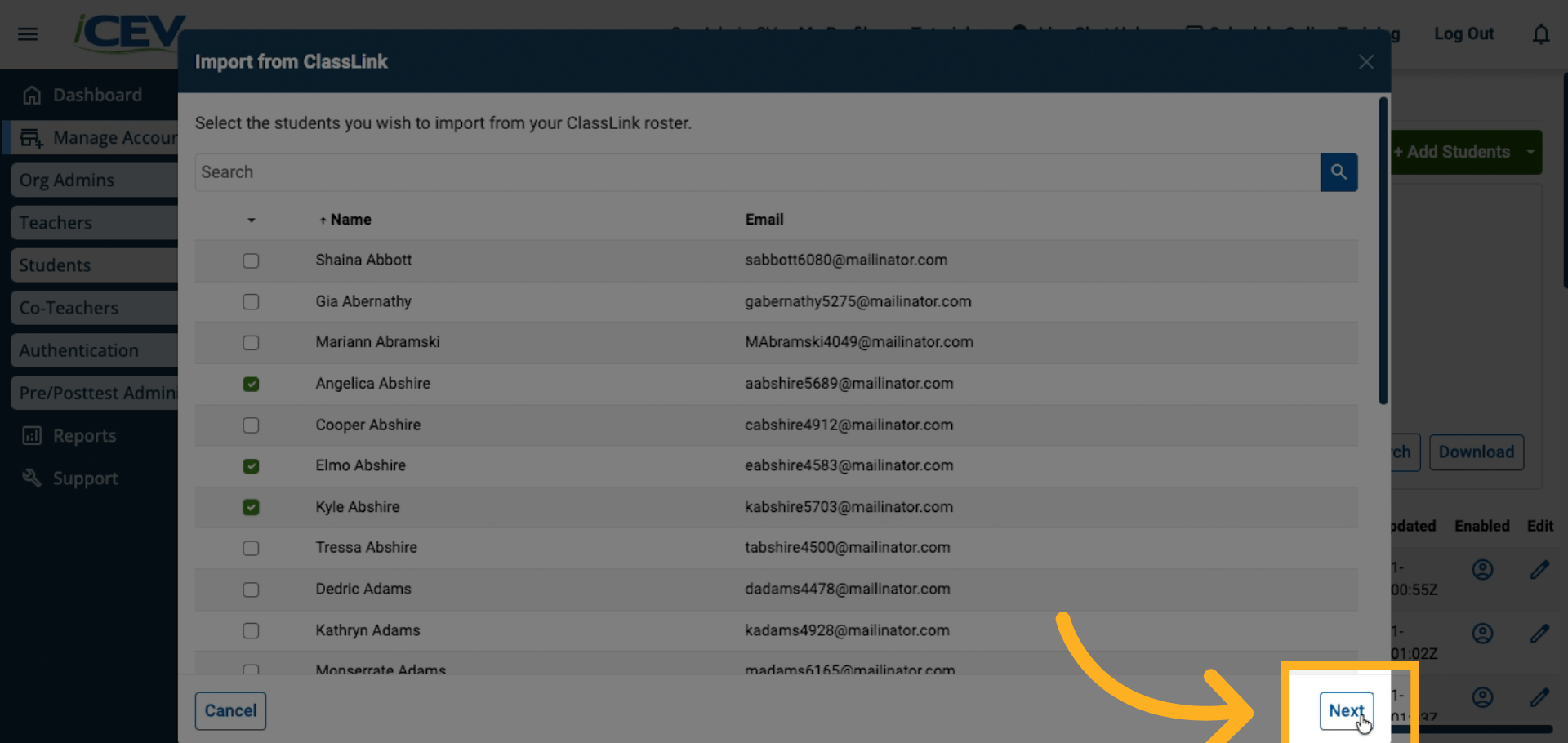
After selecting students, click Next to continue.
6. Adjust Your Selection if Needed
-
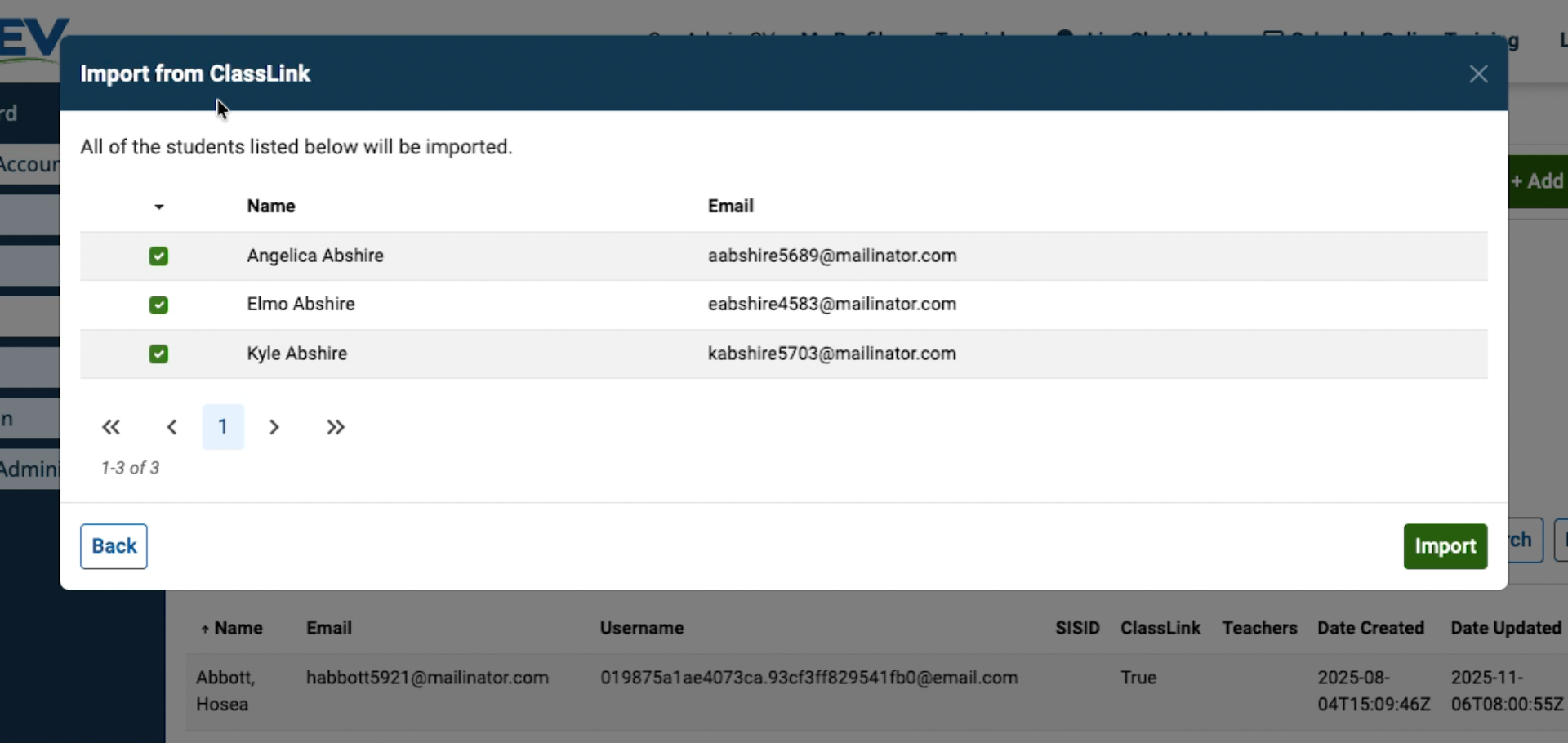
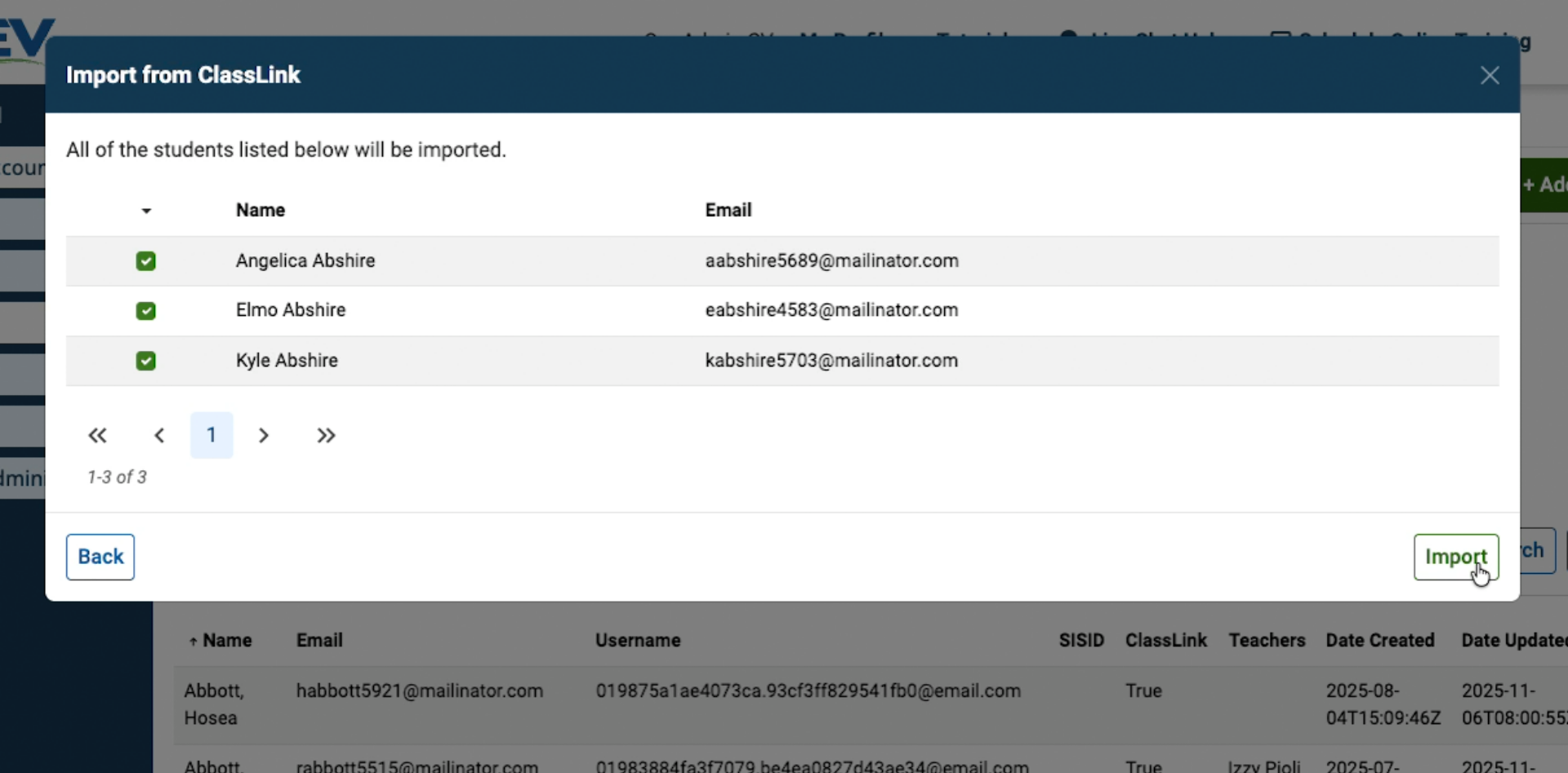
Review the selected students.
-
If you need to add or remove students, click Back to return to the selection screen.
7. Finish the Import
When the list is correct, click Import to complete the process.
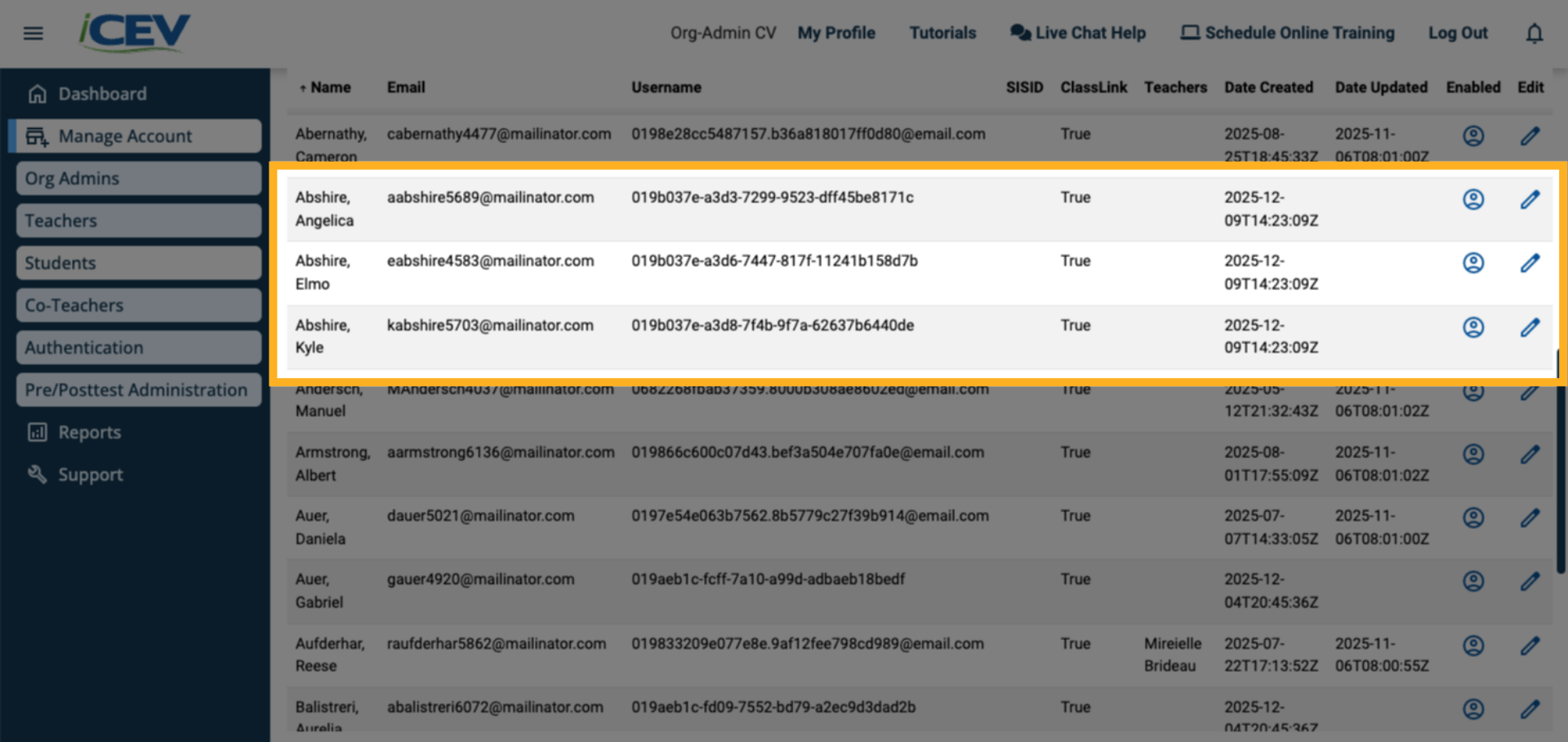
8. Verify Imported Students
The newly imported students will now appear in your Student dashboard.