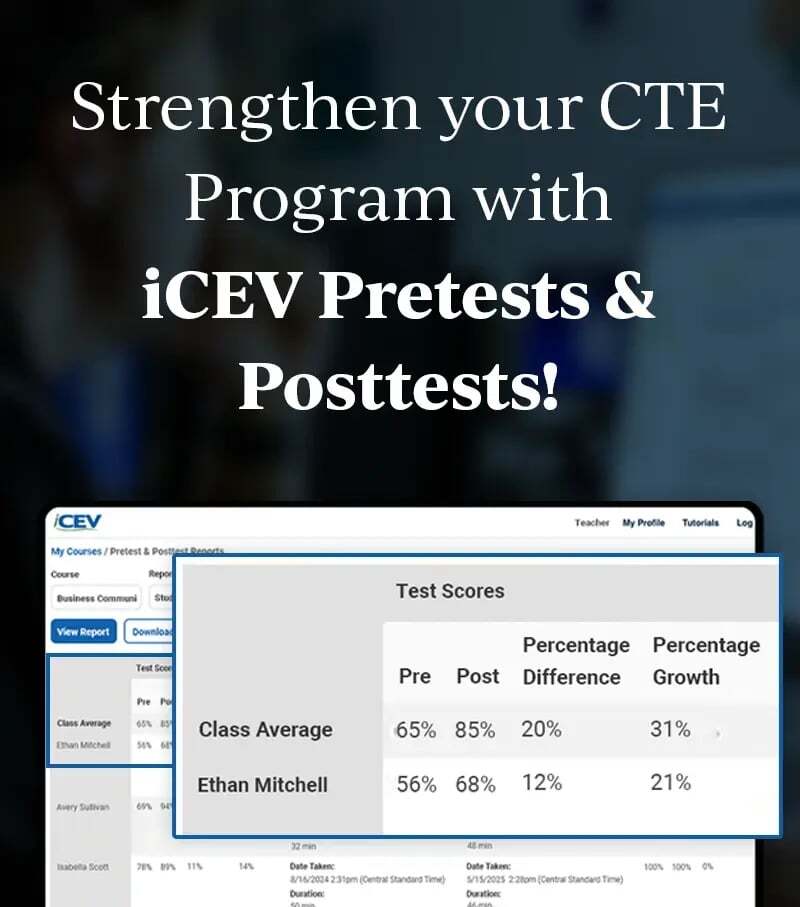
CTE Curriculum
Prepare learners with CTE curriculum aligned to industry standards.


1. Navigate to Student Management
-
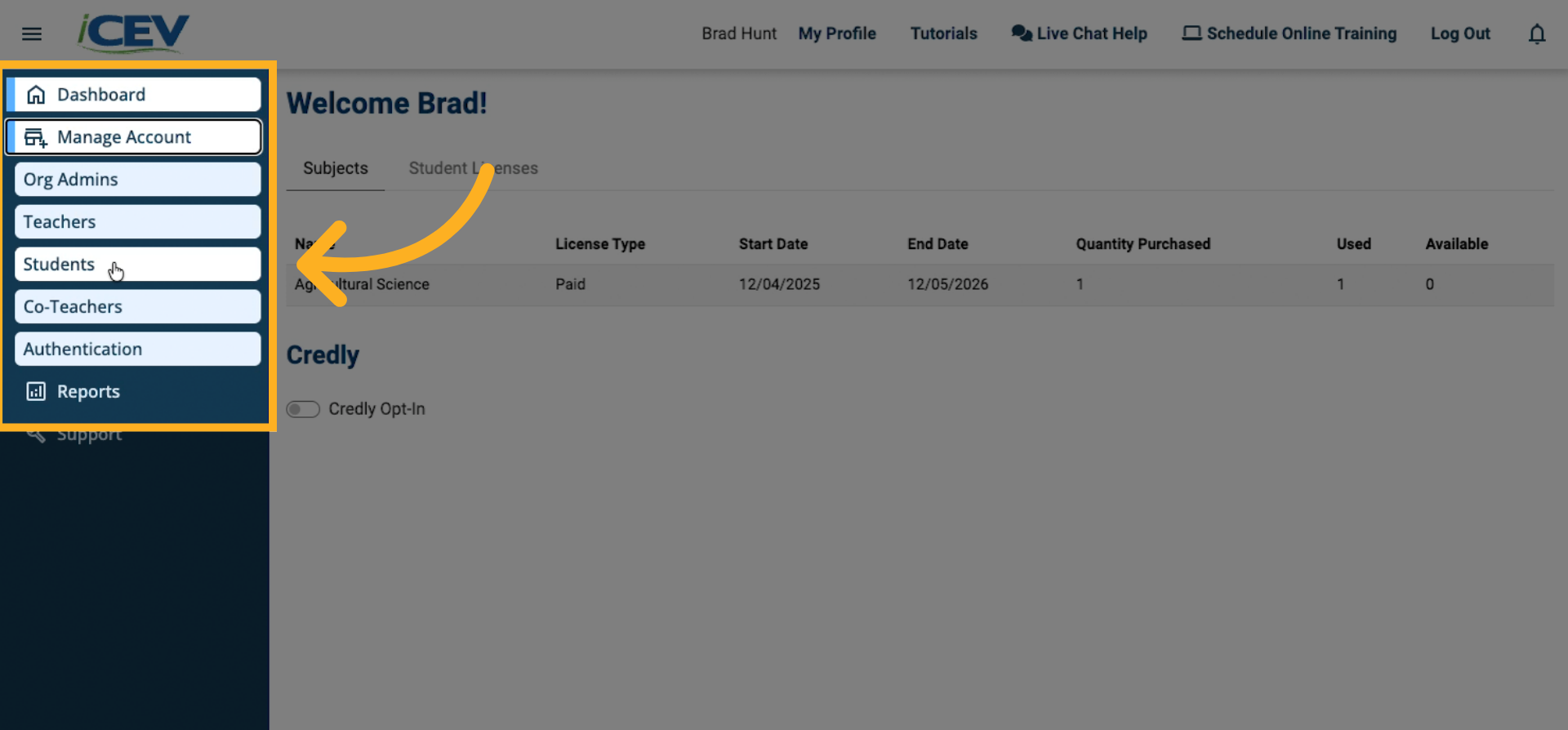
Log in to your Org Admin account.
-
On the left sidebar, click Manage Account to expand the menu.
-
Select Students to open the Student Management dashboard.
2. Use the “Import from CSV” Button
-
In the Student dashboard, locate the Add Students button.
-
Click the dropdown arrow next to it.
-
Select Import from CSV.

3. Prepare or Download the CSV Template
-
A modal window will appear.
-
You can:
-
Upload an existing CSV file with the following columns:
First Name | Last Name | Email | Username | Password | SIS ID (optional) -
Or download the CSV template provided for convenience (recommended for first-time users).
-

4. Upload Your CSV File
-
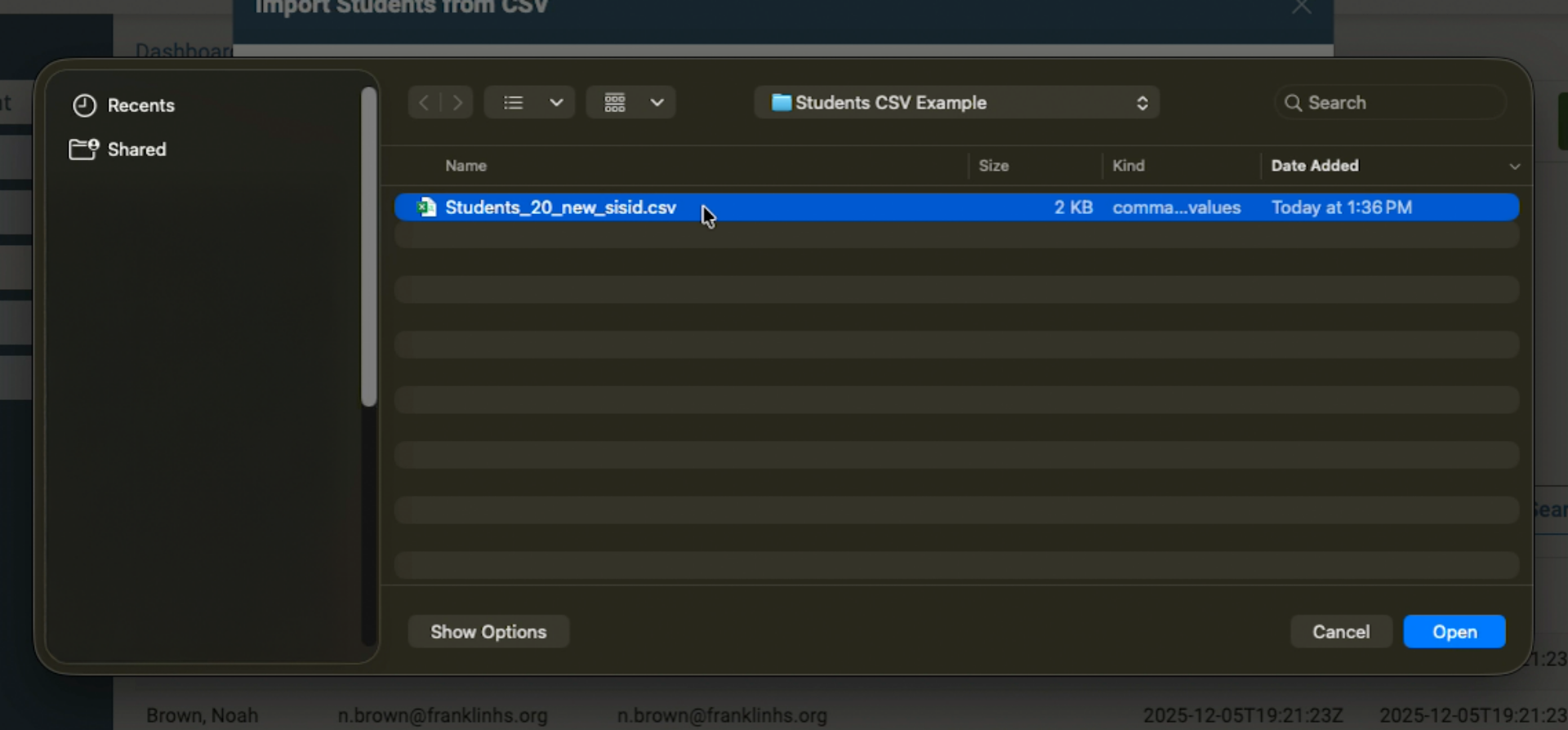
After preparing your CSV file, click Choose File and select it from your computer.
-
Proceed to upload.
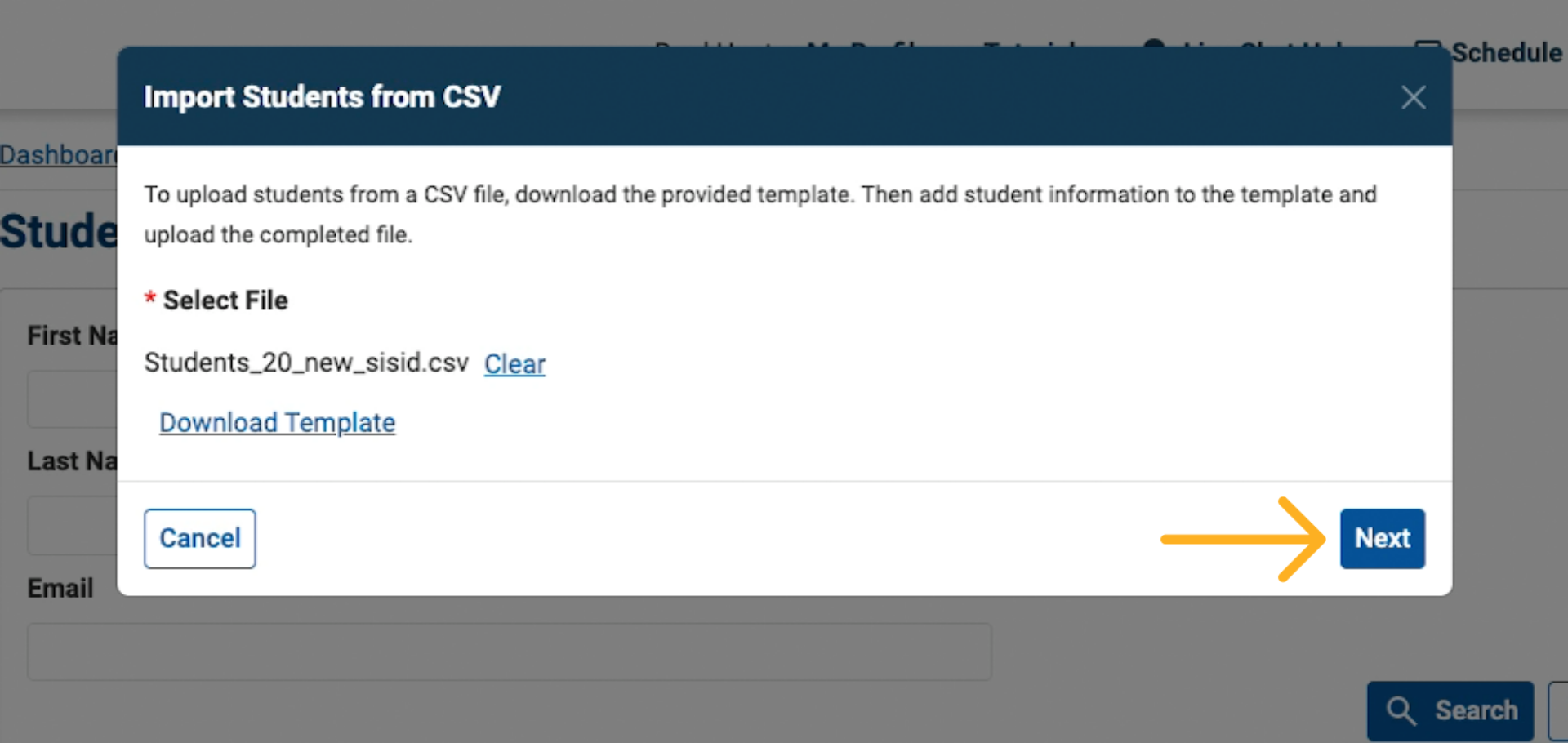
5. Confirm the CSV File
-
Review the selected file.
-
Click Next to continue.
6. Select Individual Students
-
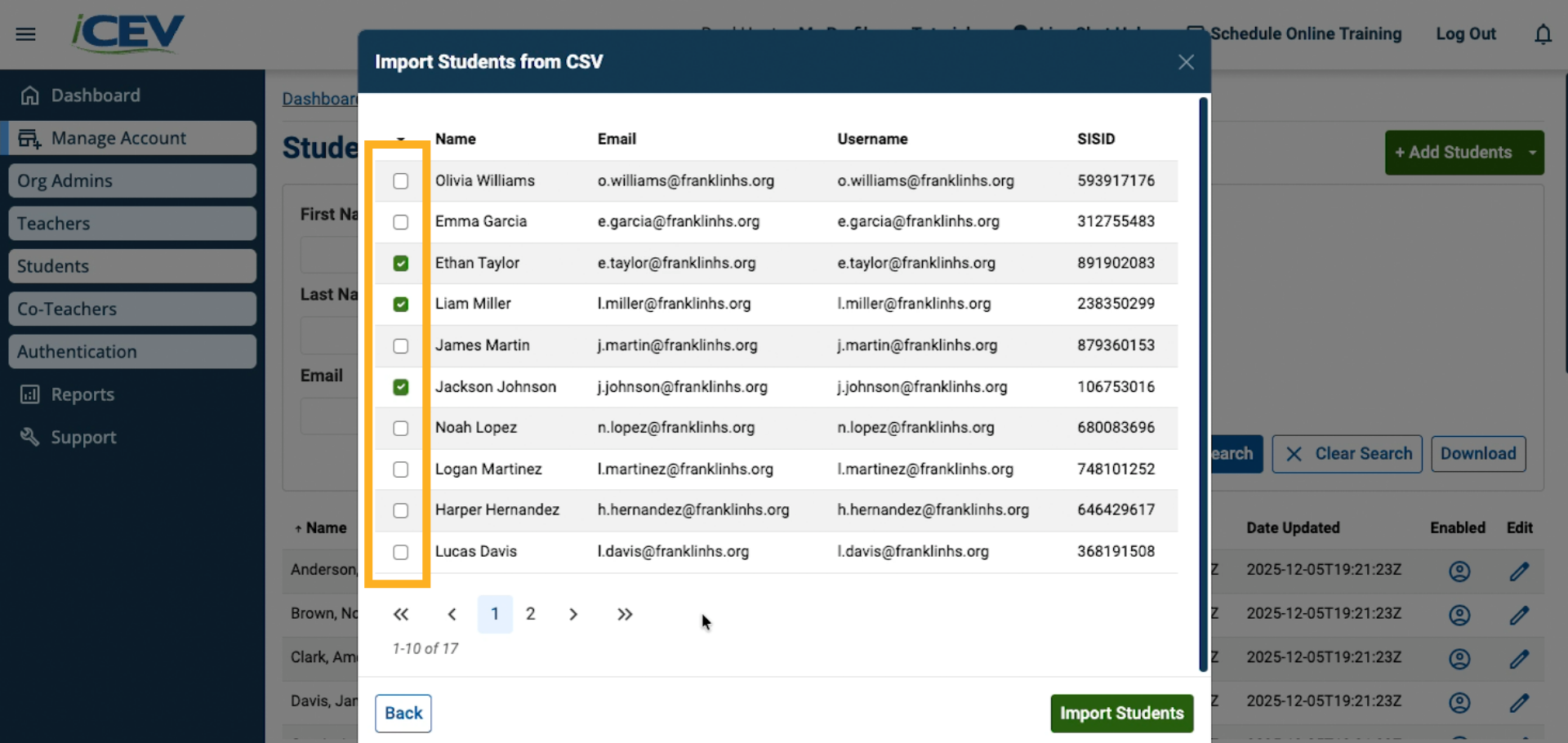
A list of students from your CSV will appear.
-
Check the boxes next to the students you want to import.
7. Confirm and Import Students
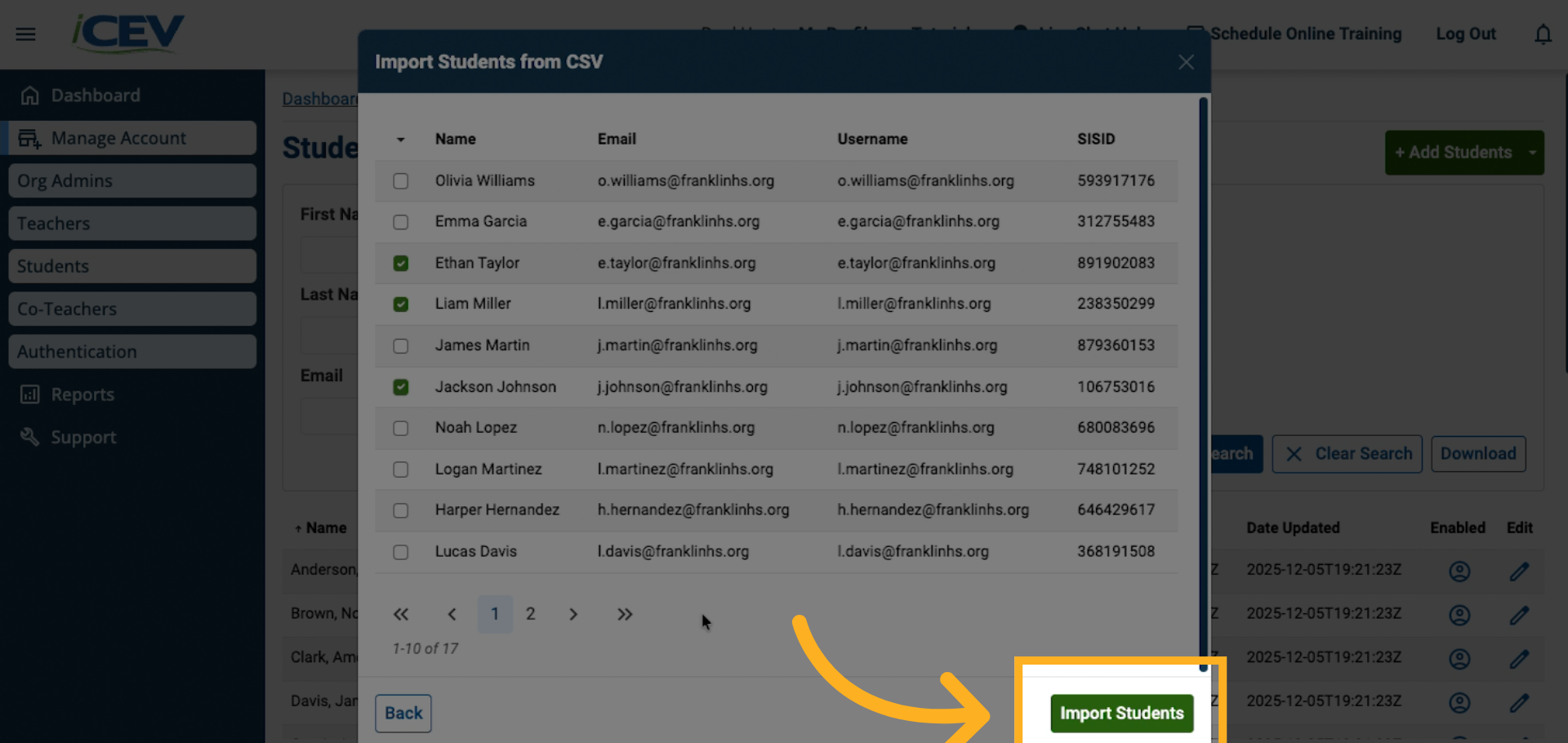
Once you’ve selected the students, click Import Students.
8. Verify Imported Students in the Dashboard
-
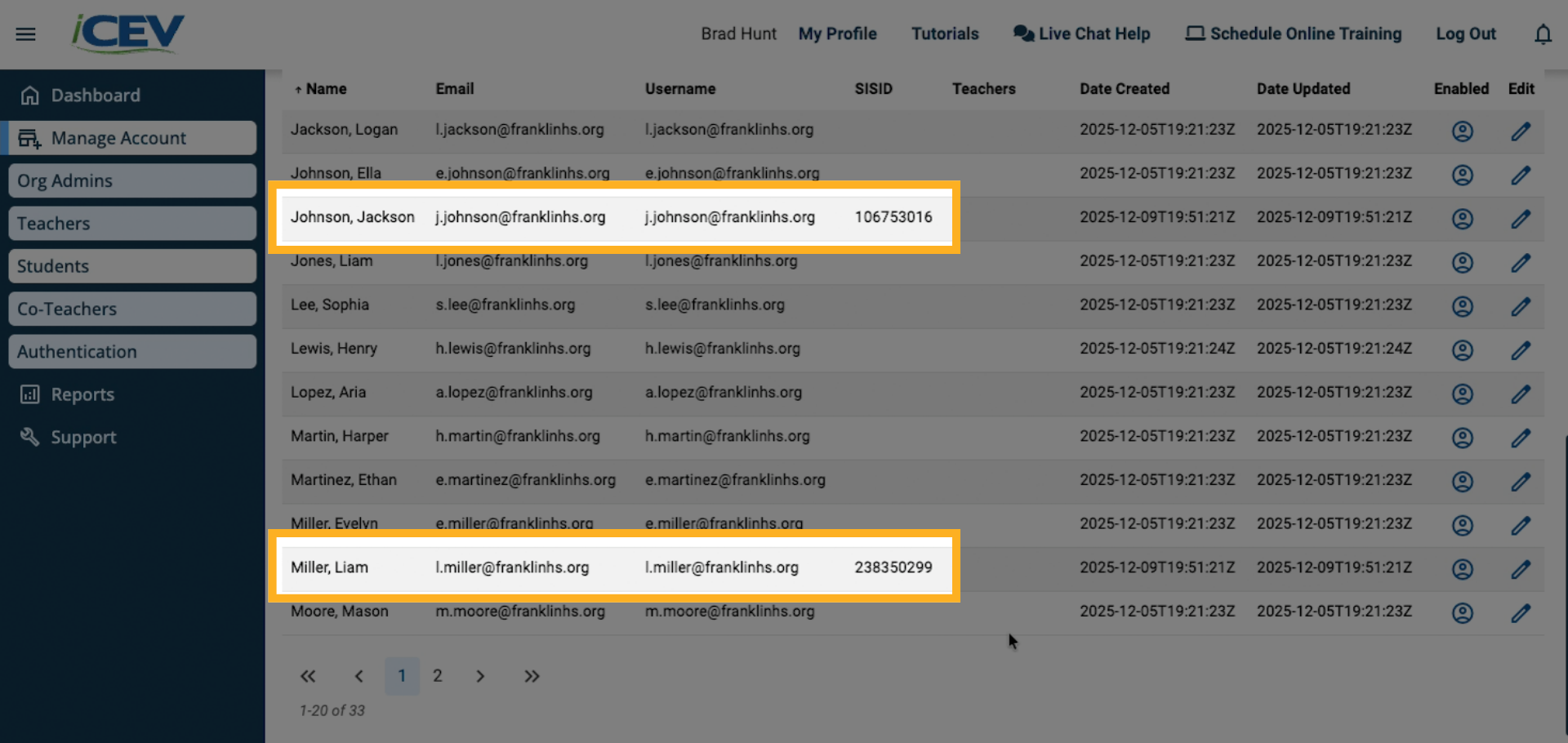
After the import is complete, return to the Student dashboard.
-
Confirm that the imported students are now listed.