CTE Curriculum
Prepare learners with CTE curriculum aligned to industry standards.

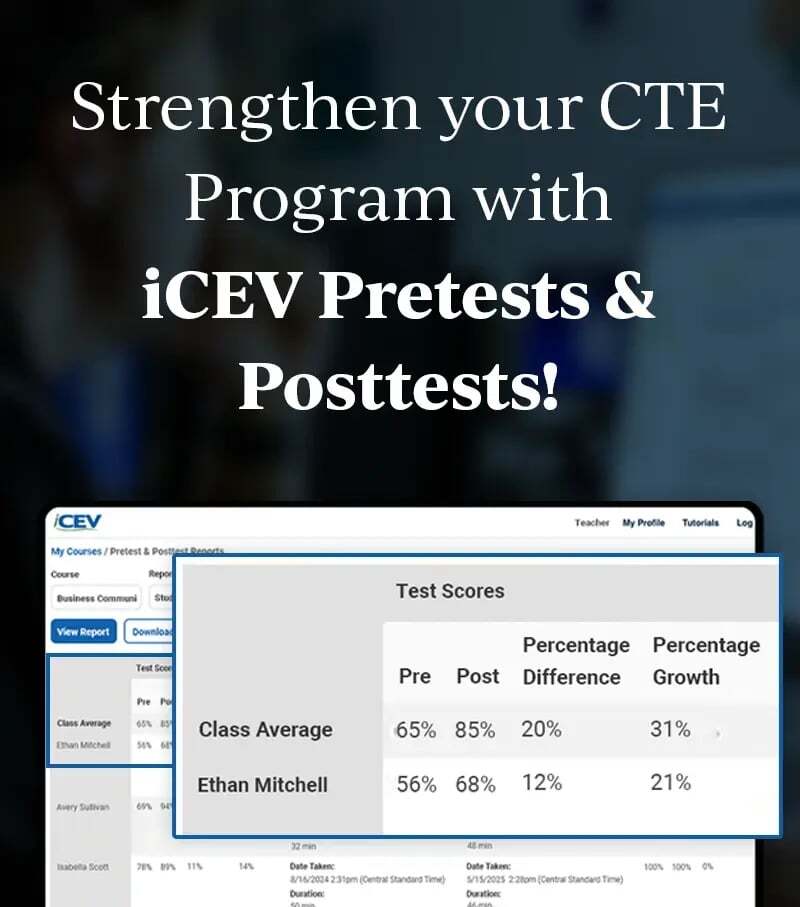

1. Start Building a Custom Course
From the My Courses page, click Add Course to begin creating a new course.
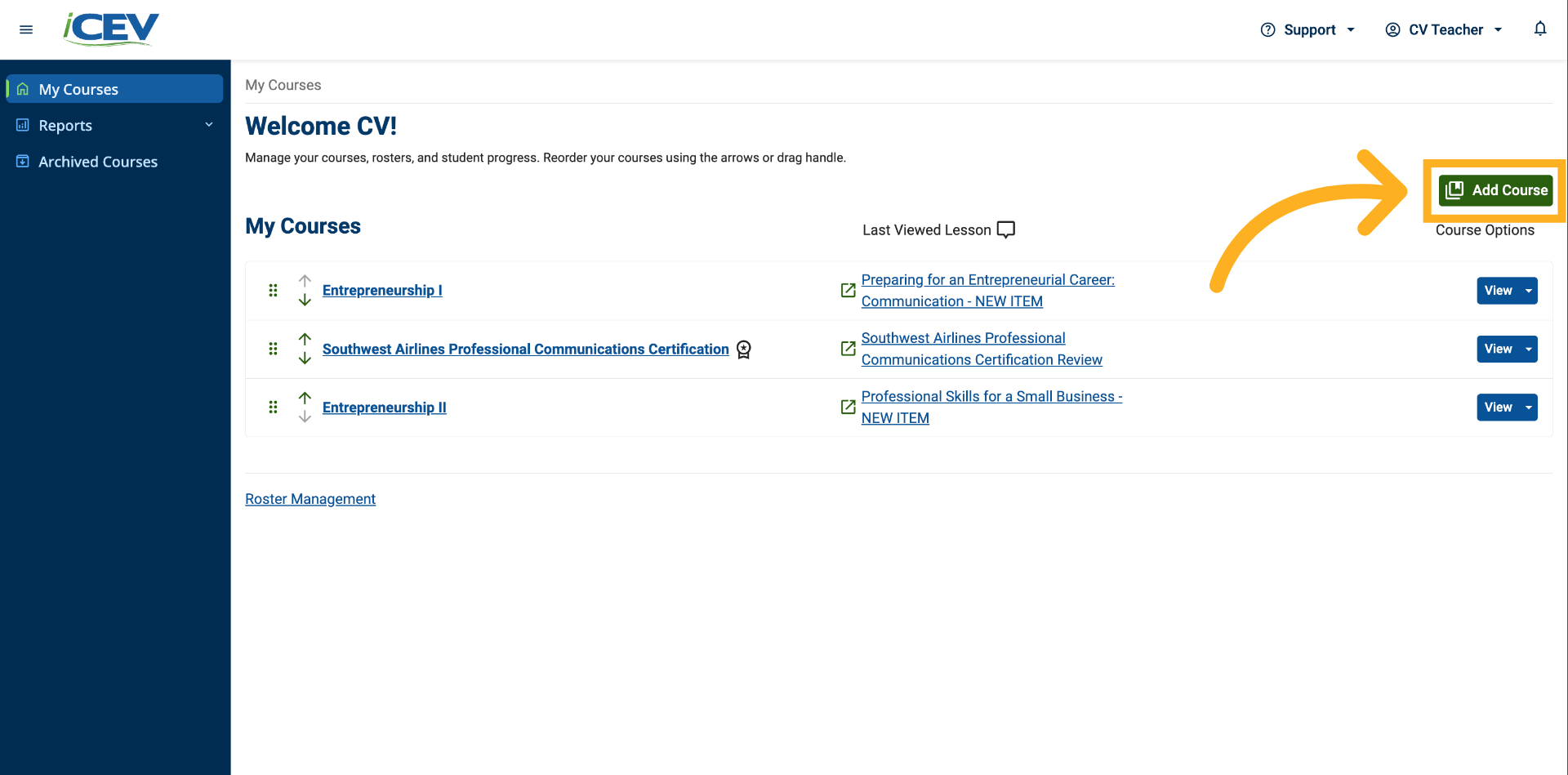
2. Select "Build Your Own Course"
When the course setup window opens, select Build Your Own Course.
This option allows you to create a custom course using lessons from across the iCEV lesson library.
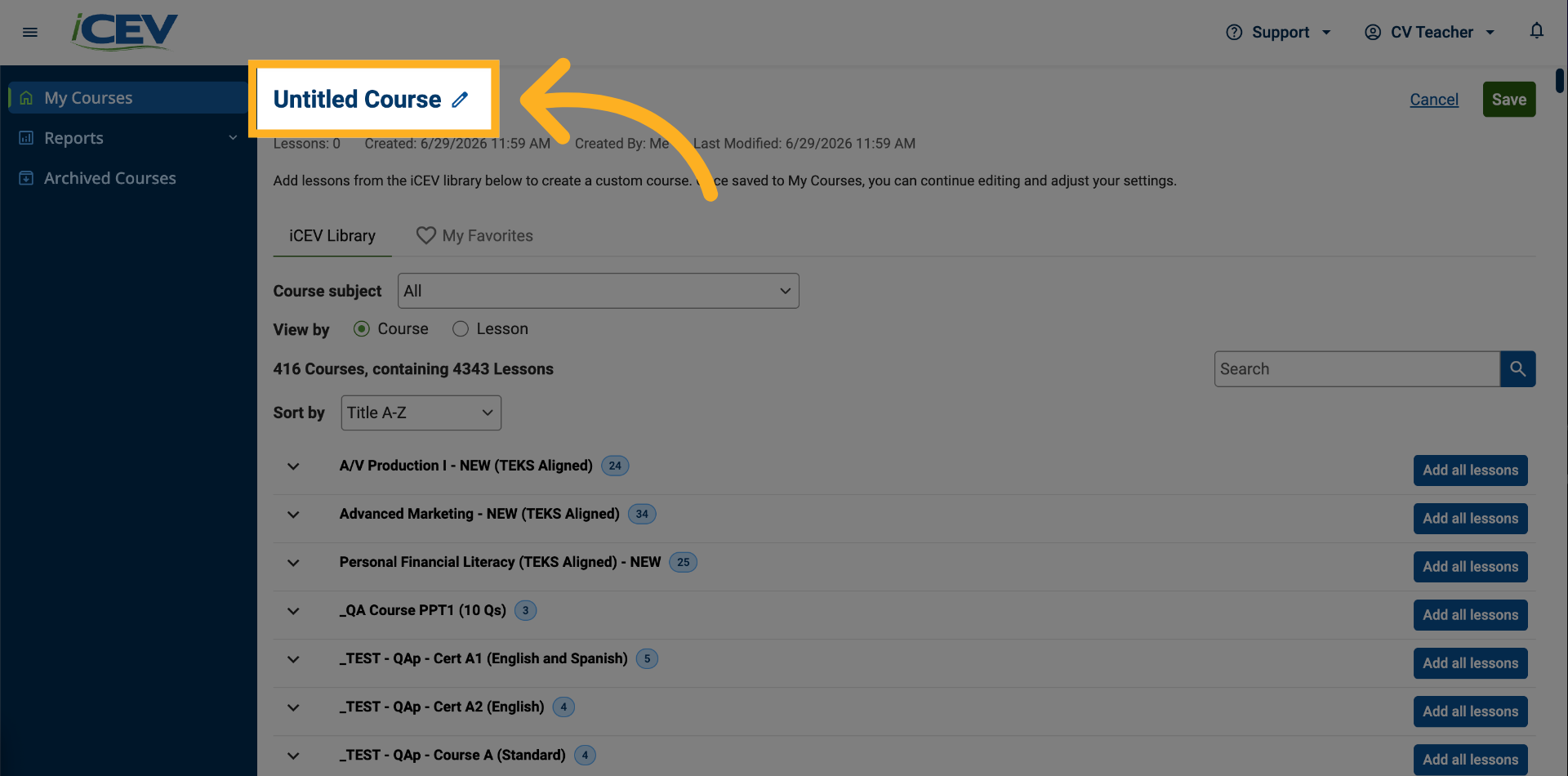
3. Name Your Course
Enter a course title that clearly identifies your course and its intended purpose.
4. Choose How to Browse Content
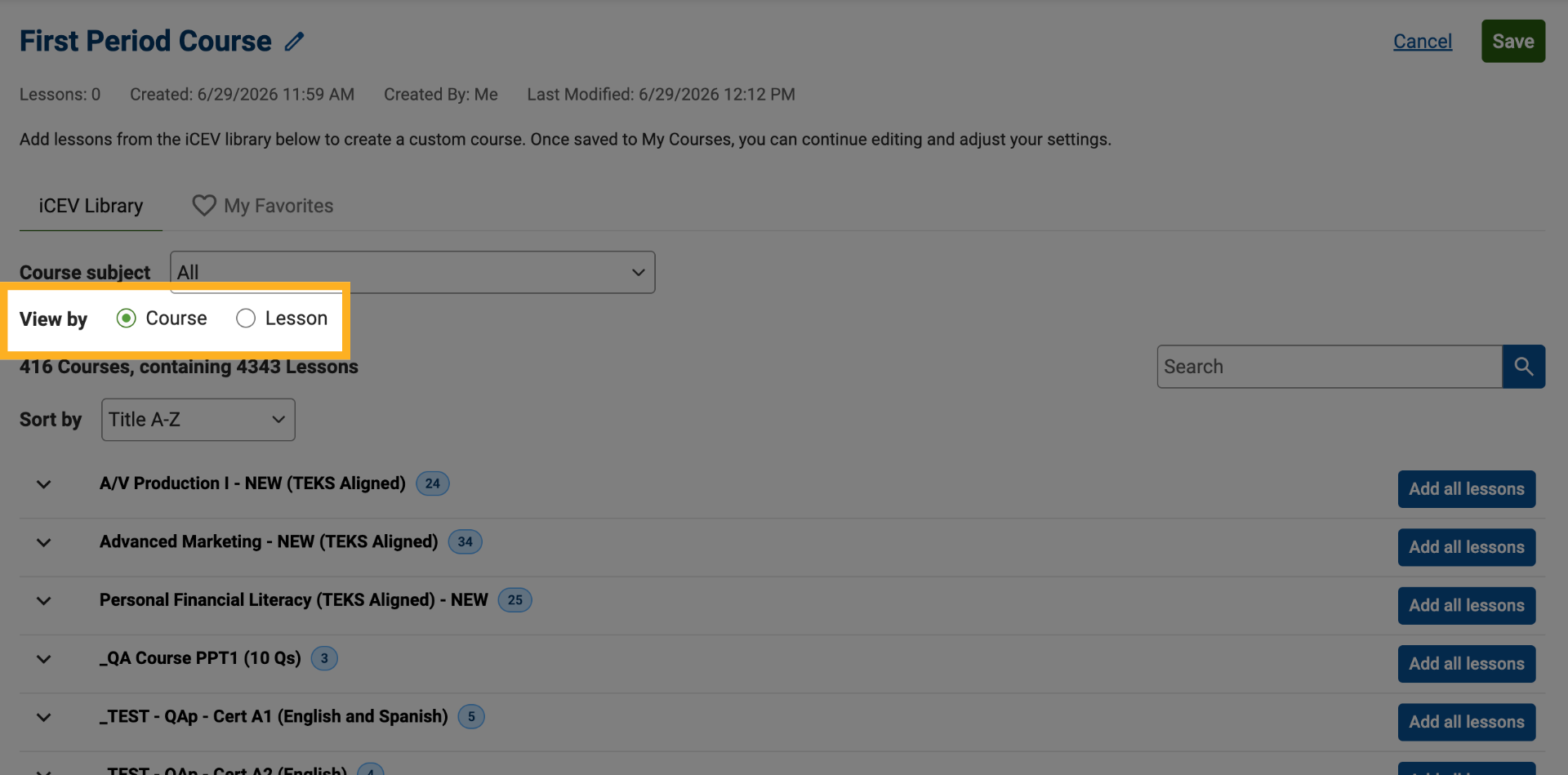
You can explore content using two different views:
-
Course View: Displays courses that contain groups of lessons.
-
Lesson View: Displays individual lessons available within your licensed subject areas.
Use the radio buttons at the top of the page to switch between views at any time.
5. Browse Lessons Within a Course
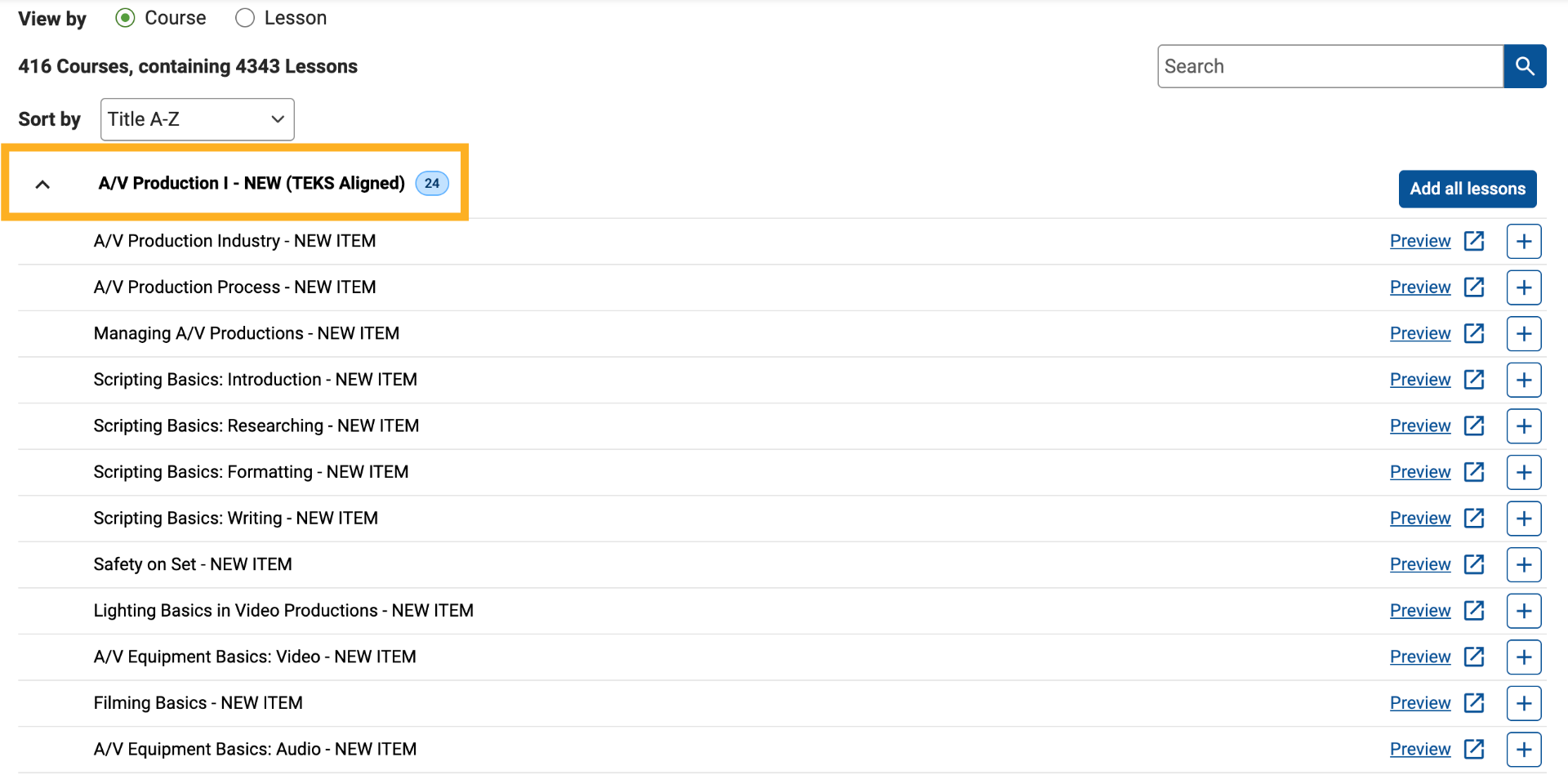
In Course View, expand a course to view all lessons it contains.
This allows you to review course content and select only the lessons you want to include in your customized course.
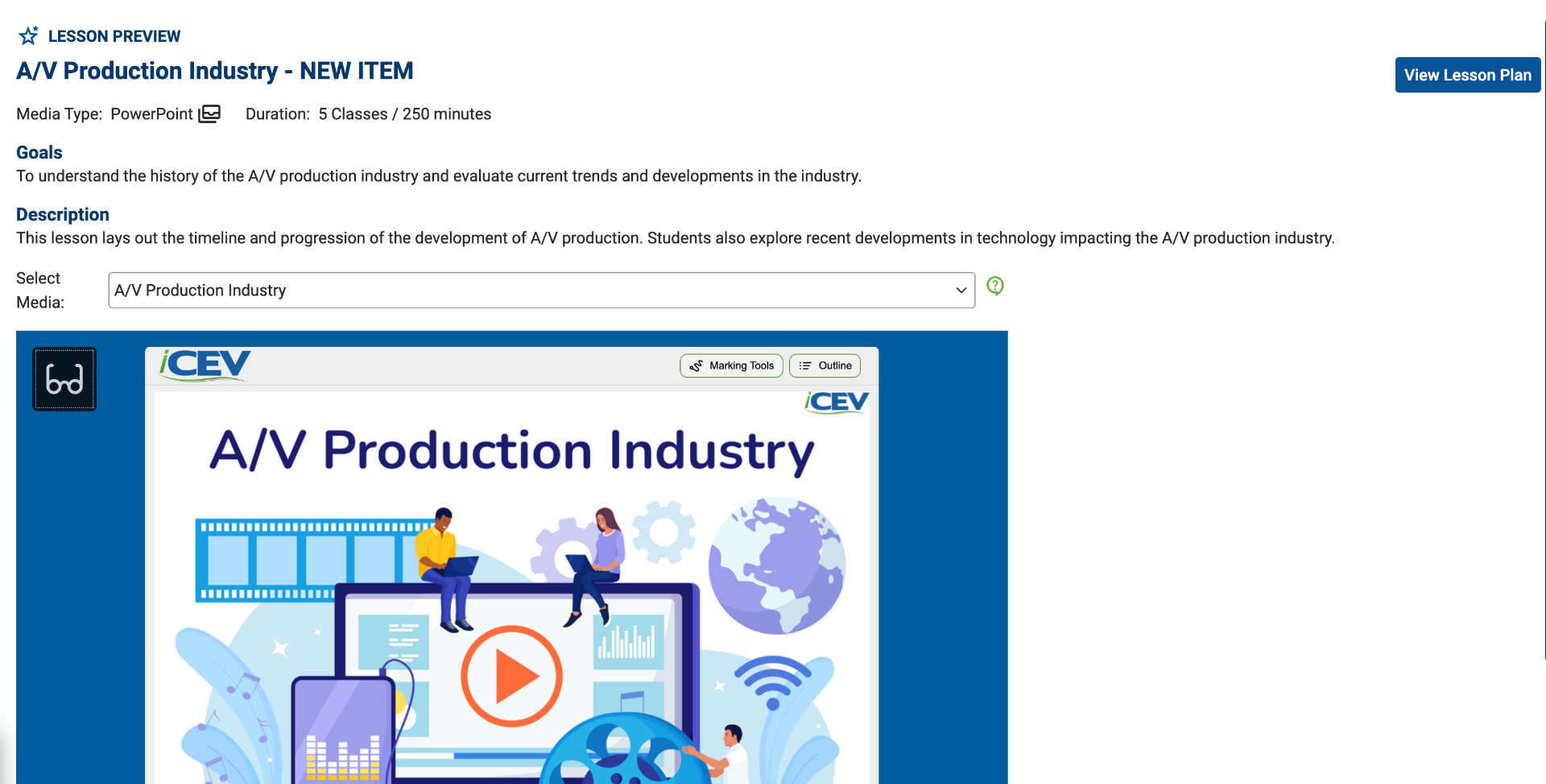
6. Open Lesson Previews
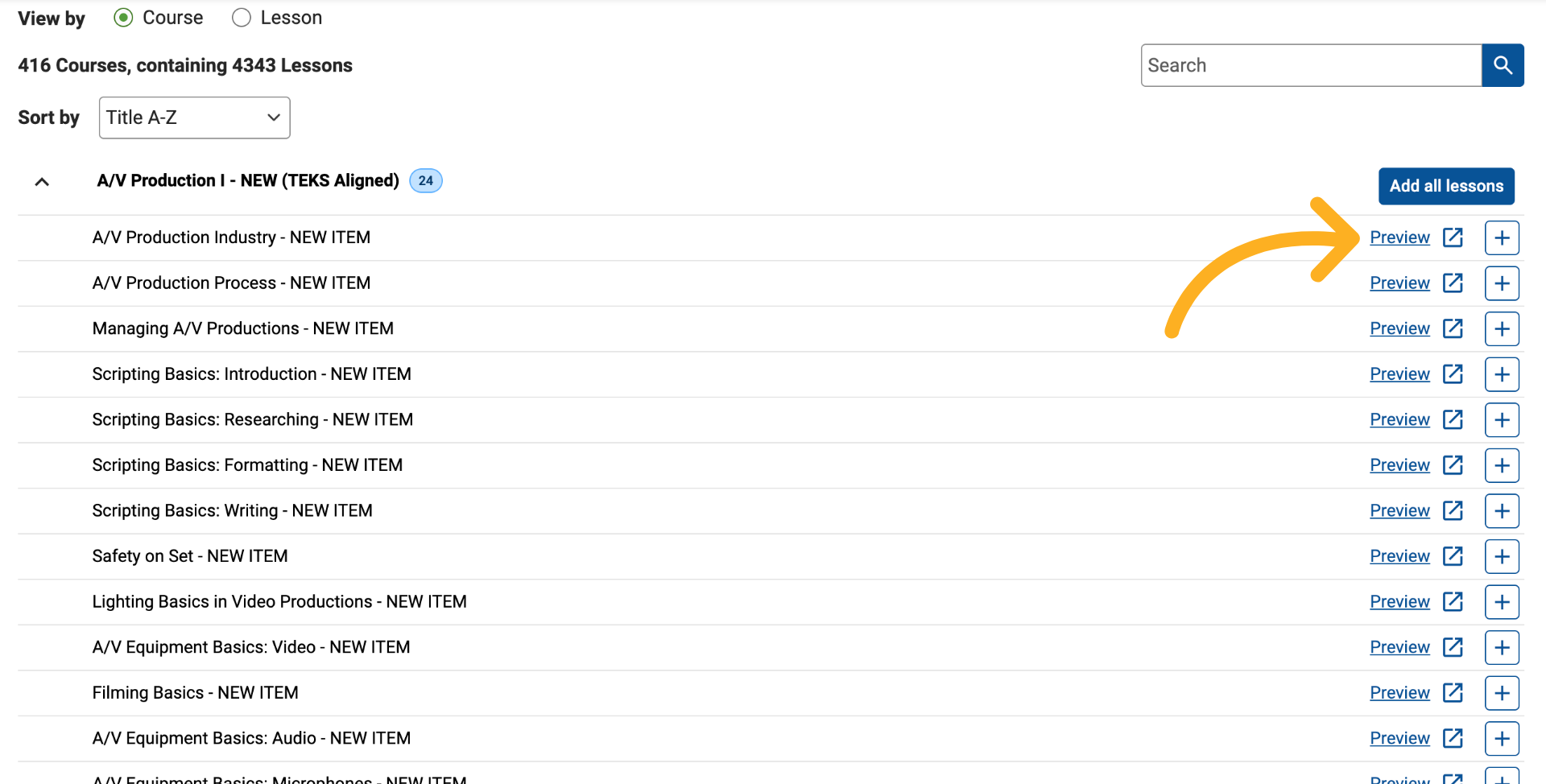
To learn more about a lesson before adding it, click the Preview link next to the lesson.
7. Preview Lessons
The lesson preview provides additional information, including:
-
Lesson descriptions
-
Media types and lesson duration
-
Course goals and content
-
Lesson plans
8. Add Individual Lessons
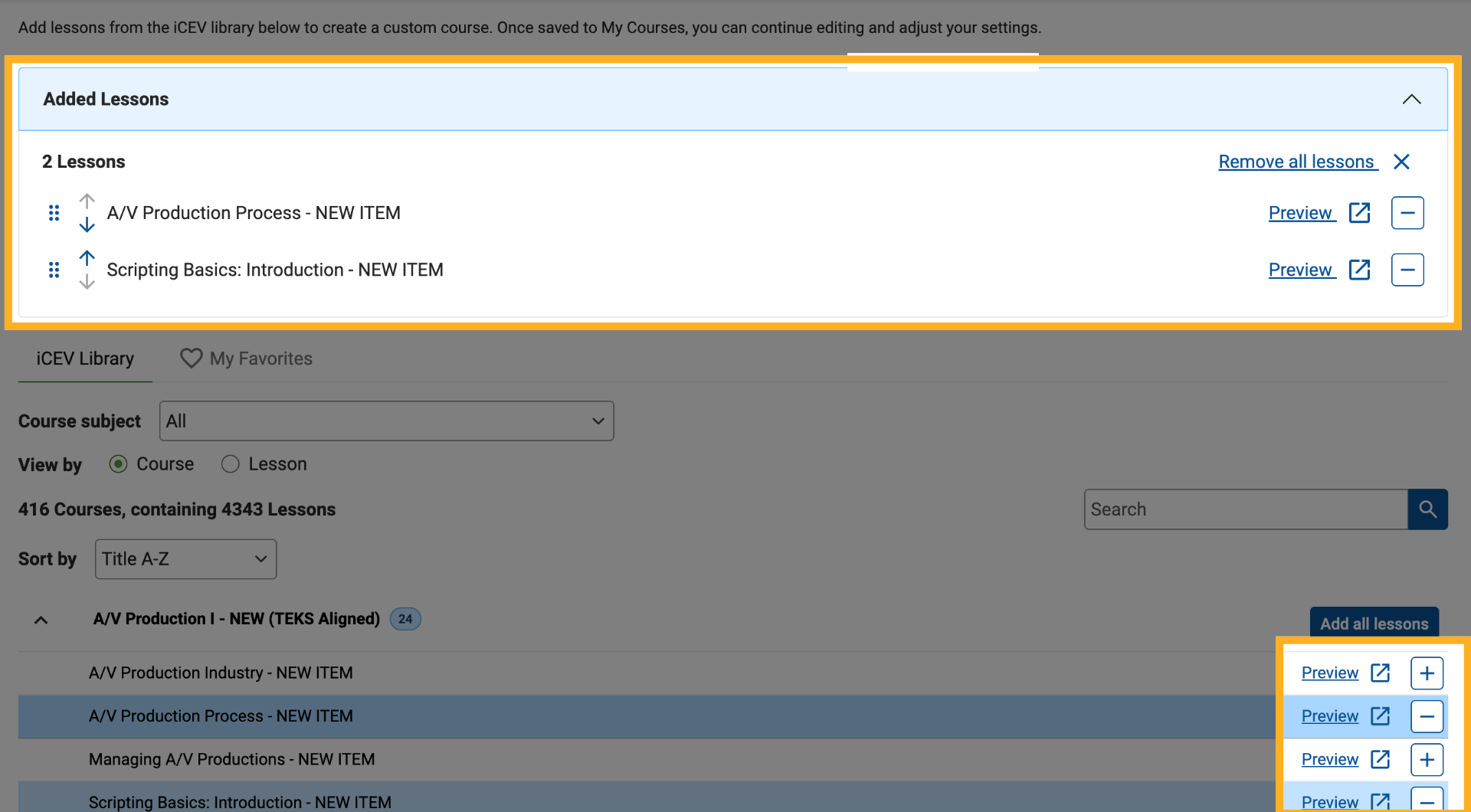
To add a lesson to your custom course, click the Add (+) button next to the lesson.
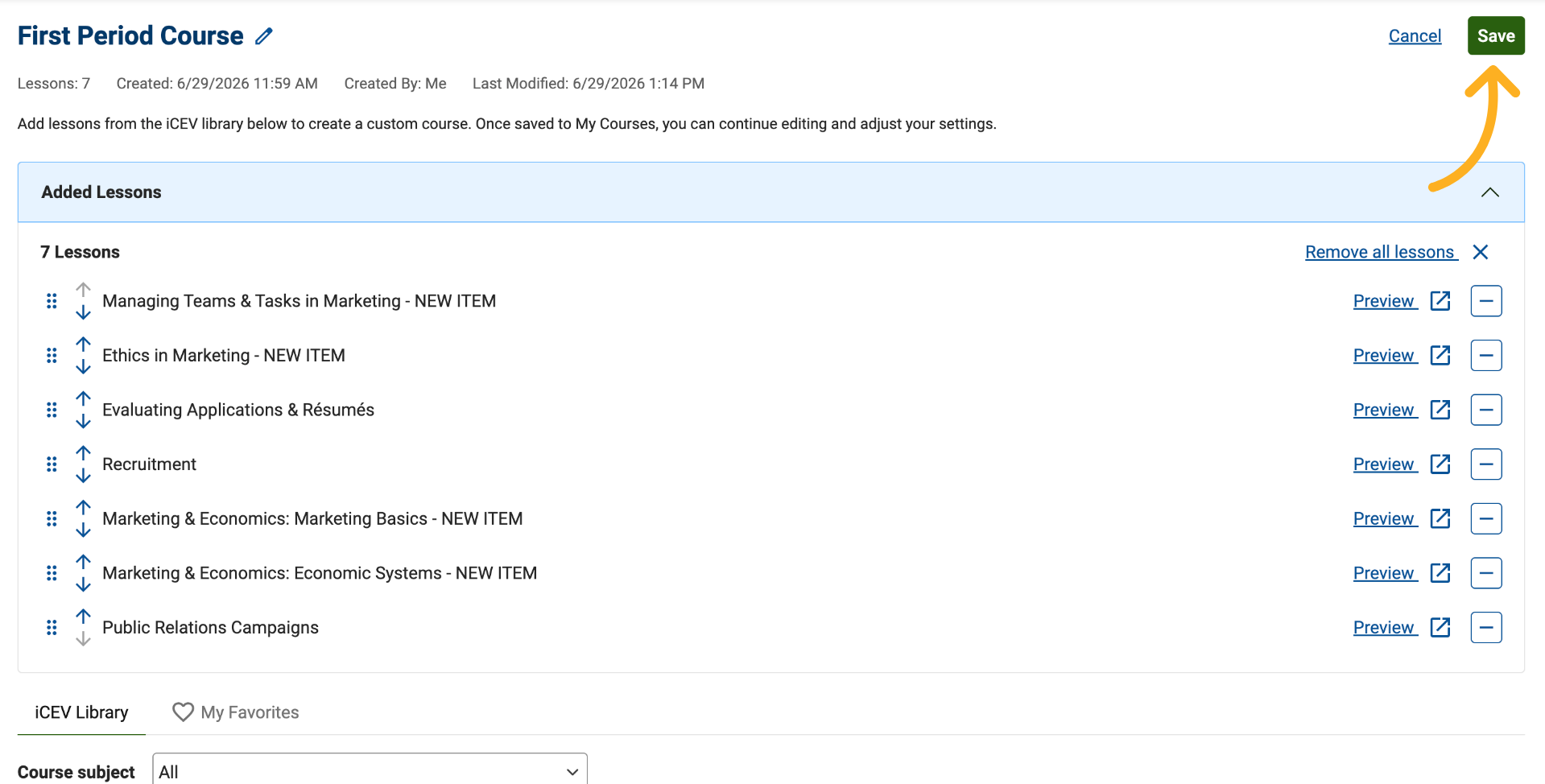
Added lessons appear in the course queue at the top of the page, allowing you to track your selections as you build your course.
9. Identify Added Lessons
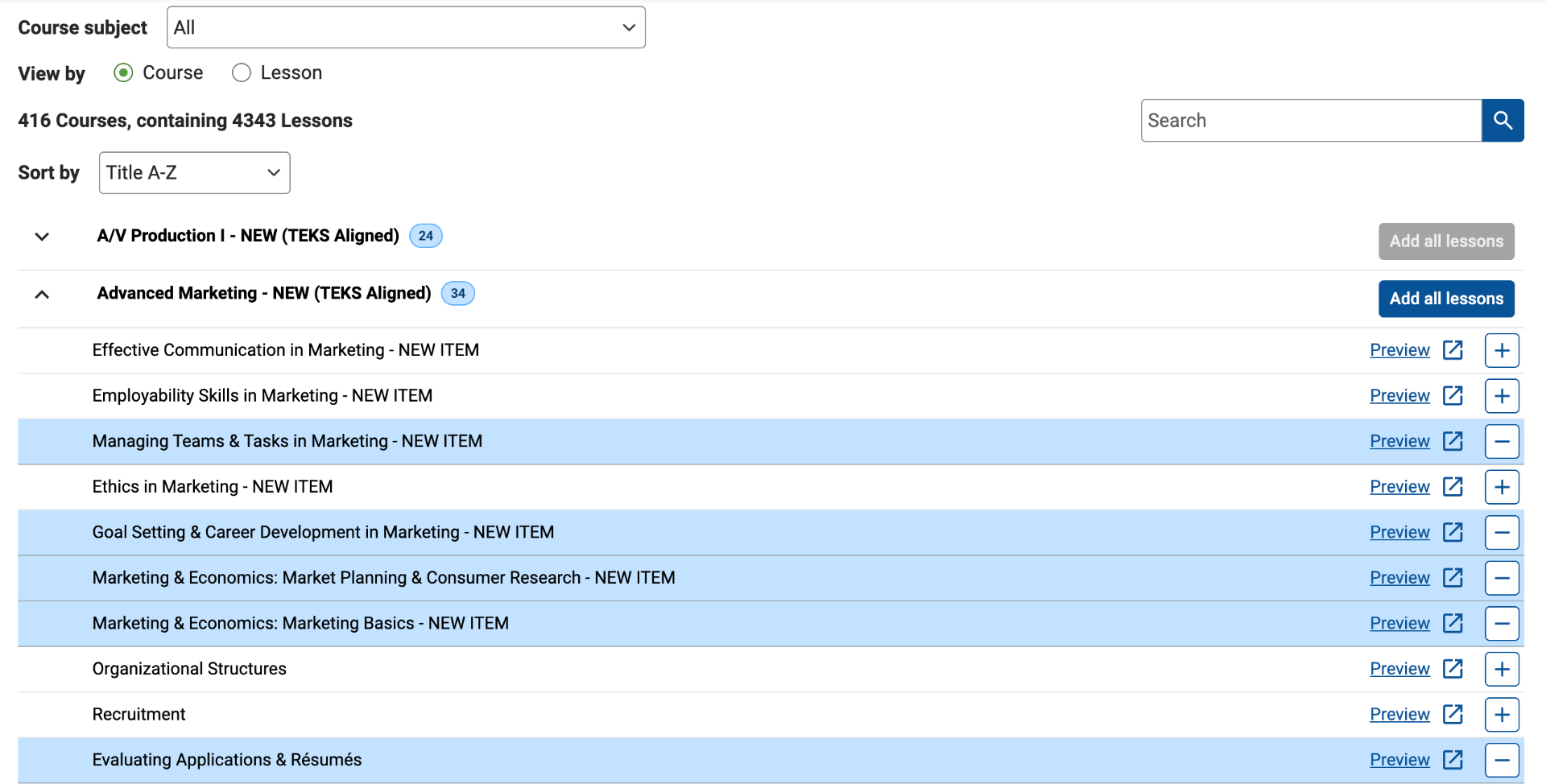
Lessons that have already been added to your course are highlighted.
This visual indicator helps prevent duplicate selections, as the same lesson cannot be added to a course more than once.
10. Add All Lessons from a Course
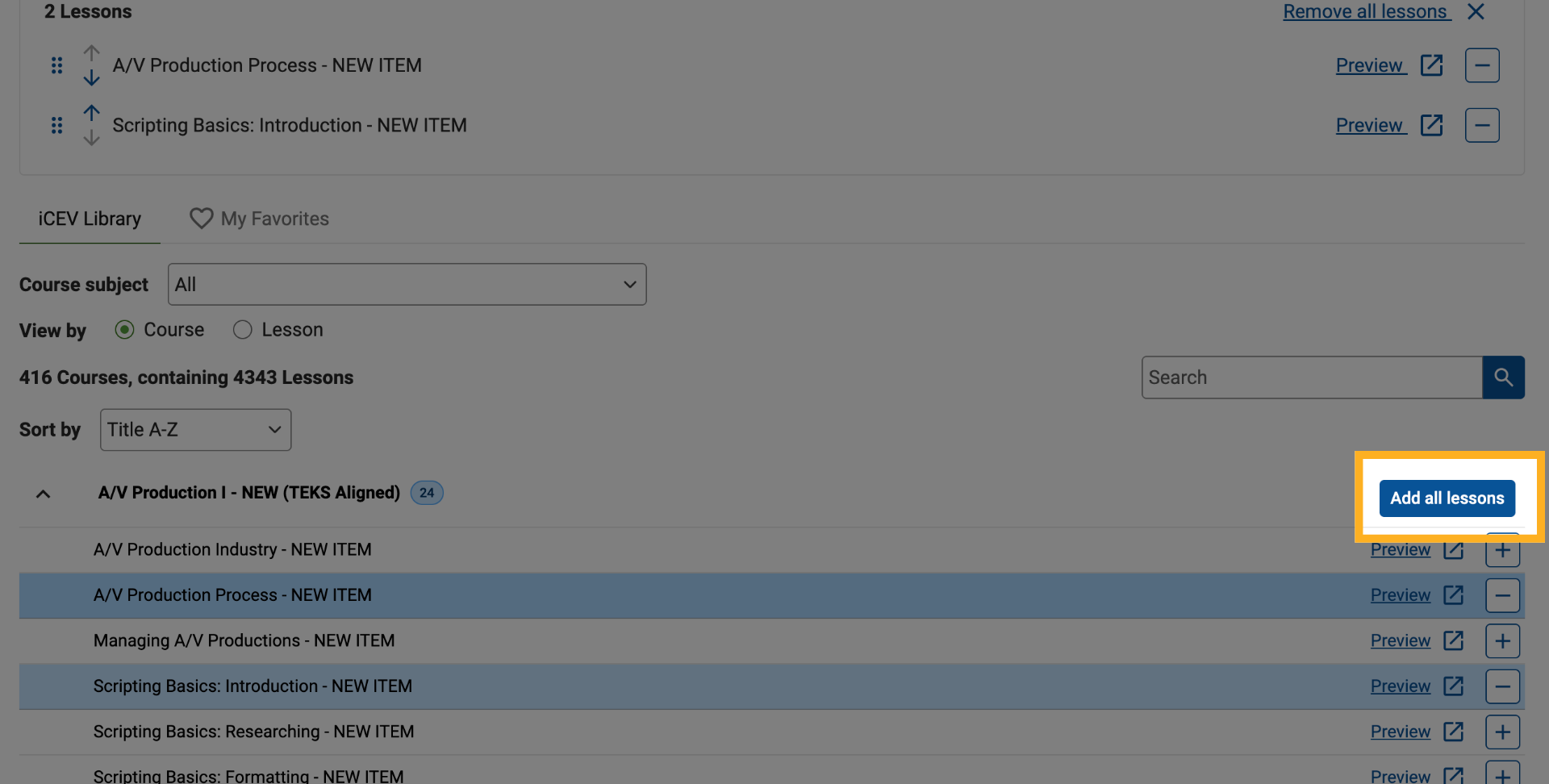
If you want to include every lesson from a course, click Add All Lessons.
11. Review Automatically Added Lessons
When you select Add All Lessons, every lesson from that course is added to your custom course queue automatically.
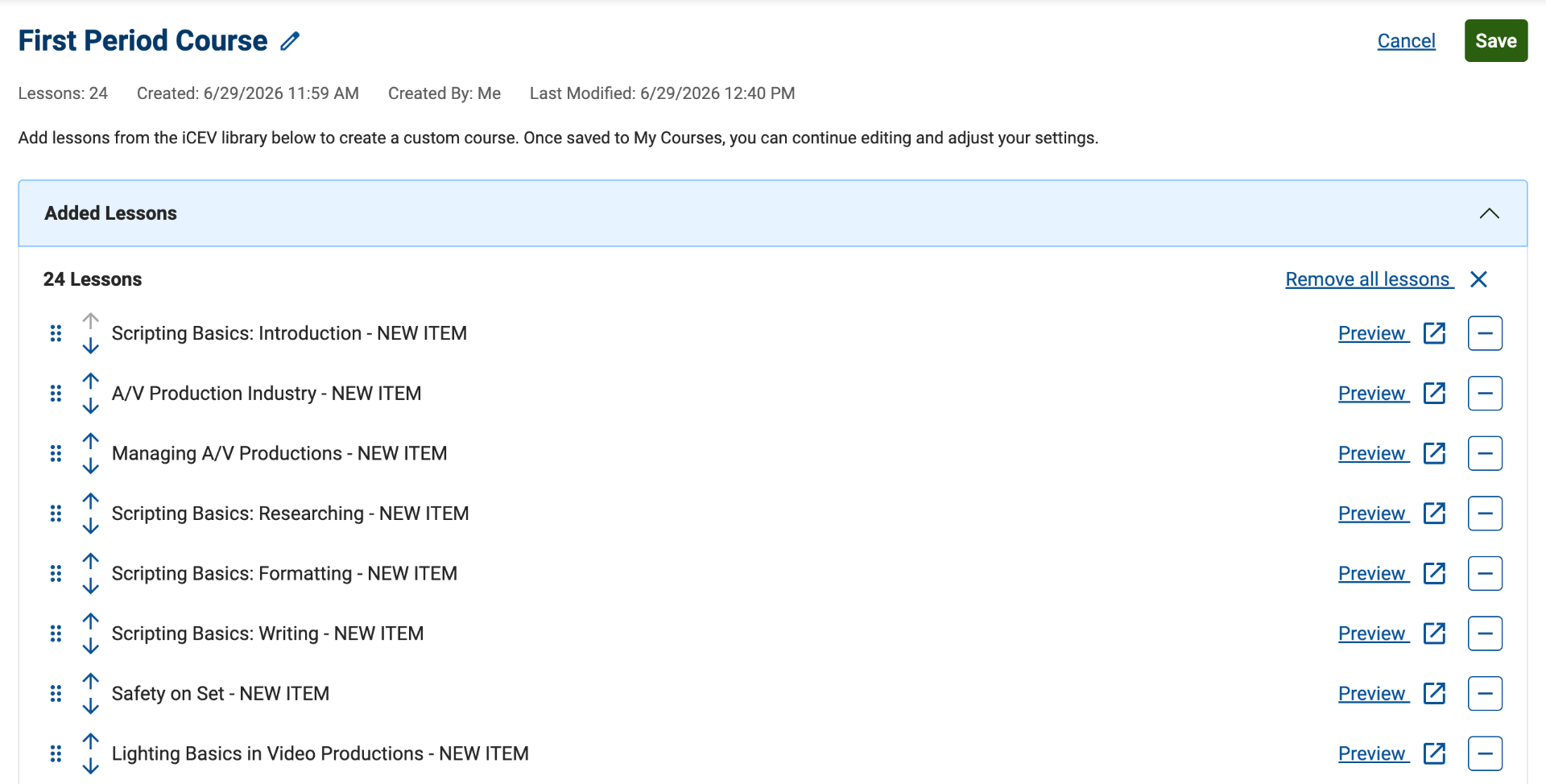
12. Remove Lessons
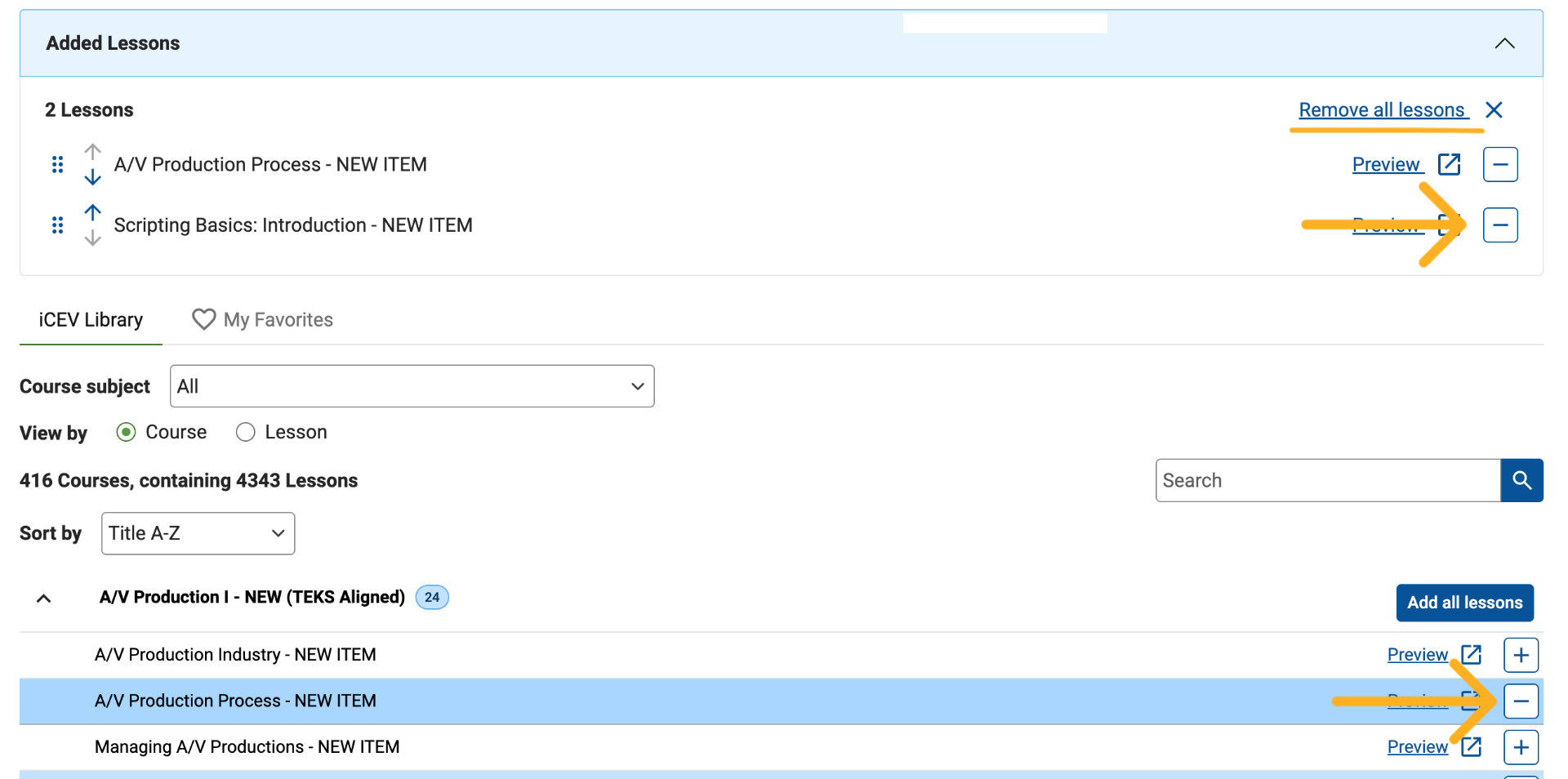
You can remove lessons from your course in several ways:
-
Click the Remove (-) button from the lesson list.
-
Click the Remove (-) button directly from the course queue.
-
Click Remove All Lessons above the course queue to clear all selected lessons.
Removing a lesson from either location removes it from your customized course.
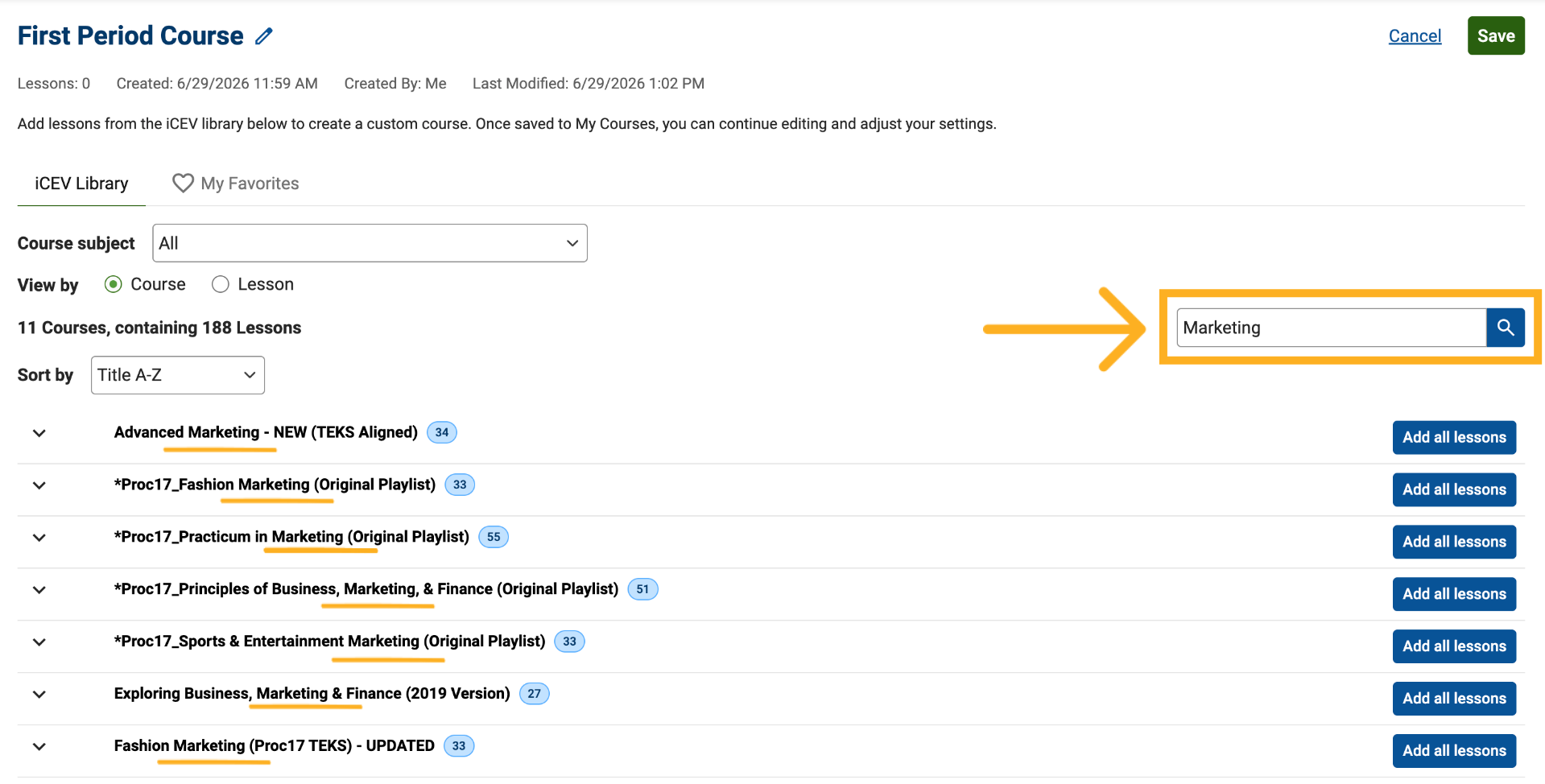
13. Search for Content
Use the search bar to find specific content quickly.
Search results are matched based on:
-
Course titles when using Course View
-
Lesson titles when using Lesson View
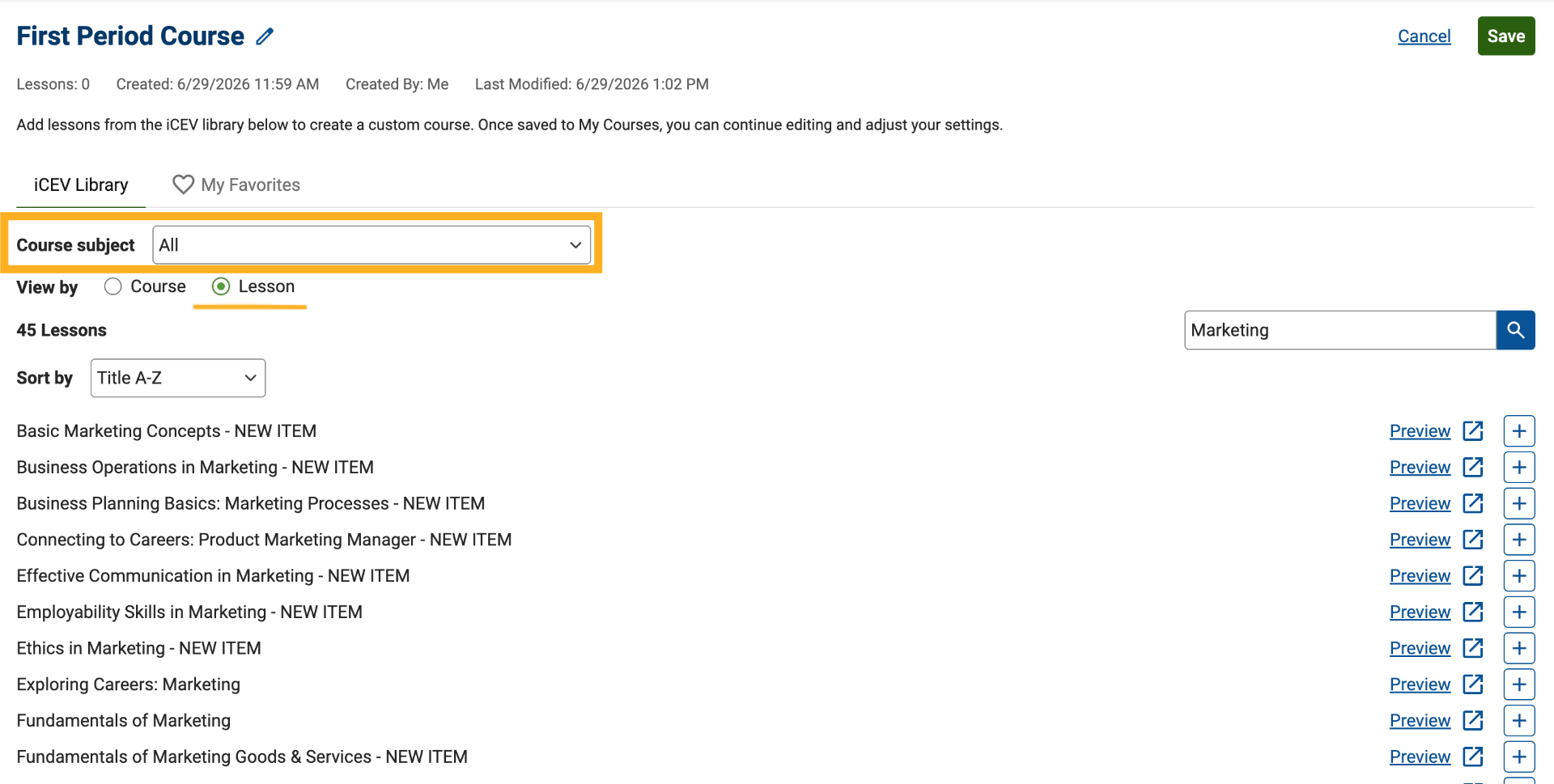
14. Search by Individual Lesson
Switch to Lesson View when searching for specific lessons rather than entire courses.
You can also narrow your results by subject area to find relevant lessons more efficiently.
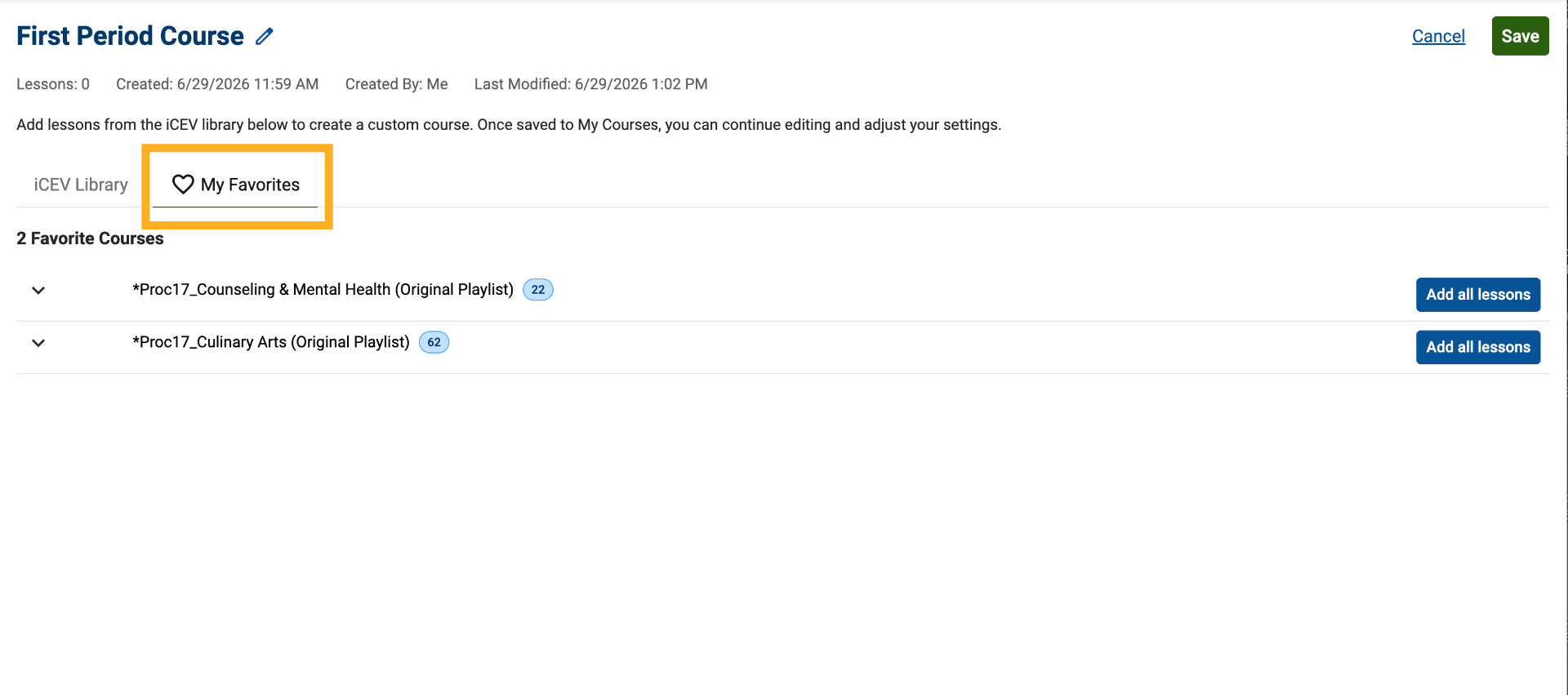
15. Add Lessons from Favorites
If you have previously favorited courses, access them through the My Favorites tab.
While individual lessons cannot be favorited within the Build Your Own Course workflow, favorite courses can help you quickly locate and add lessons to your custom course.
16. Review Your Selected Lessons
As you build your course, review the lesson queue at the top of the page.
From here, you can:
-
Preview lessons
-
Remove lessons individually
-
Verify lesson selections
-
Make adjustments before saving
17. Save Your Custom Course
When you are satisfied with your lesson selections, save the course.
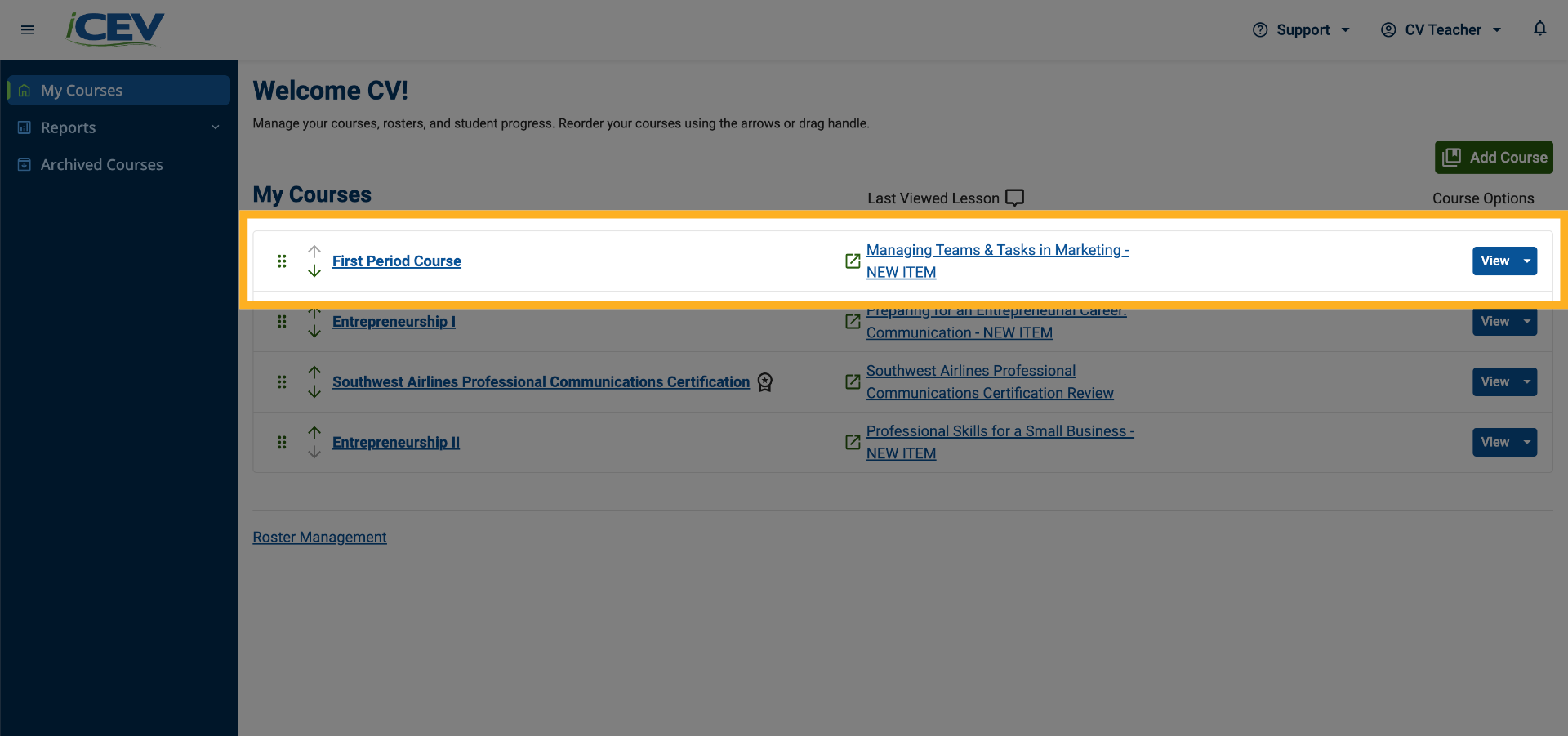
Your customized course will be added to your My Courses page and will appear at the top of your course list.
18. Edit Your Course Later
You can continue customizing your course at any time.
Open the course from your My Courses page and use the available customization tools to:
-
Add lessons
-
Remove lessons
-
Rearrange lesson order
This flexibility allows you to update your course as your classroom needs change.