CTE Curriculum
Prepare learners with CTE curriculum aligned to industry standards.


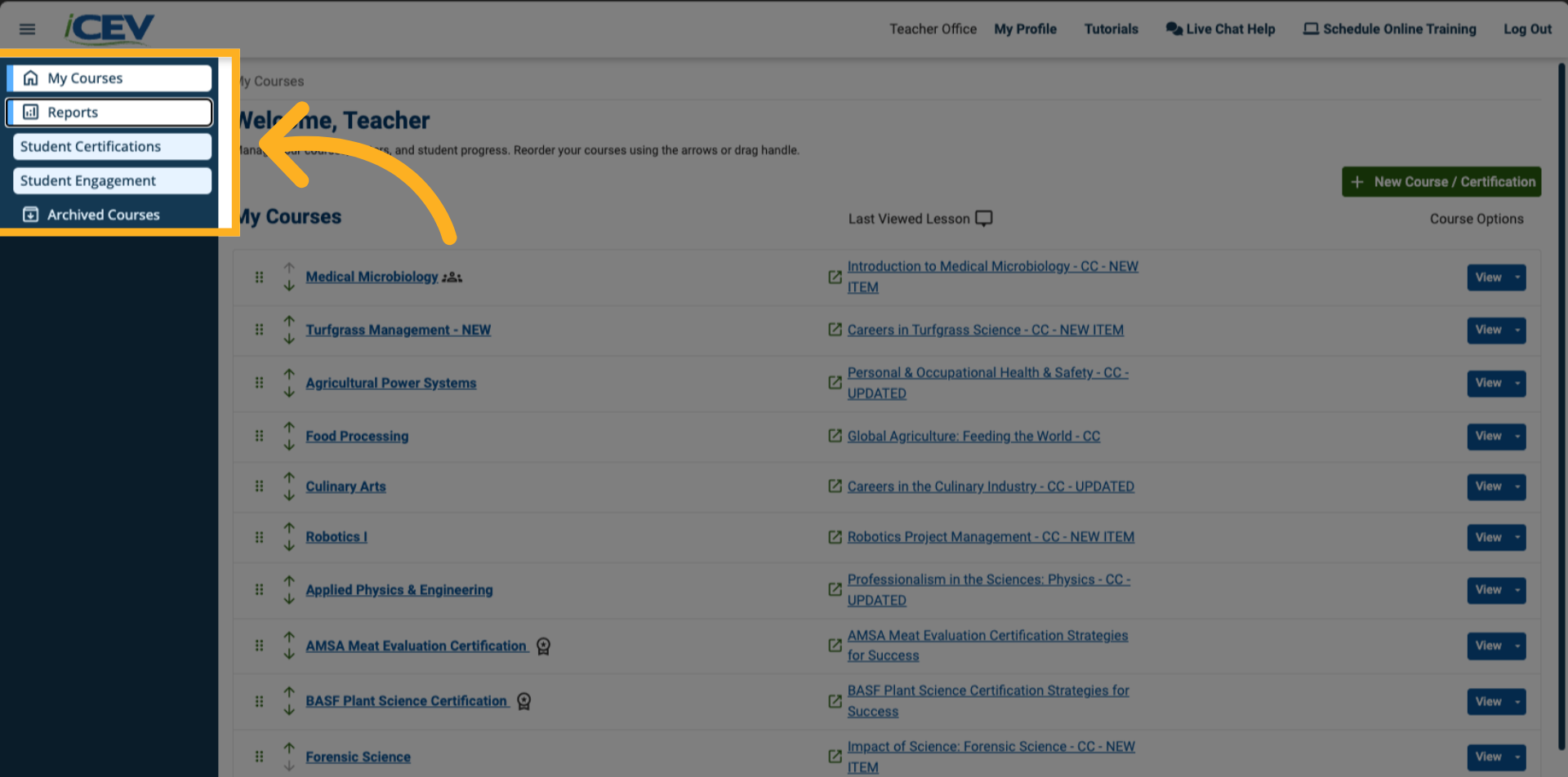
1. Navigate to Reports
From any page in iCEV, select Reports in the left-hand navigation menu.
When additional options appear, click Student Certifications.
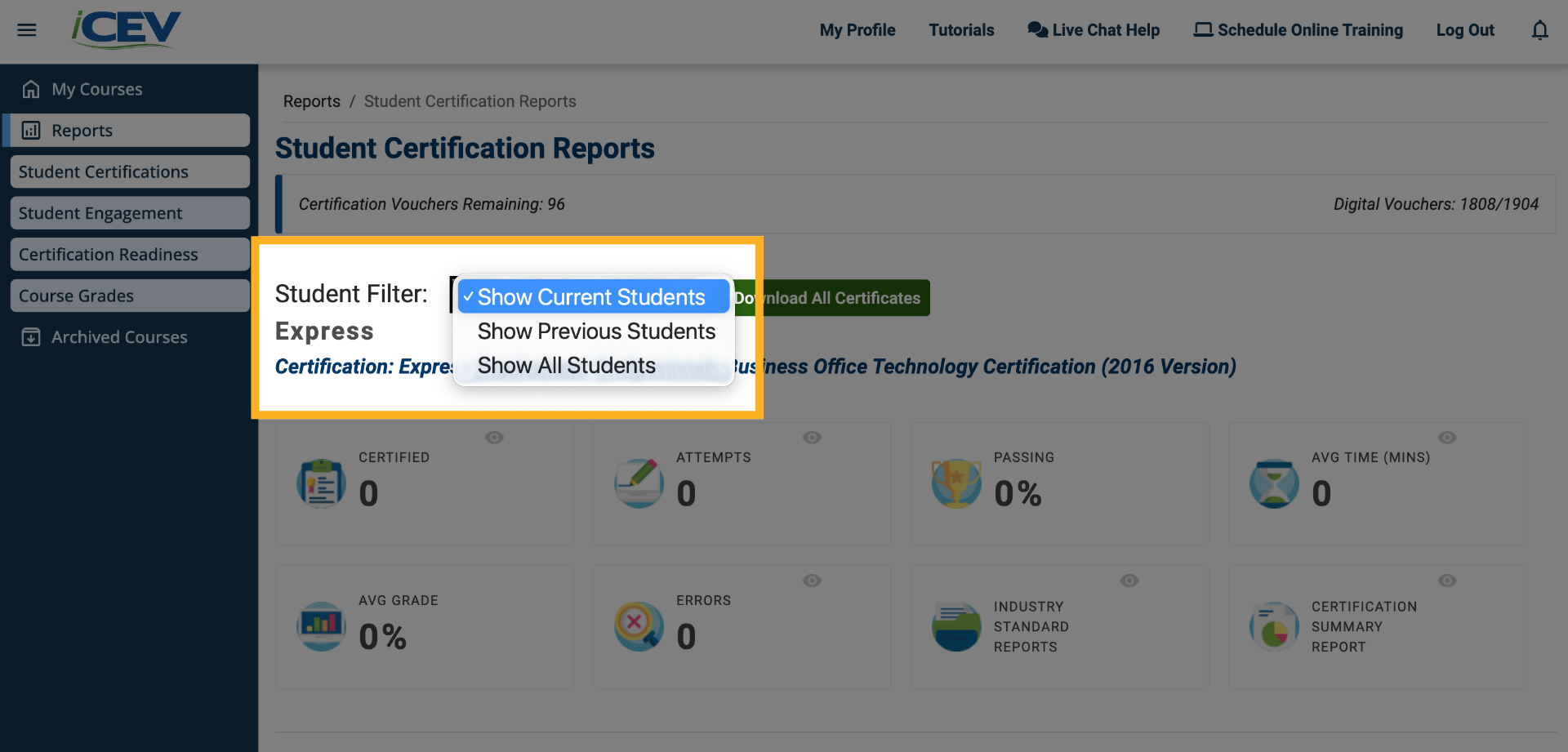
2. Choose the Student Group
In the Student Certification Reports dashboard, use the student filter to choose which students to include:
-
Current Students
-
Previous Students
-
All Students
This selection determines which certificates are available for download.
3. Download Classroom Certificate Bundles
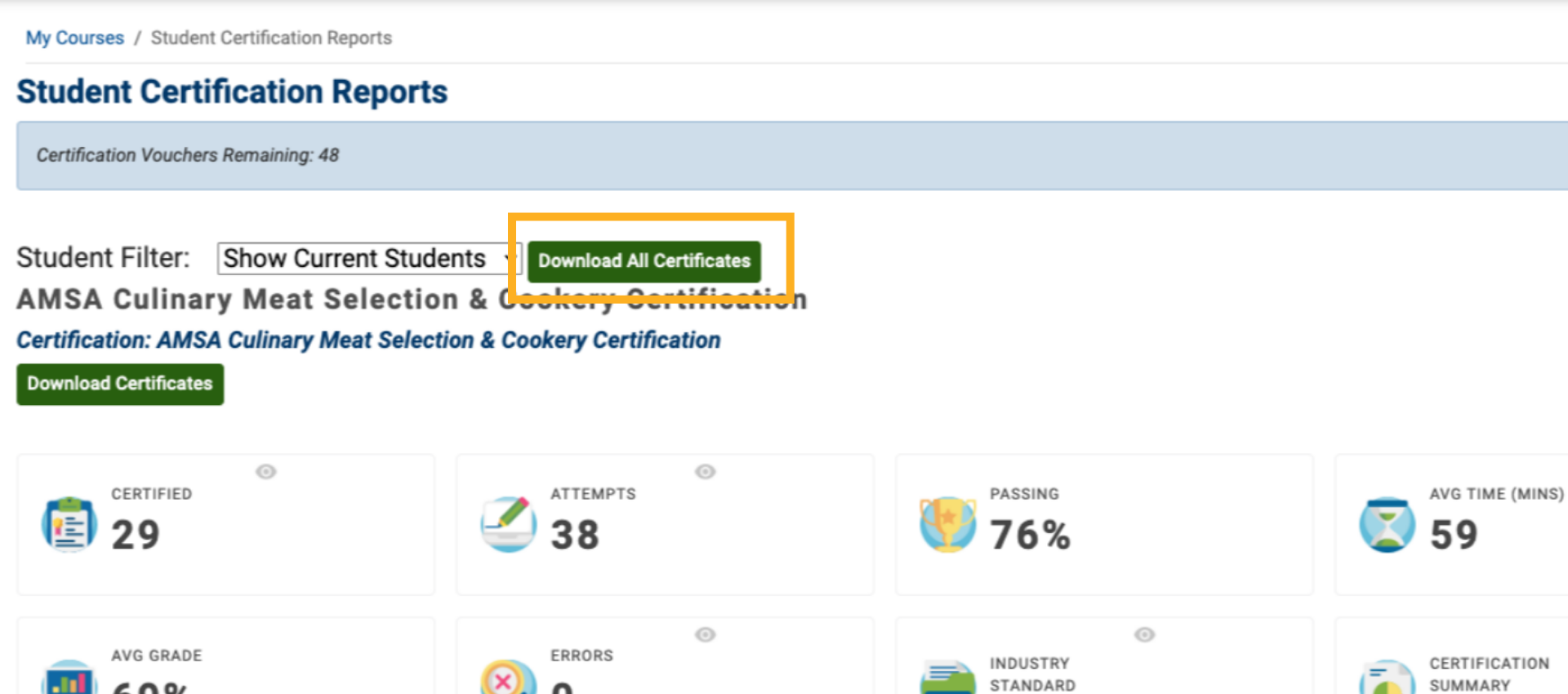
After selecting a student group from the filter dropdown, click Download All Certificates.
This option downloads all available certificates as a classroom bundle for easy bulk access.
4. Download Certificates by Certification
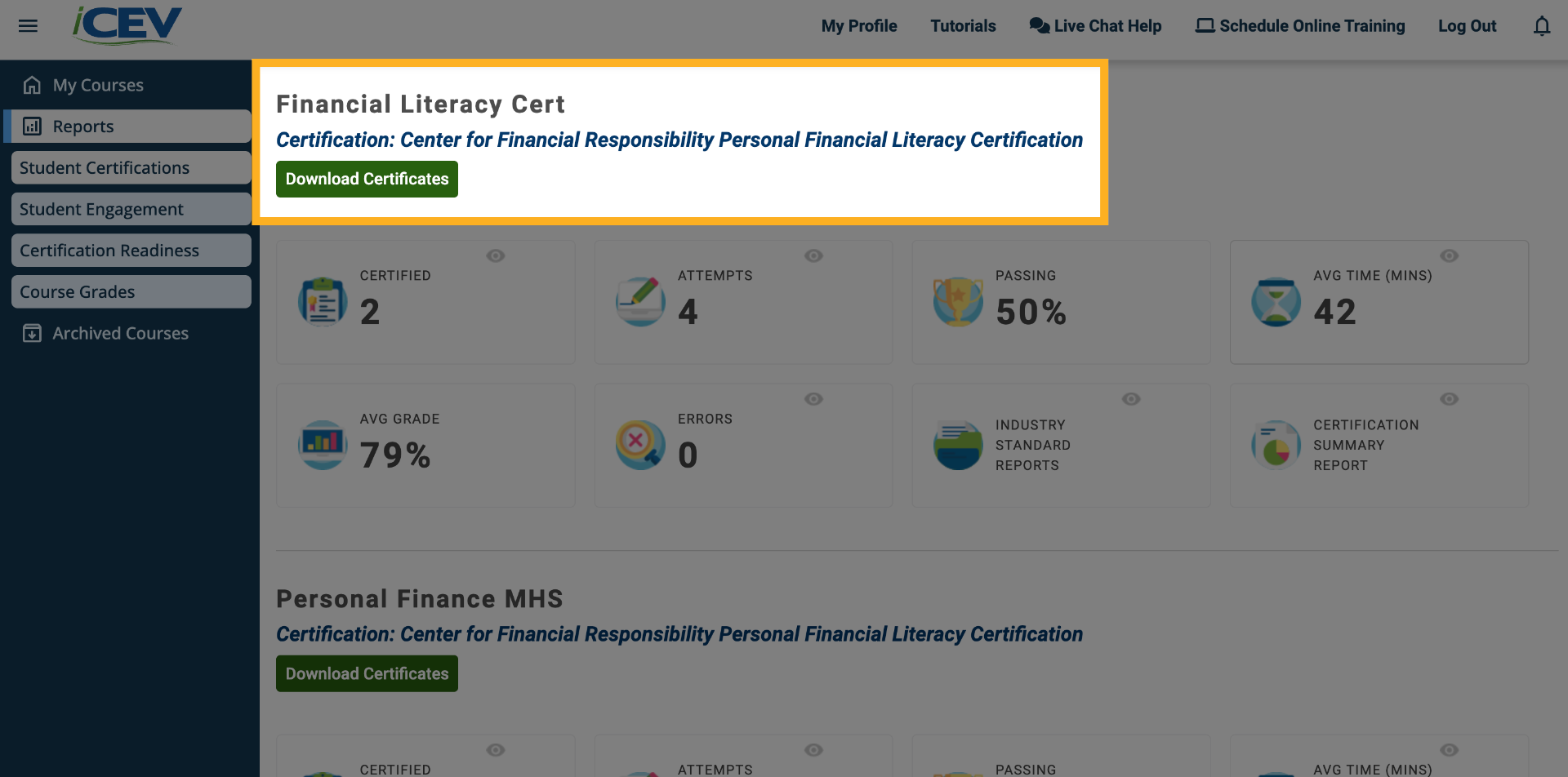
To download certificates by credential type, select the Download Certificates option below the certification name in the reports.
This allows you to save files grouped by specific certifications rather than by student.
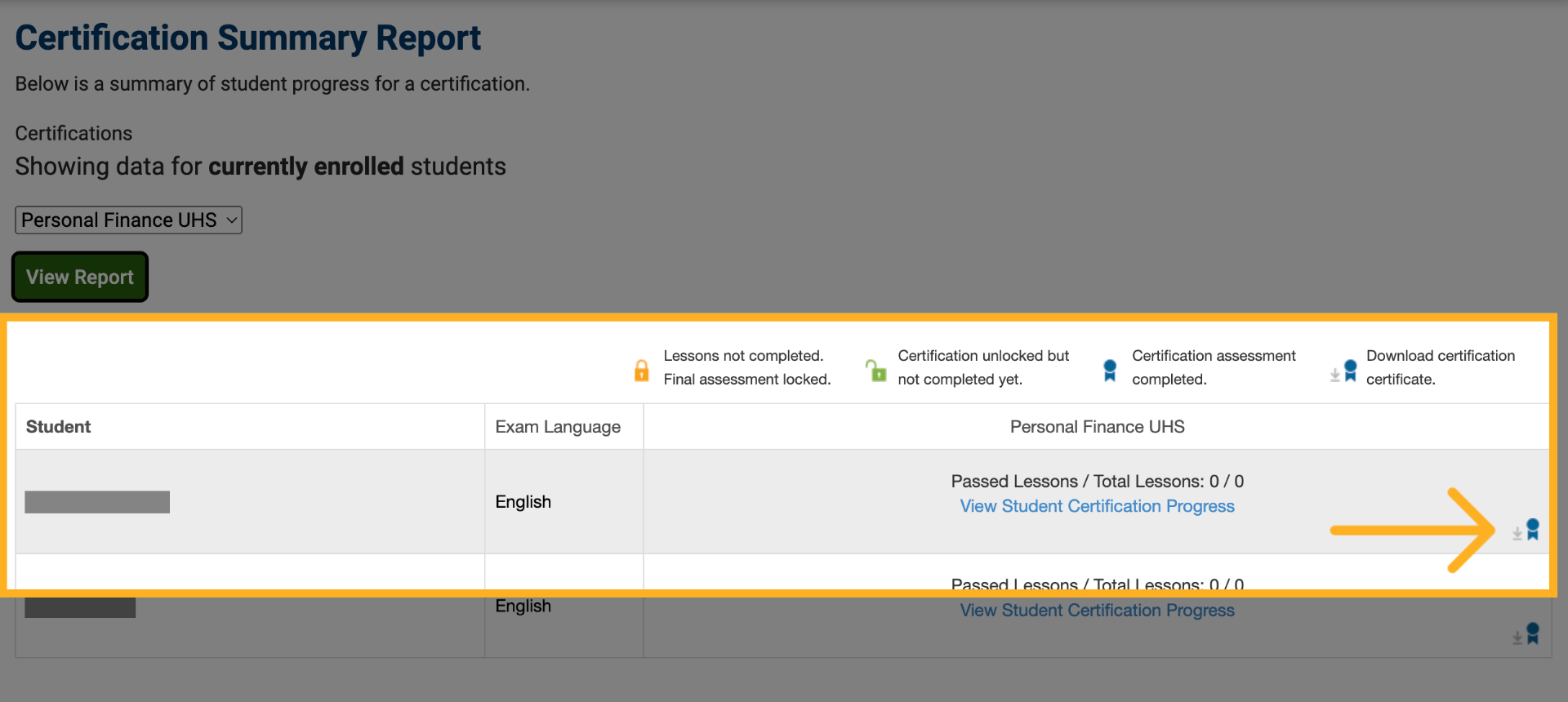
5. Open the Certification Summary Report
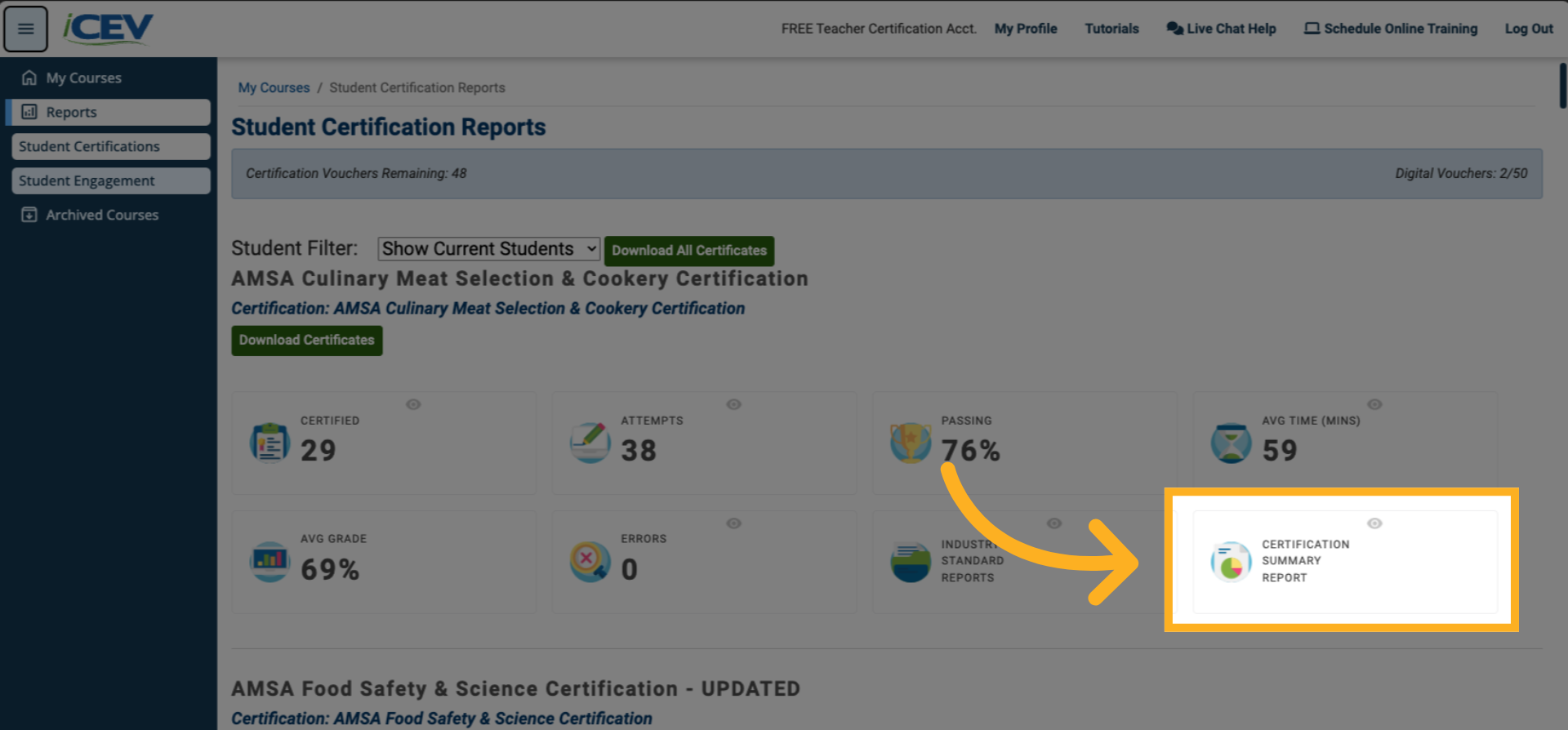
To view certificates for individual students, click the Certification Summary Report icon.
6. Select a Certification and View the Report
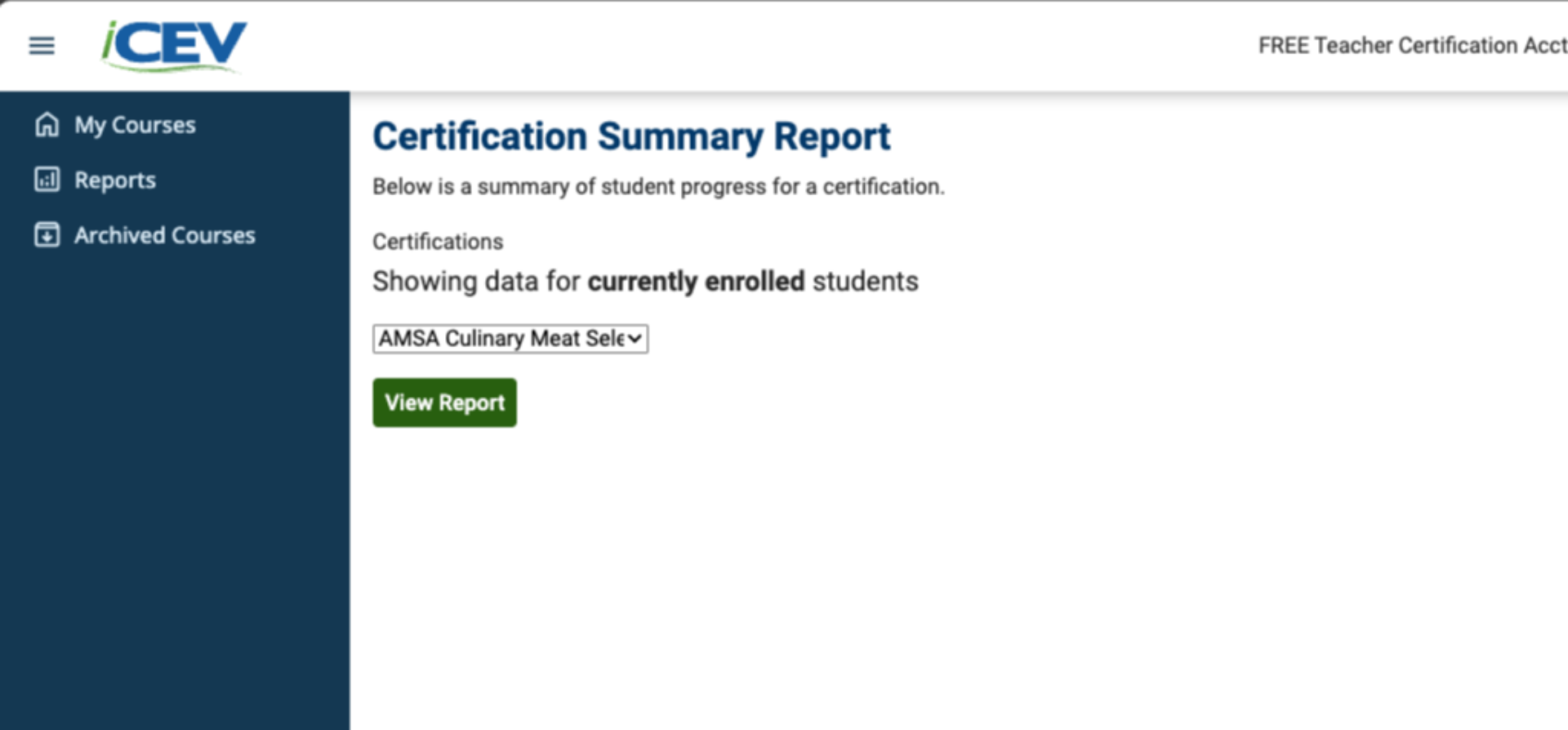
Use the certification dropdown menu to choose the certification you want to review, then click View Report to load the results.
7. Download Individual Student Certificates
Within the report, locate the student you need.
Click the Download Certificate icon to download that student’s individual digital certificate.