CTE Curriculum
Prepare learners with CTE curriculum aligned to industry standards.


1. Navigating to the Course Page
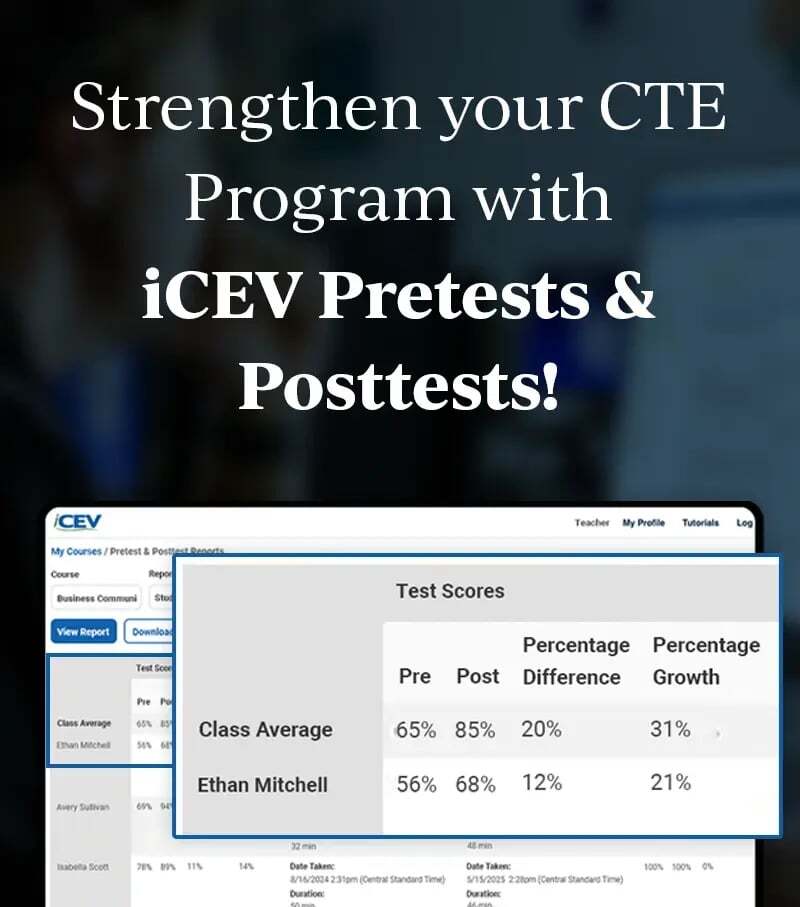
From your My Courses page:
-
Click the course title or the View button next to the course you want to add students to.
2. Inviting Students
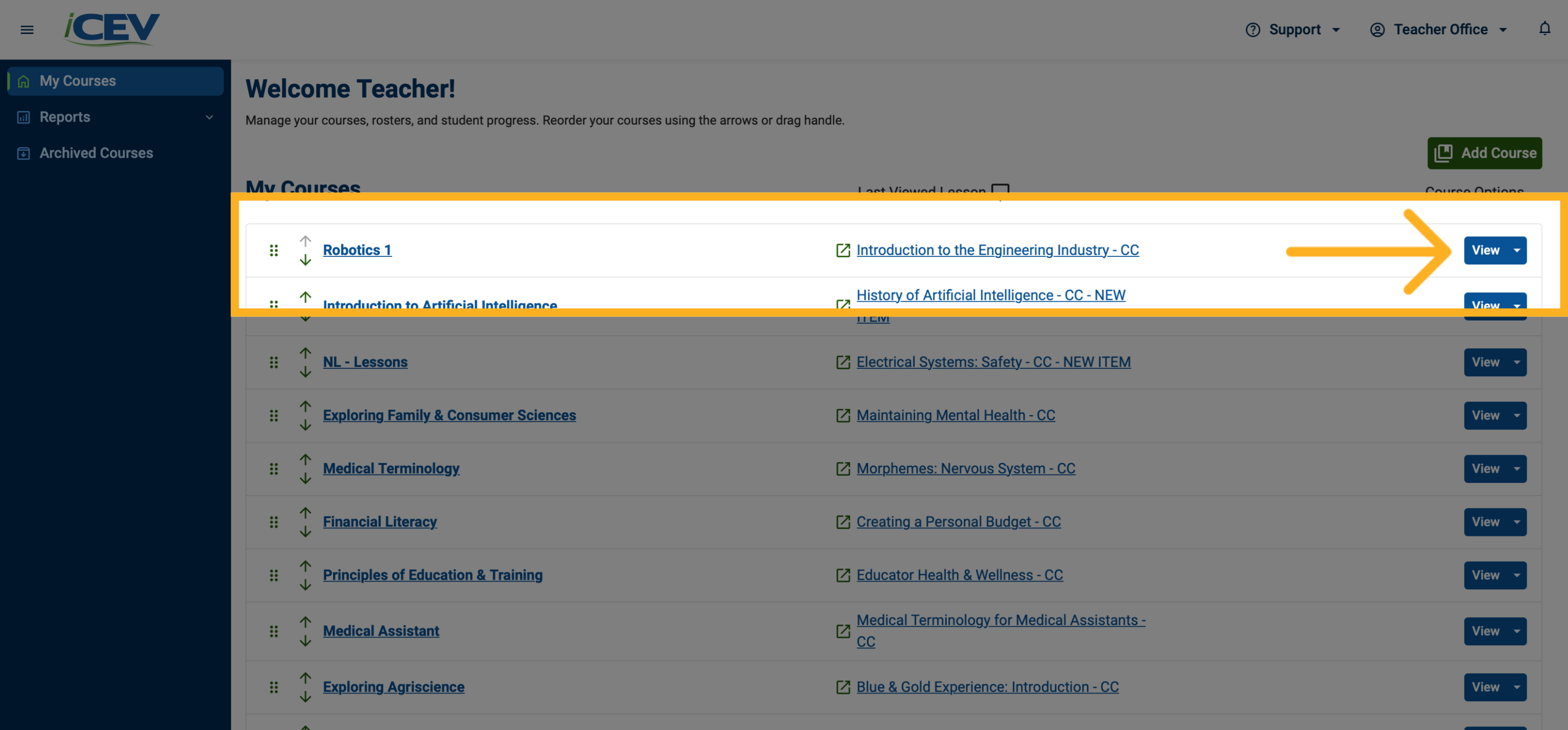
On the course page:
-
In the Class Management section on the right, click Invite Students.
3. Invite Students Window
-
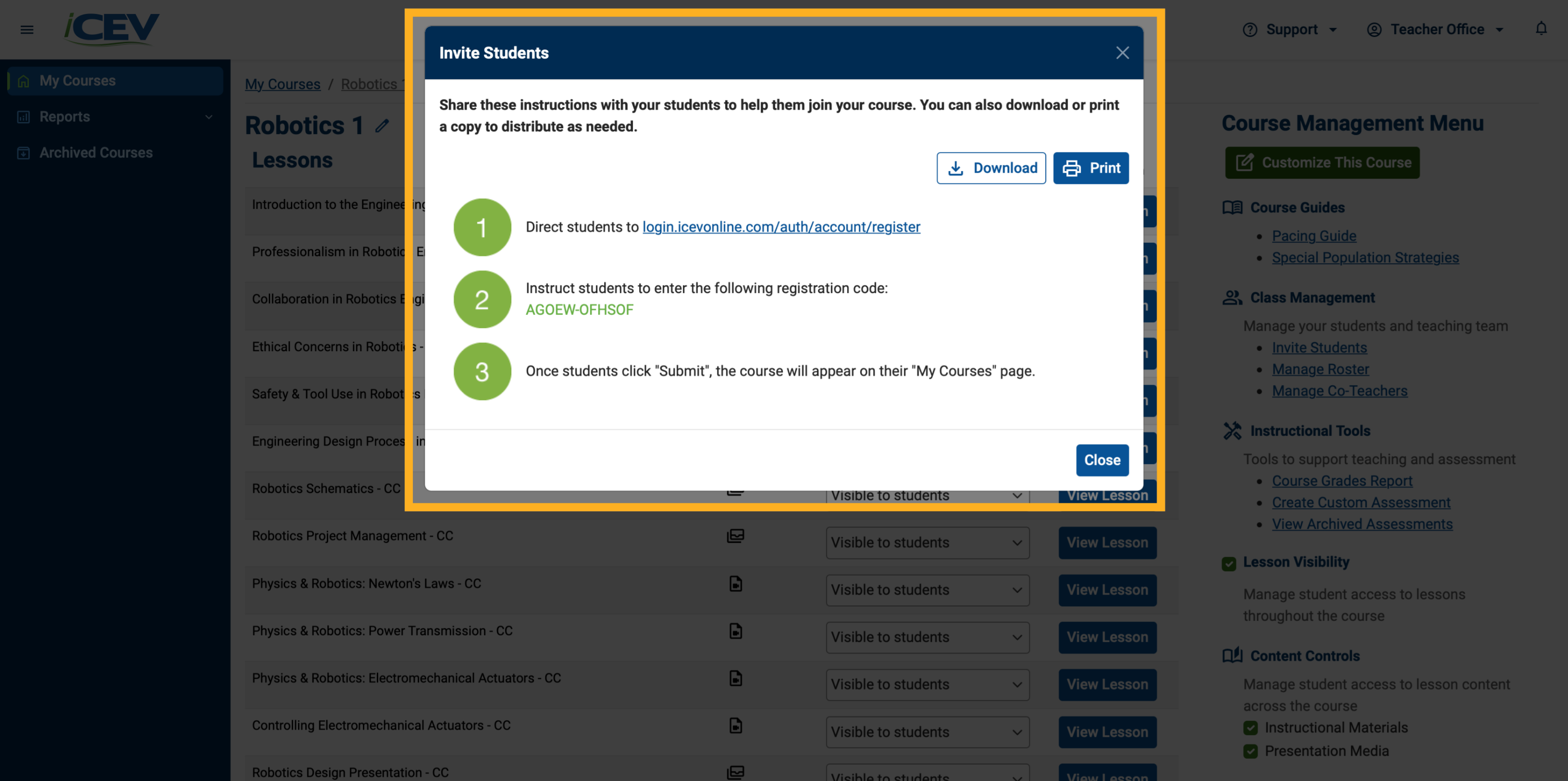
A unique registration code will be generated for your course.
-
Registration codes will appear in the format XXXXX-XXXXXX (example: AGOEW-OFHSOF).
-
You can also download or print registration instructions using the buttons below the header.
4. Sharing Registration Link
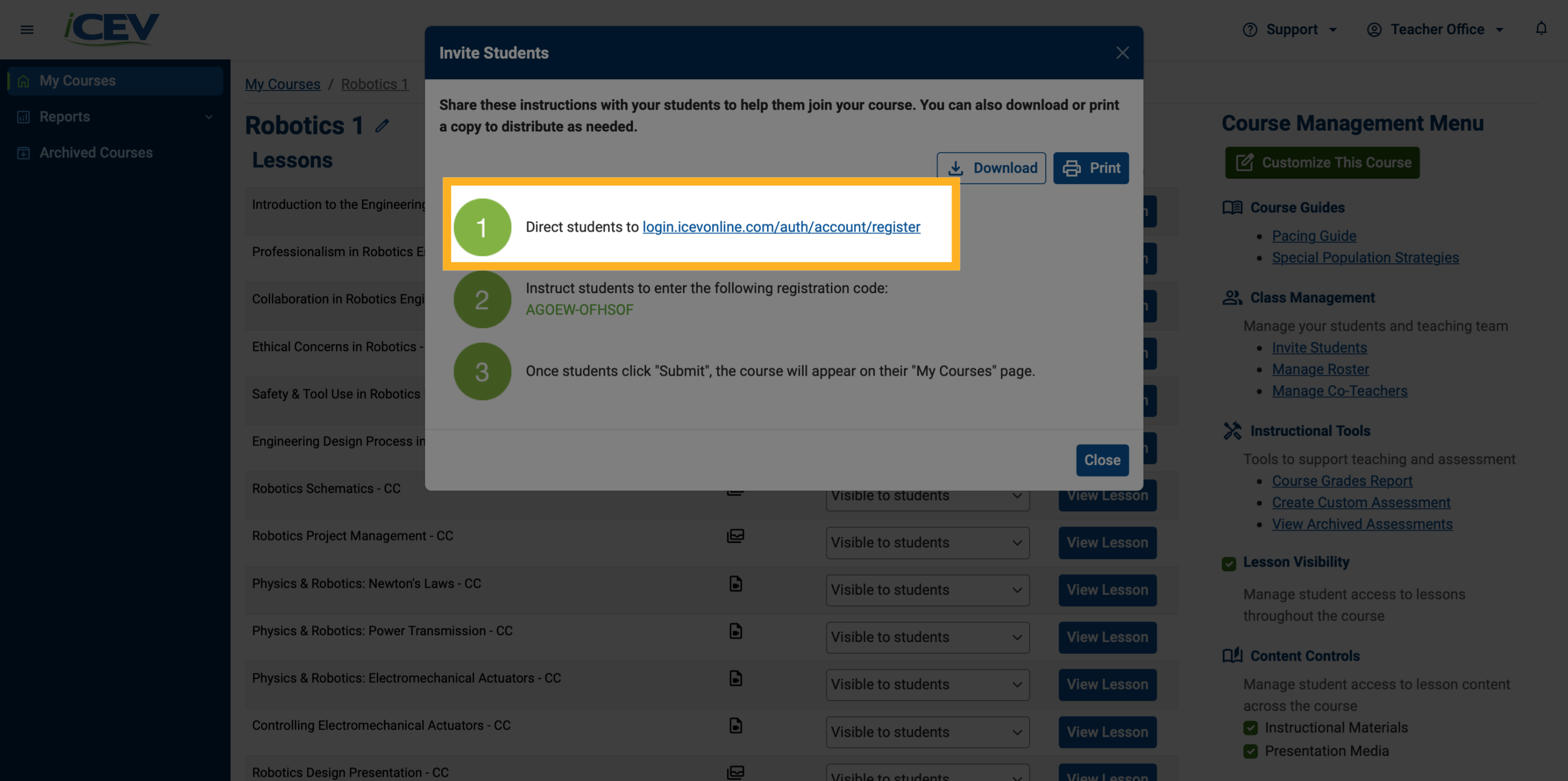
For students who do not yet have an iCEV account:
-
Share the registration link and code with them.
5. Student Registration – New Users
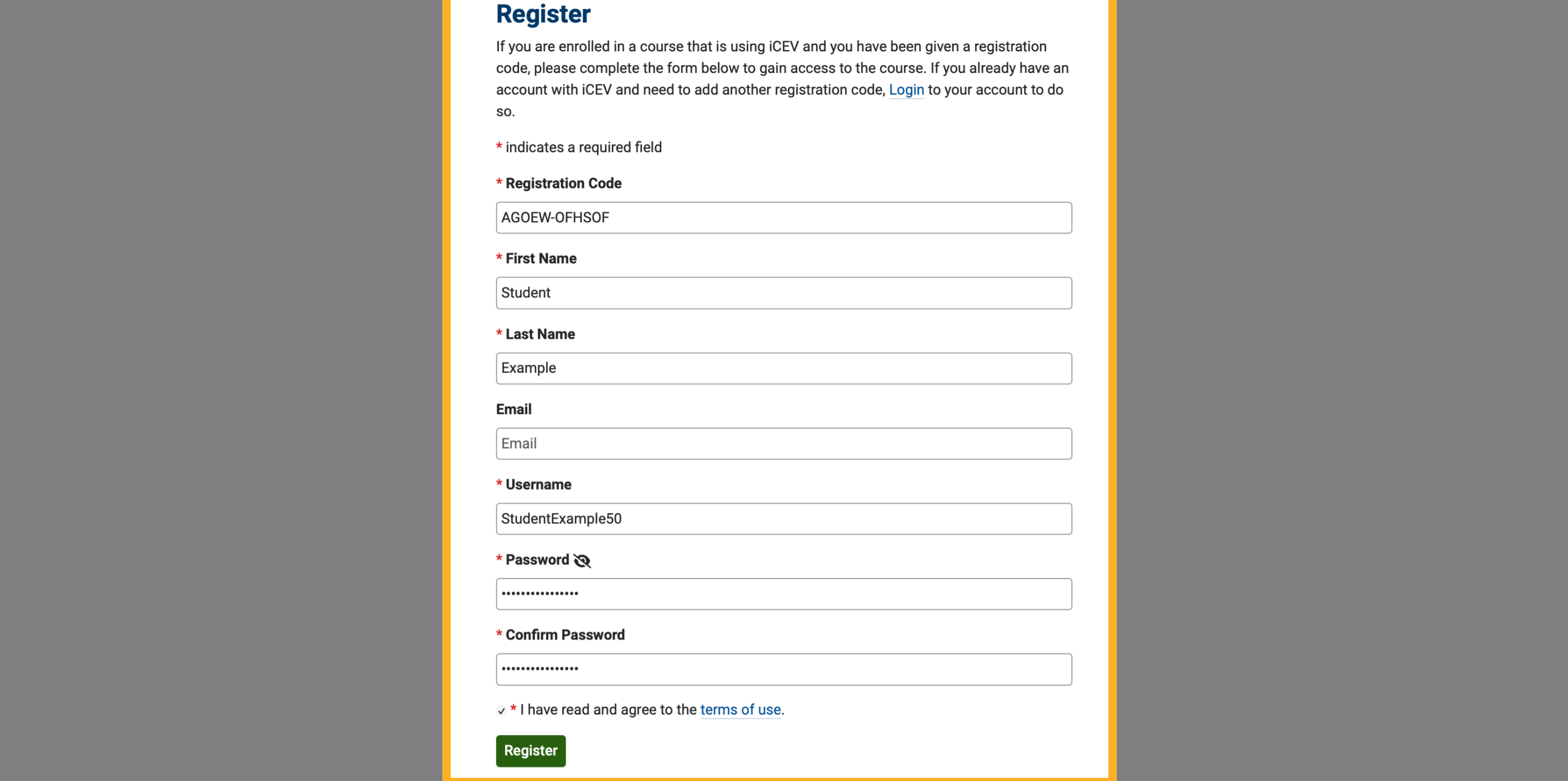
Students should:
-
Enter the full registration code provided (example: AGOEW-OFHSOF)
-
Fill in the required information
-
Create a username and password
-
Agree to the terms and click Register
6. Current Students - Add a New Course
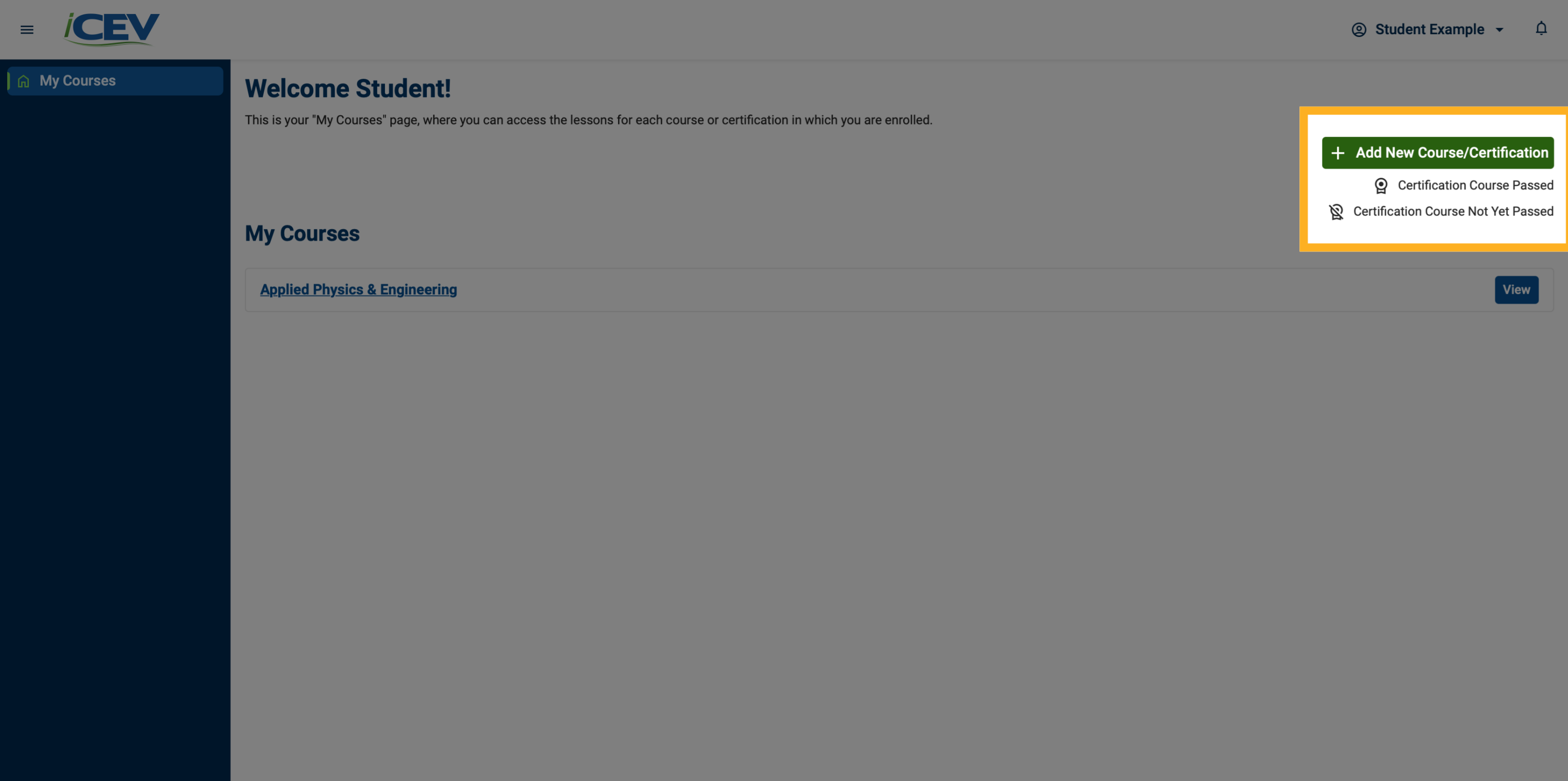
Students who already have an iCEV account should:
-
Log in to their account
-
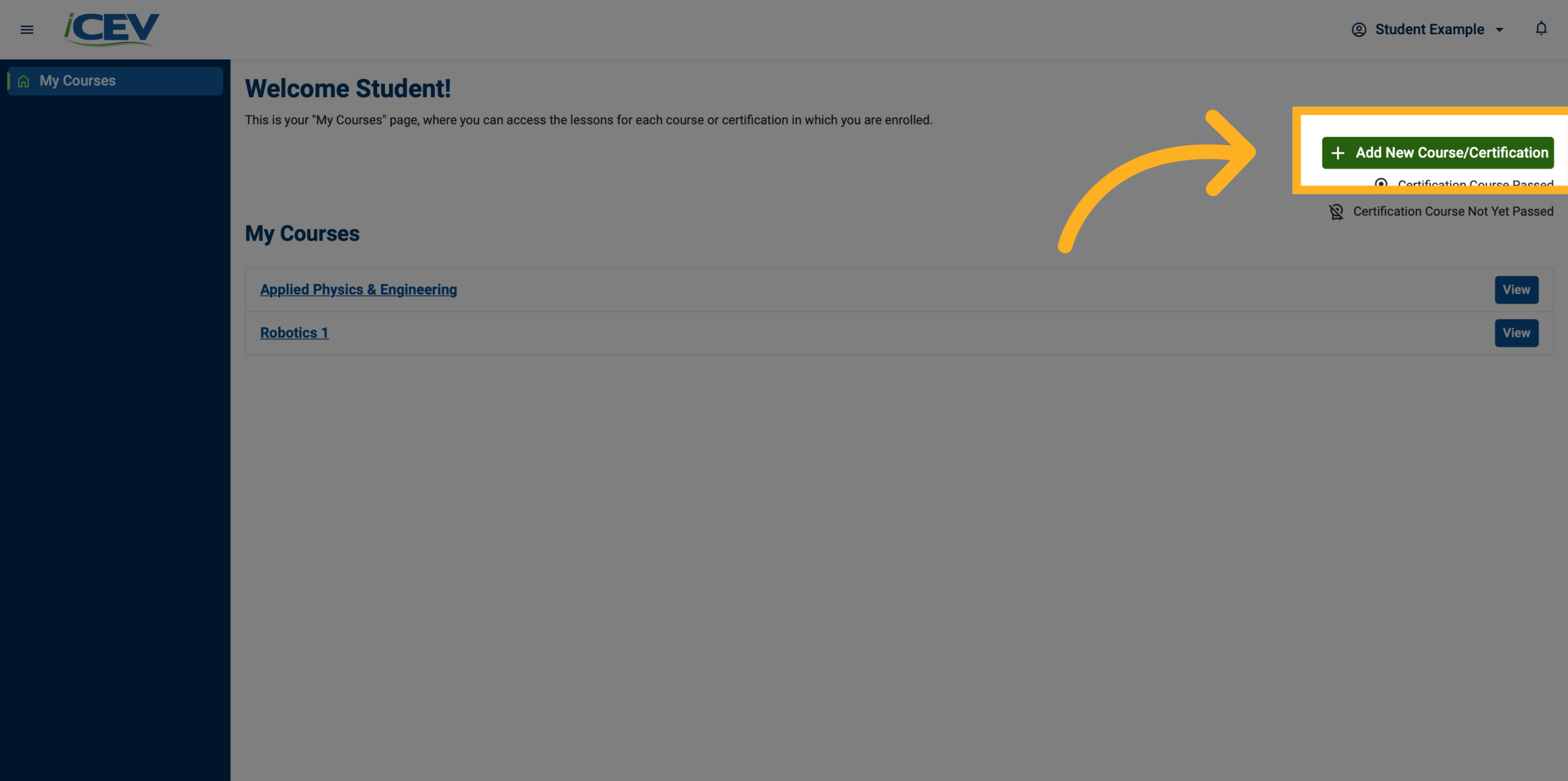
On the My Courses page, click Add New Course/Certification
7. Current Student Registration Code
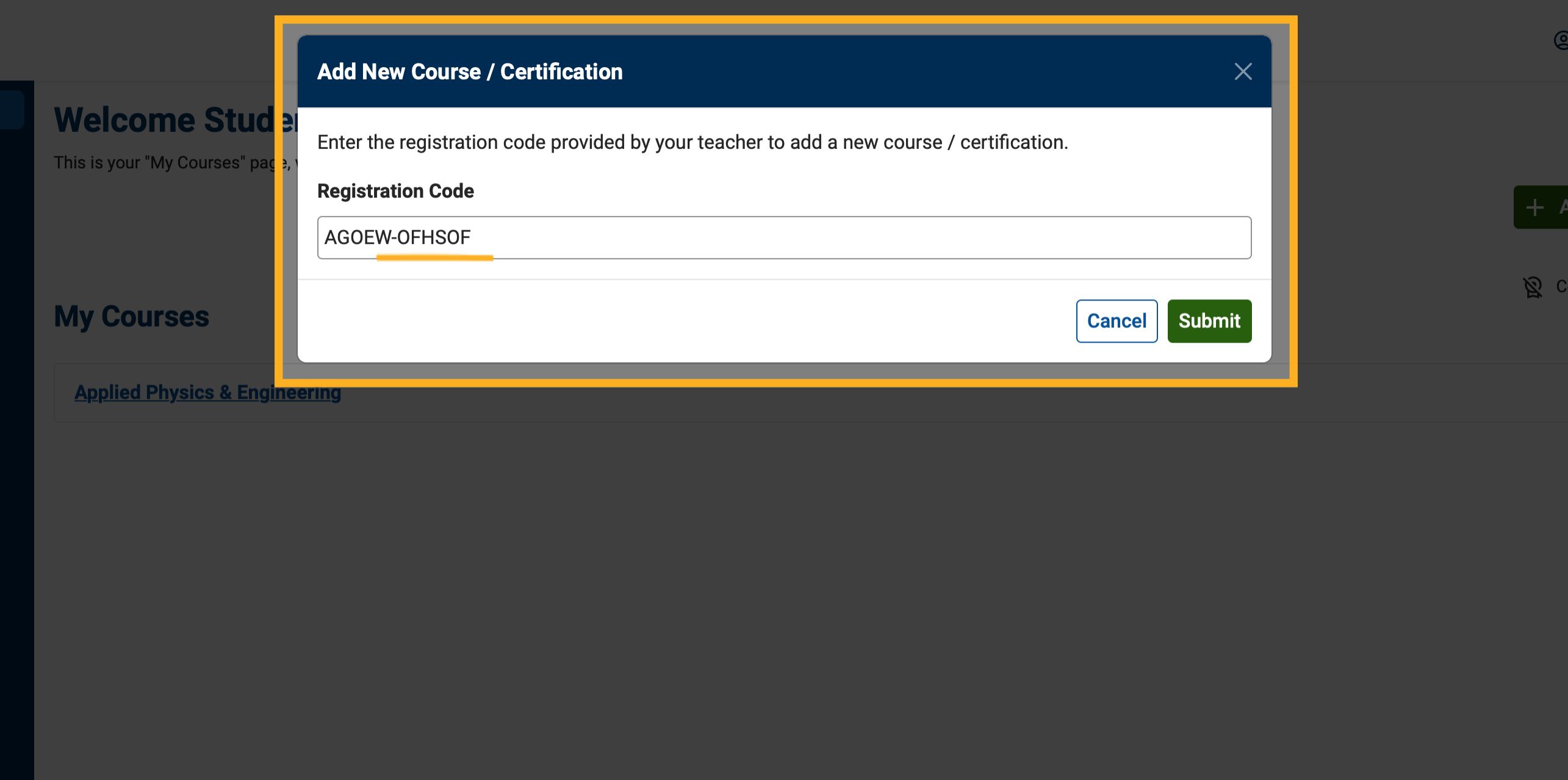
In the pop-up window that appears, the student should:
-
Enter the registration code provided.
-
Students may enter the full registration code (example: AGOEW-OFHSOF).
-
They may also enter just the code after the hyphen (example: OFHSOF).
-
-
Click Submit.
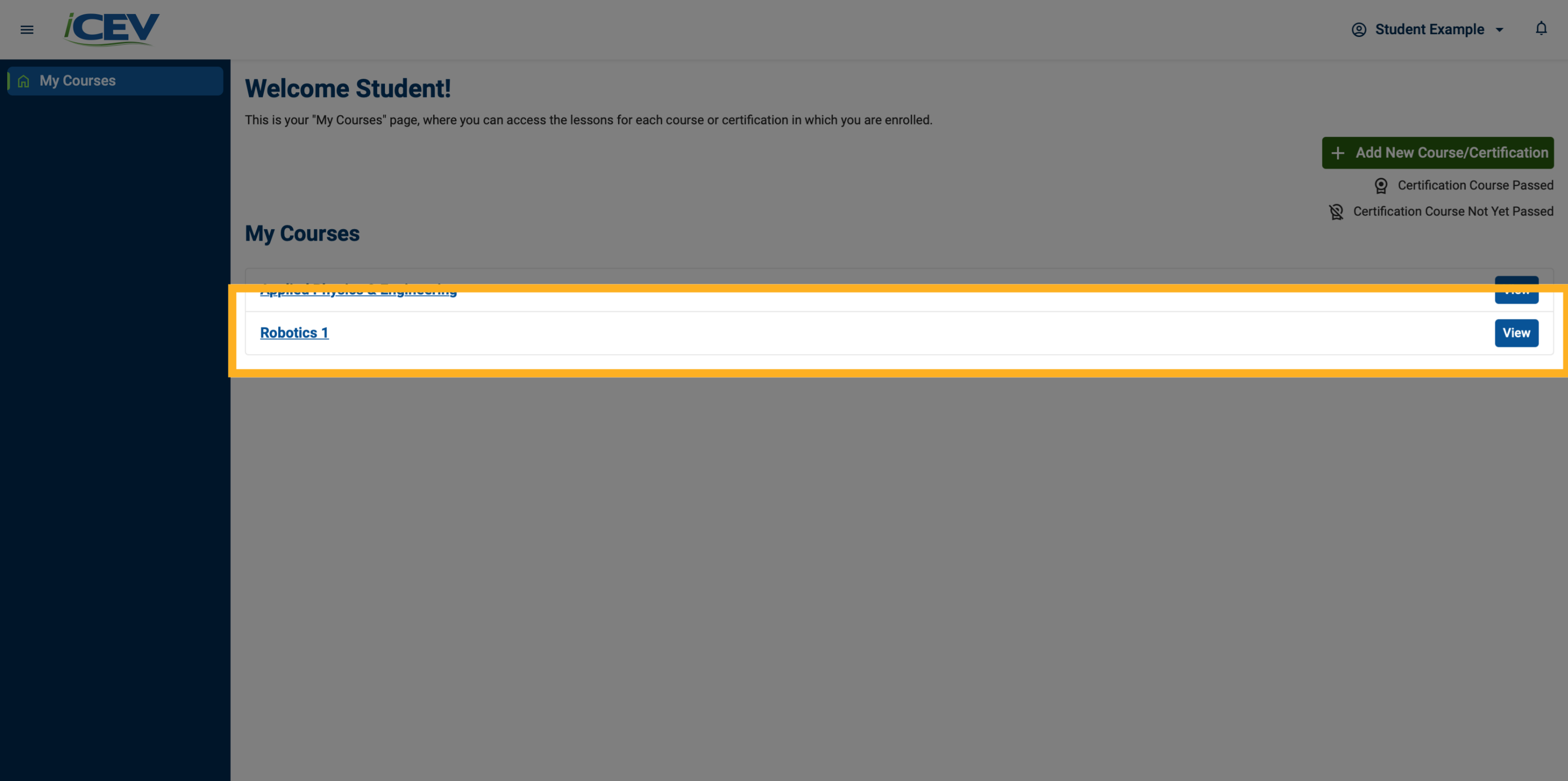
8. Student Courses View
The course will appear on their My Courses page.
9. Adding Additional Courses
⚠️ Important: If a student already has an iCEV account, they should not register again through the registration page.
Instead, they should:
-
Log in to their account
-
Click Add Course/Certification
-
Enter the new course code
This prevents using up additional student licenses.
10. Confirming Student Registration
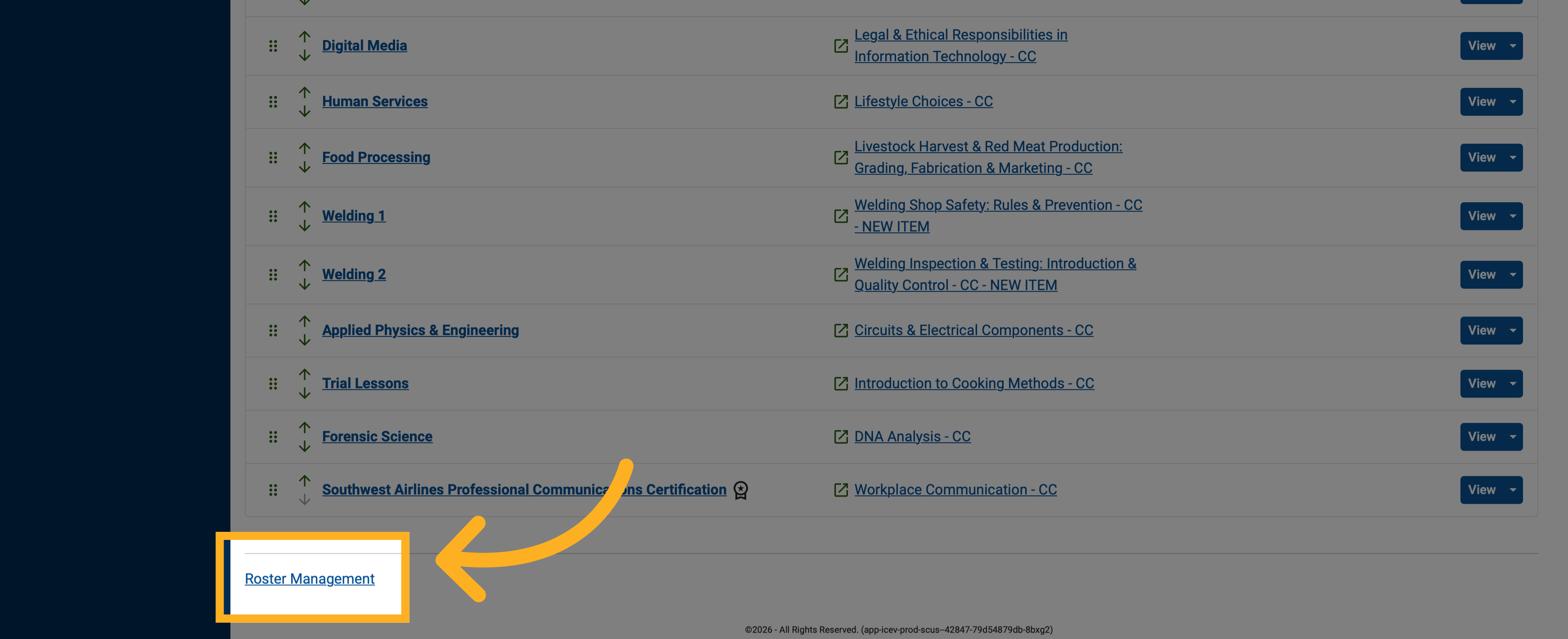
Back on your My Courses page:
-
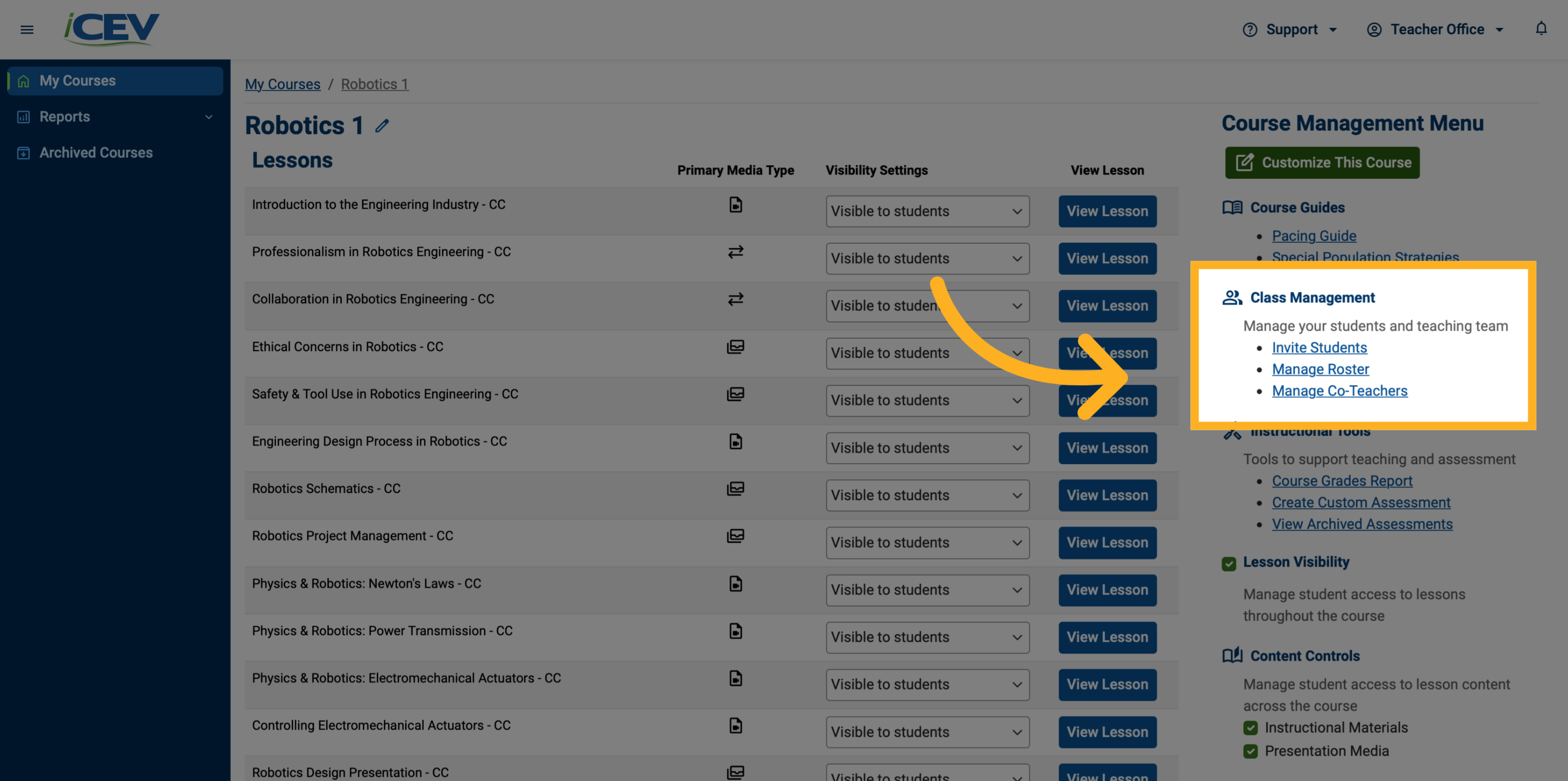
Click Roster Management to confirm that your students have been successfully added.
11. Student Roster Management
The student or students should now appear under your course roster.