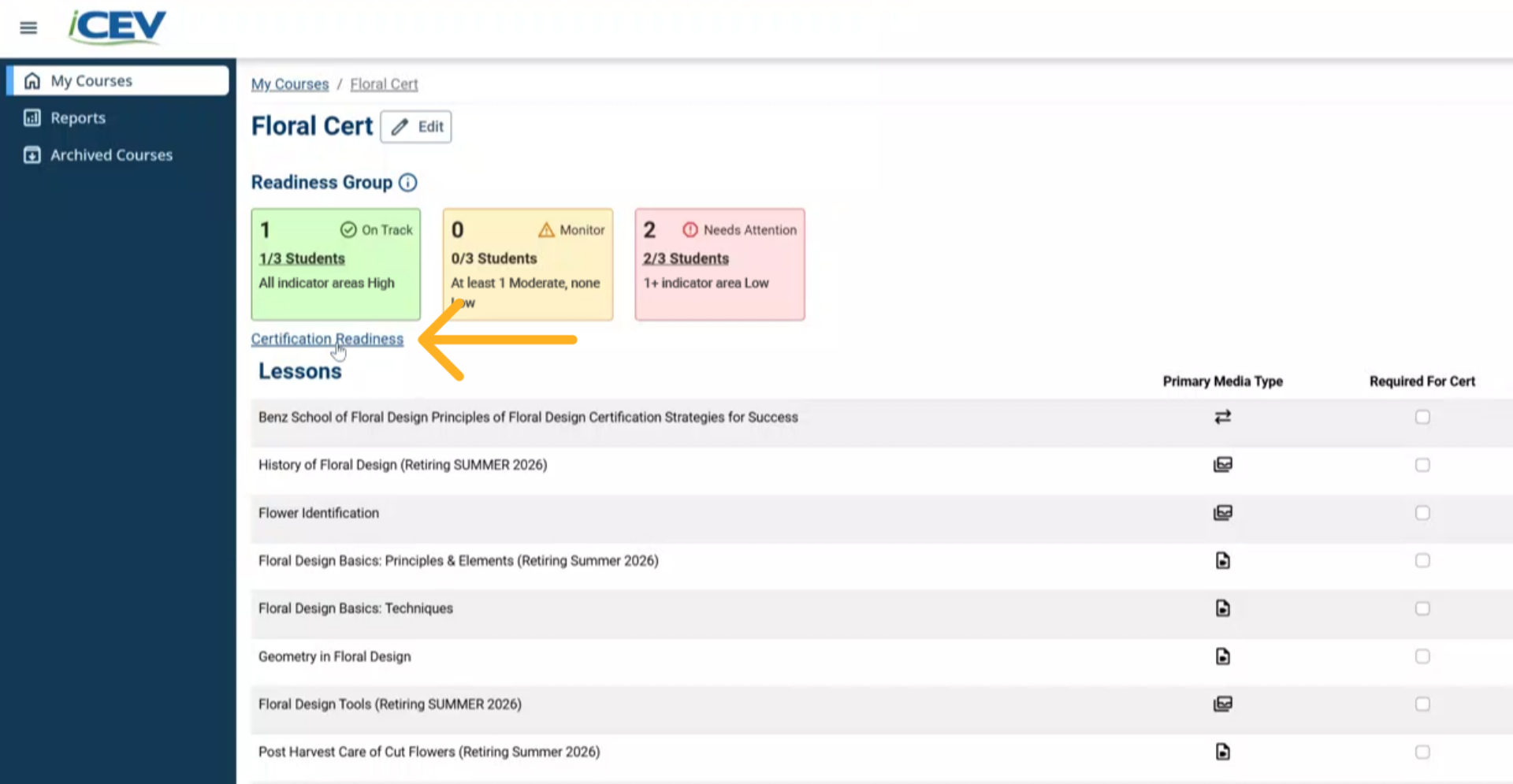
CTE Curriculum
Prepare learners with CTE curriculum aligned to industry standards.


Accessing Certification Readiness Through the Reports Menu
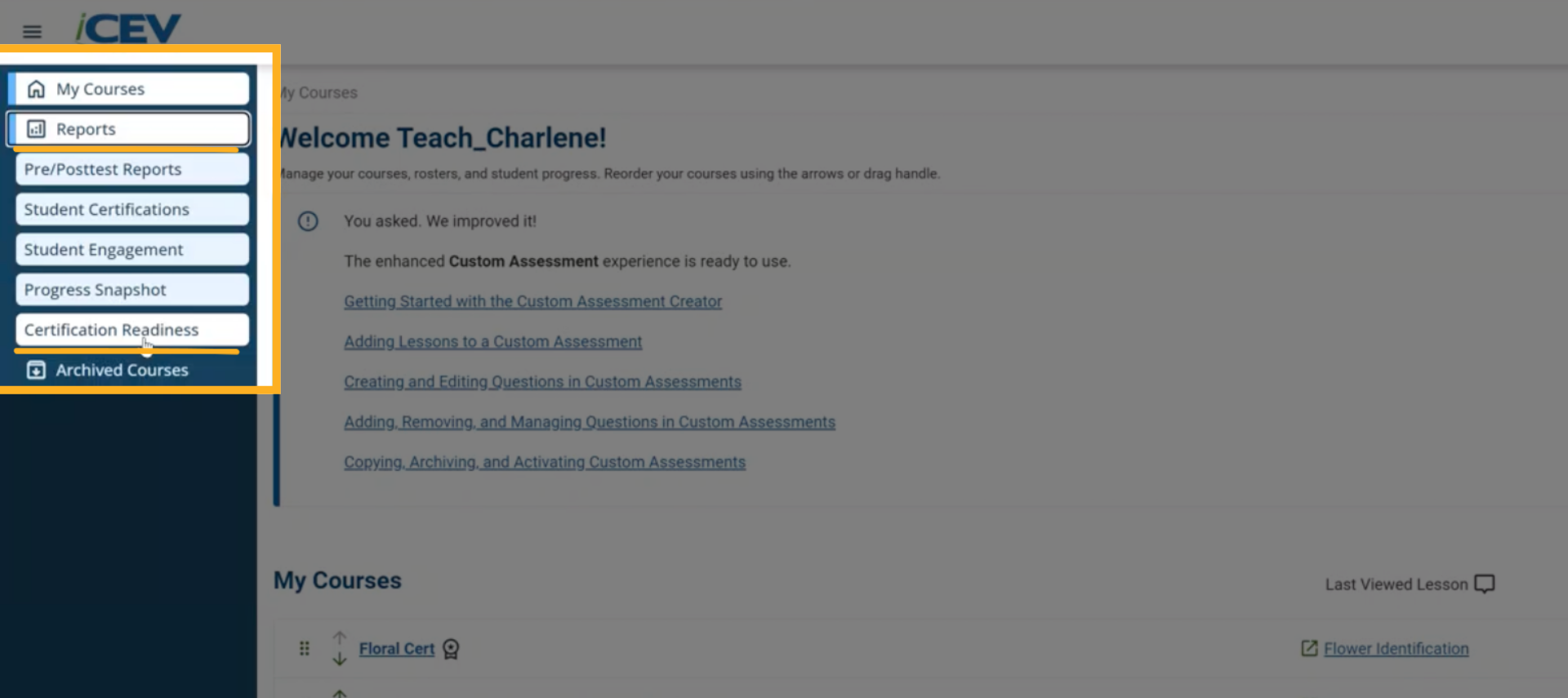
1. Open Reports
Begin by selecting Reports from the main navigation menu.
Next, choose Certification Readiness from the list of available report types.
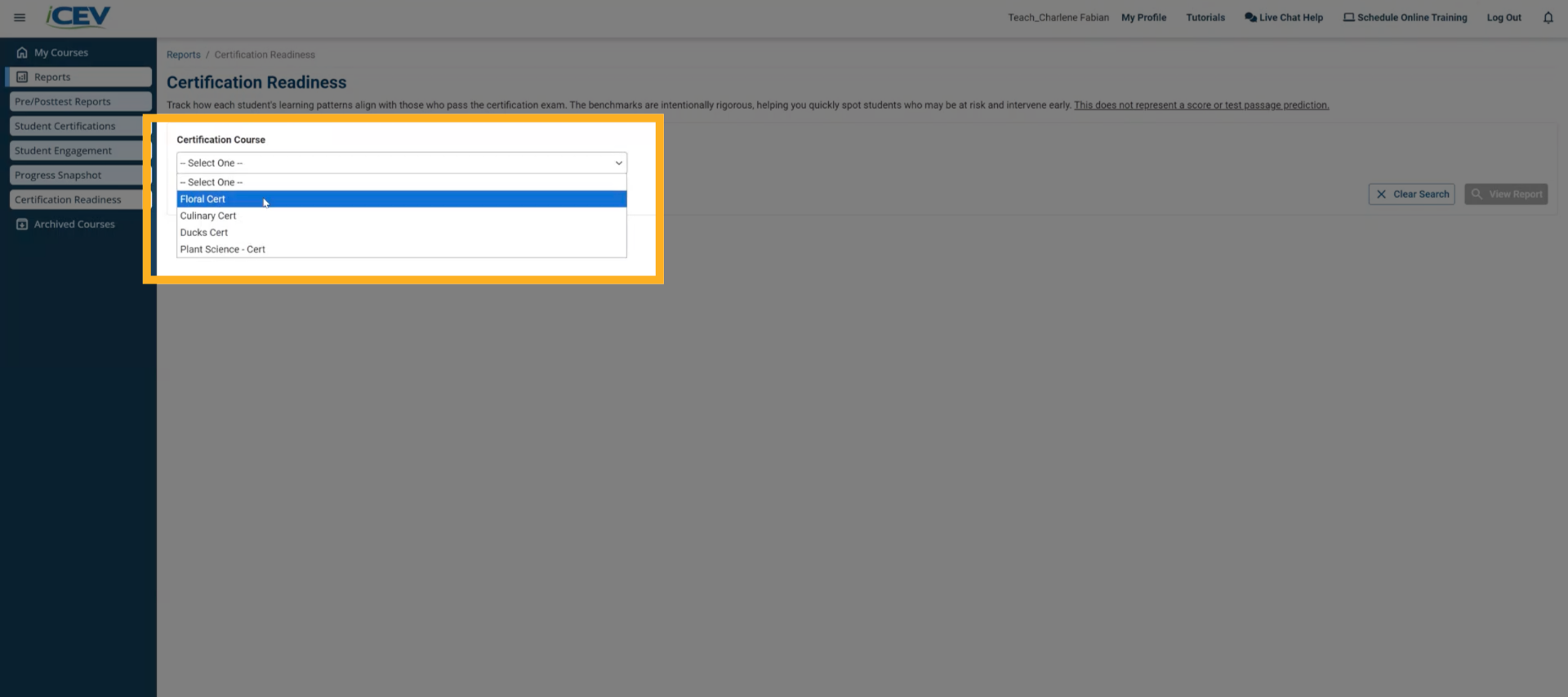
2. Choose a Course
Select the certification aligned course you want to review from the course list.
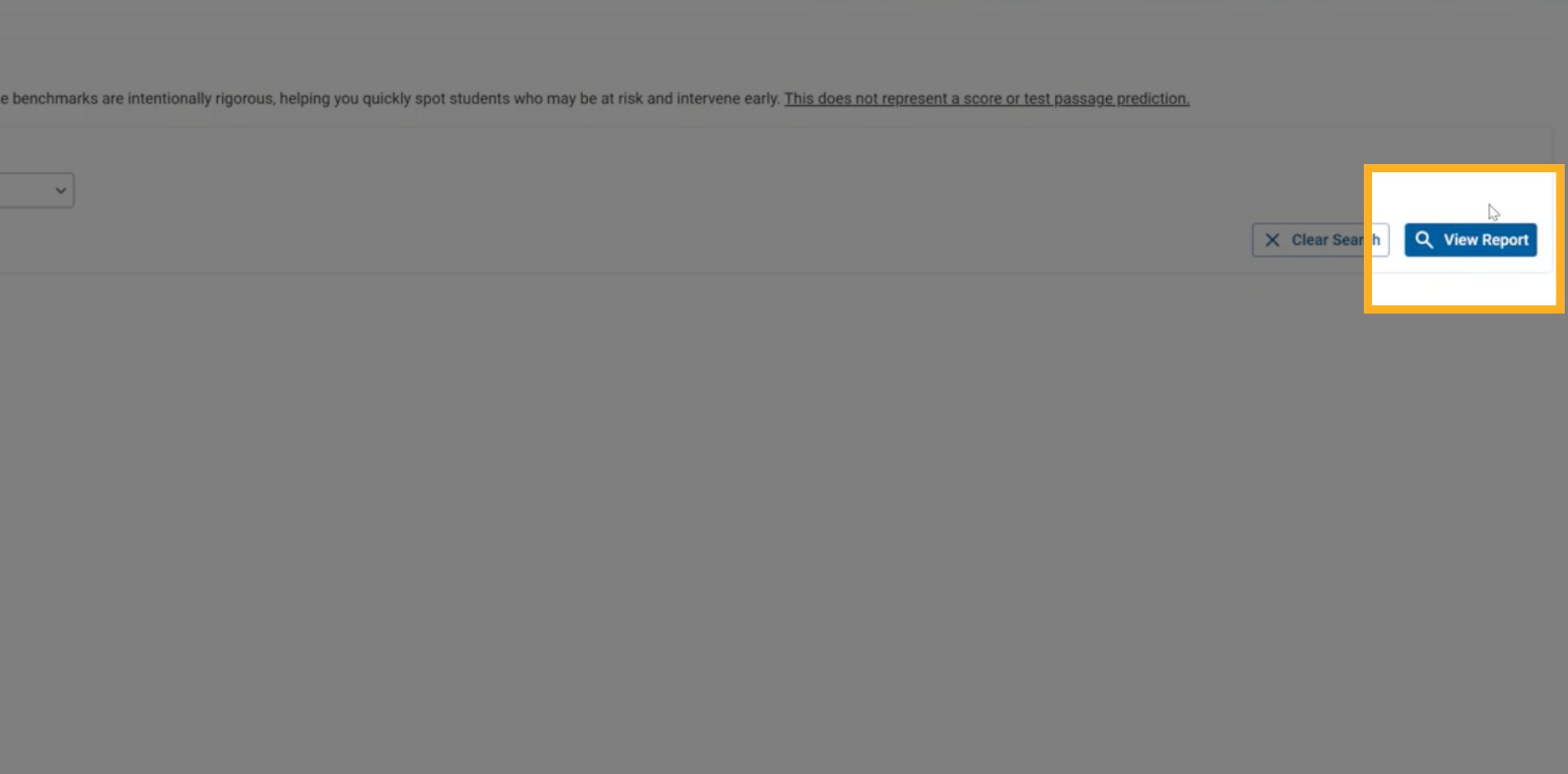
3. View Report
After choosing the course, select View Report to open the readiness data for your class.
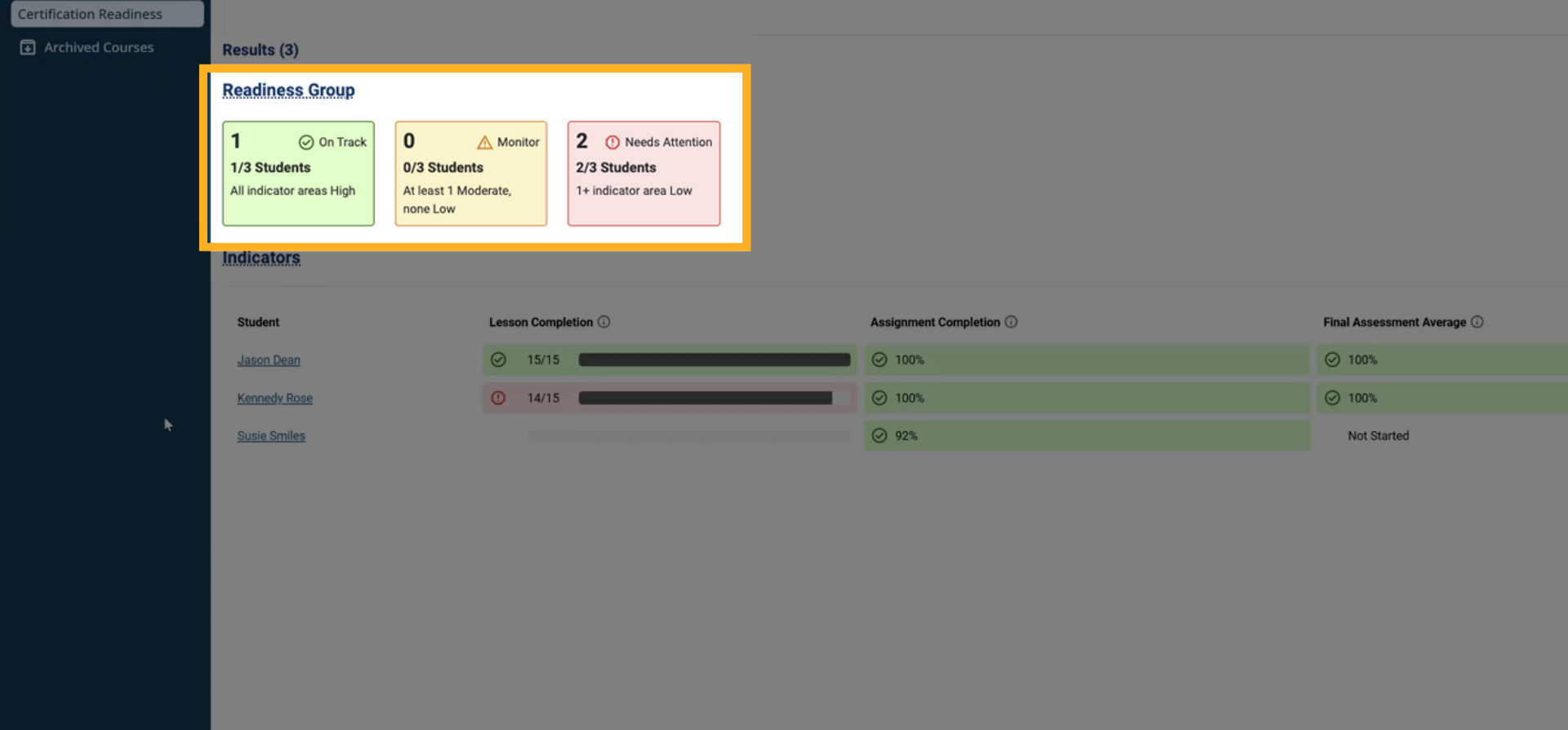
4. Readinees Group Summary
At the top of the report, you will see the Readiness Group Summary.
This section shows how many students fall into each readiness group: On Track, Monitor, or Needs Attention.
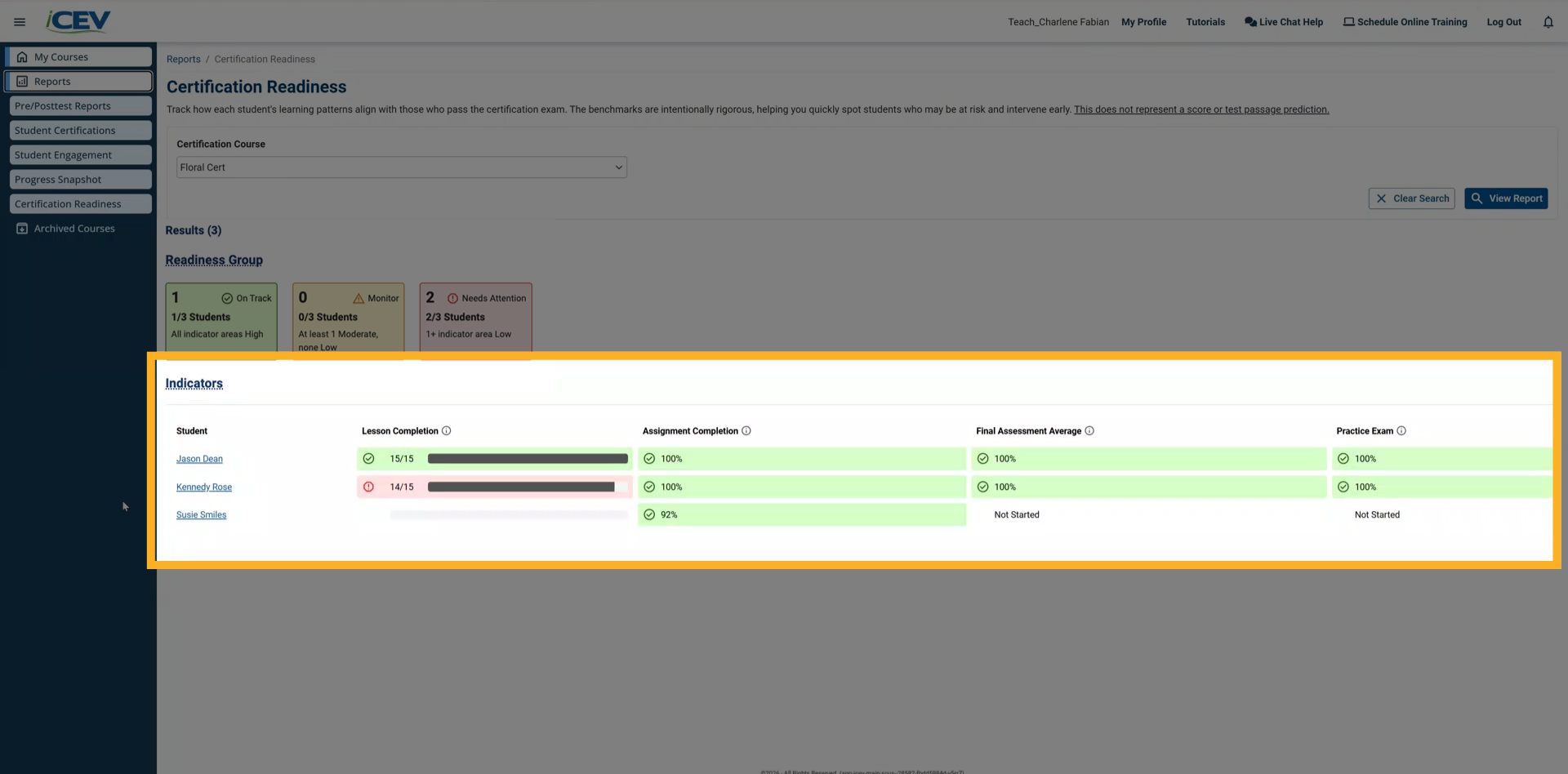
5. Readiness Indicators Table
Below the summary, you will find the Readiness Indicators table.
Each row represents an individual student.
Each column displays the student’s performance for a readiness indicator.
Visual indicators help you quickly see which students are progressing well and which students may need support.
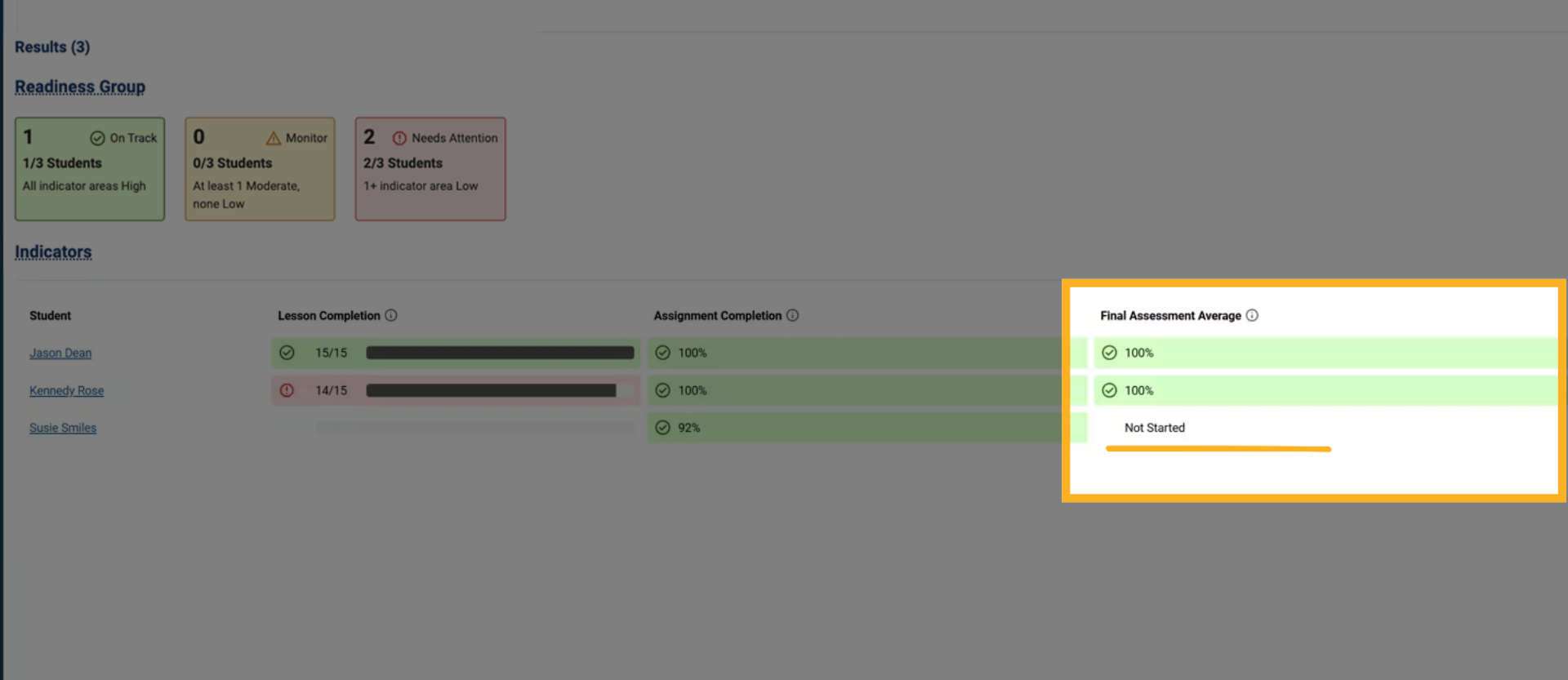
6. Identify Indicators Without Data
If no performance data exists yet for an indicator, you will see a Not Started message.
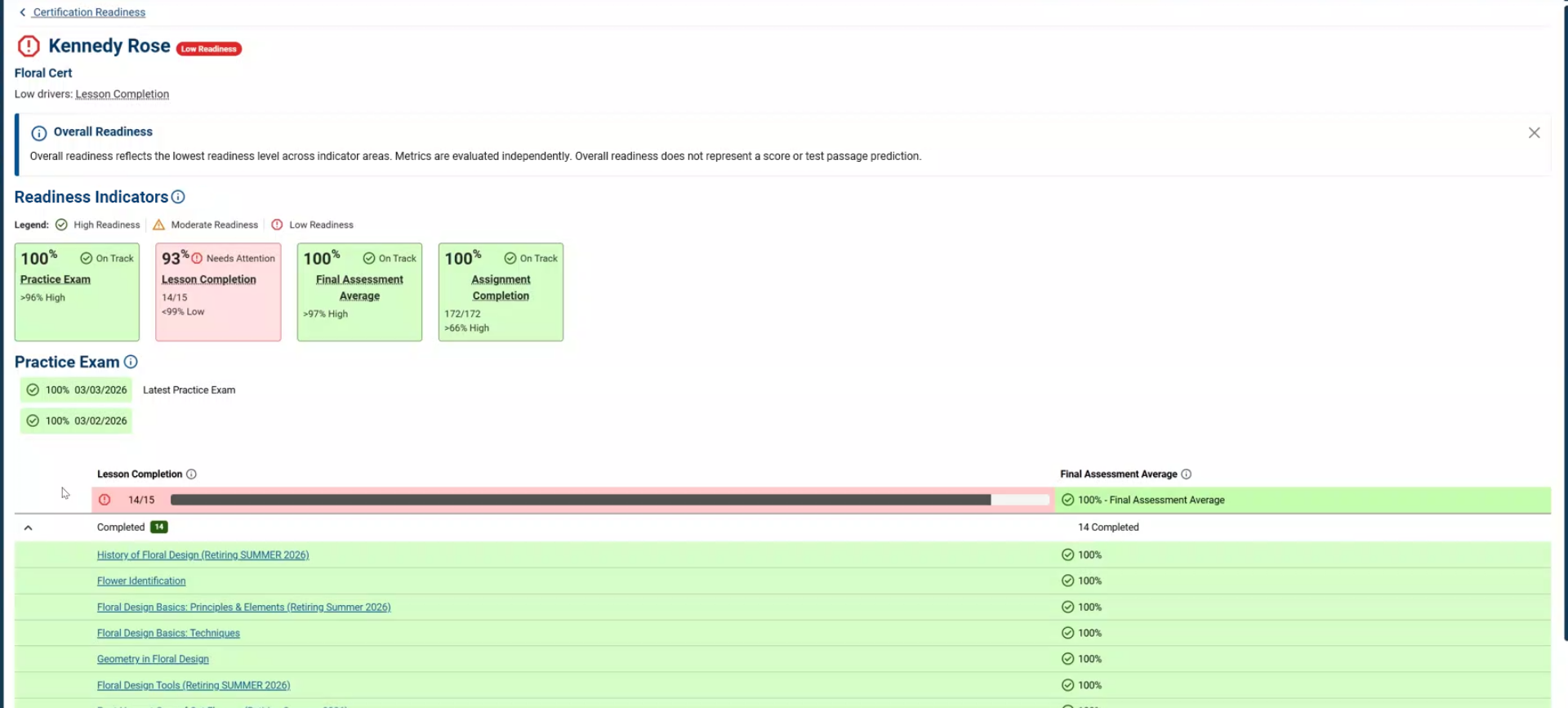
7. Individual Student’s Readiness Details
Selecting a student’s name opens a detailed breakdown of their readiness across all indicator areas.
This helps you review individual strengths and gaps.
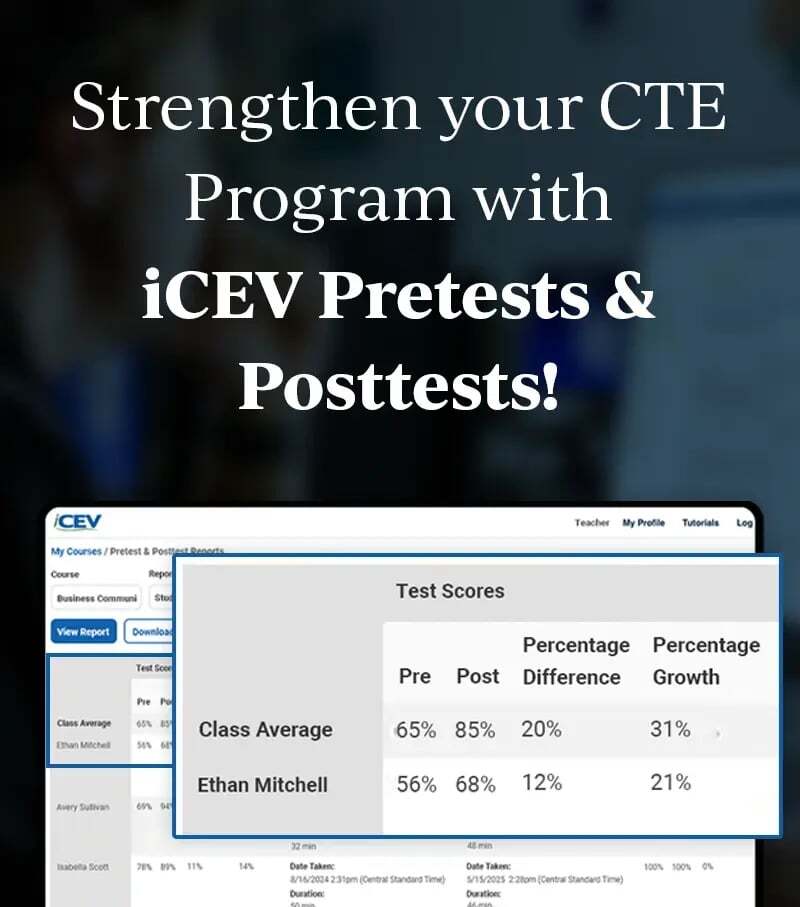
Accessing Certification Readiness From Within a Course
1. Select Certification Readiness
Inside the certification aligned course page, select the Certification Readiness link below the Readiness Group summary.
This opens the same readiness report for the class connected to that course.