

CTE Curriculum
Prepare learners with CTE curriculum aligned to industry standards.


Alignment with the
ASE T6 Electrical/Electronic Systems Certification
About the Certification
The ASE T6 Electrical/Electronic Systems Certification verifies the knowledge and skills required to diagnose, service, and repair electrical and electronic systems in medium- and heavy-duty trucks. Technicians who earn this certification demonstrate competency in battery systems, starting and charging systems, wiring, lighting, gauges, and electronic controls, ensuring reliable operation and accurate troubleshooting of complex vehicle electrical systems.
Utilize iCEV's latest subject area, Transportation: Automotive, Diesel & Small Engines, to prepare for ASE certification exams. Each lesson includes slide decks, video instruction and hands-on activities and projects to help master the domains tested for on ASE certifications.

iCEV is a certified ASE accredited training provider for automotive and diesel courses.
Certification Exam Content Areas
General Electrical/Electronic System Diagnosis
28%
Lighting Systems Diagnosis and Repair
12%
Battery and Starting System Diagnosis and Repair
22%
Related Vehicle Systems Diagnosis and Repair
24%
Charging System Diagnosis and Repair
14%
Find ASE Content on the iCEV Platform
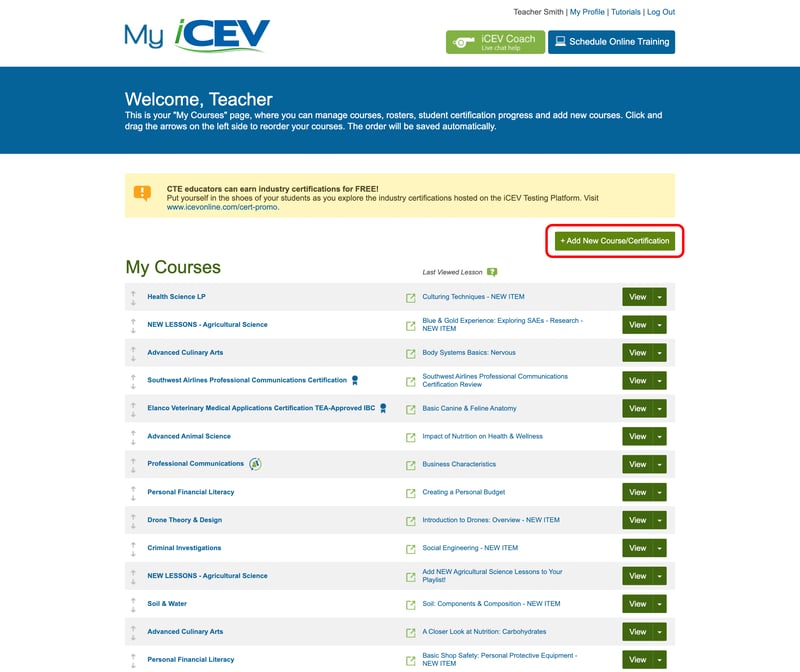
1. Add New Course/Certification
- At the top right of the My Courses page, click the Add New Course/Certification button
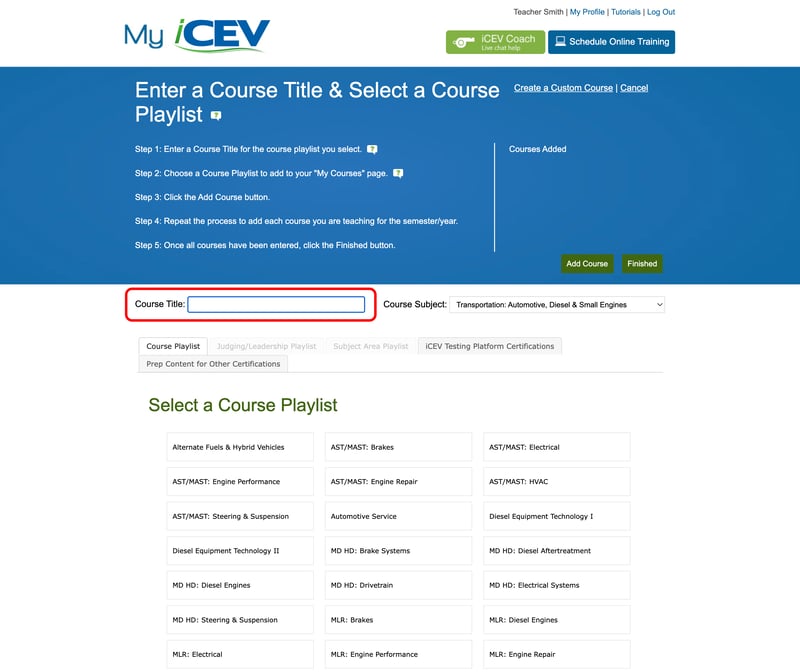
2. Enter a Course Title
Type the name of the course you want to see in your My Courses page in the field named Course Title
Ex: If you are teaching “ASE T6 Electrical/Electronic Systems” in second period you could name it “Second Period - Electrical/Electronic Systems”
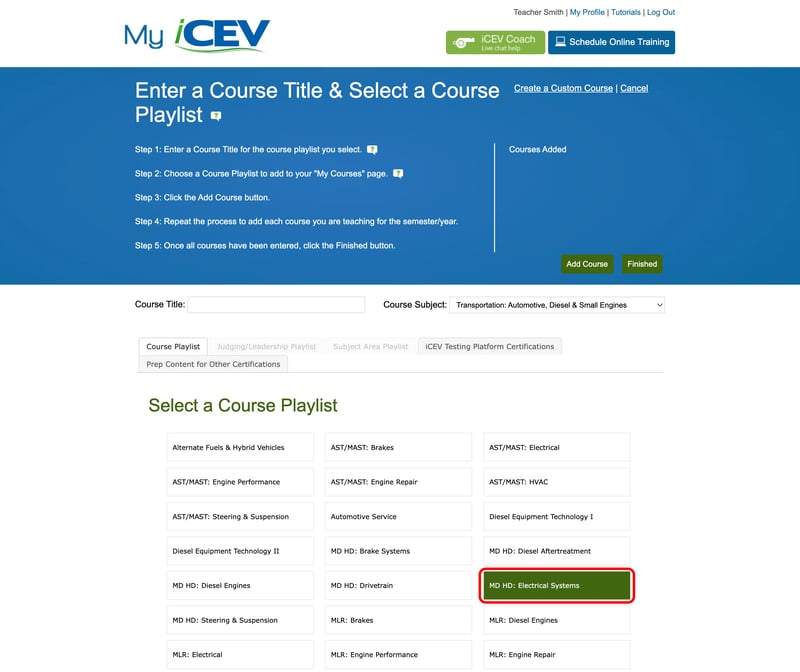
3. Choose Your Course Playlist
iCEV has customized course playlists to meet standards for your state.
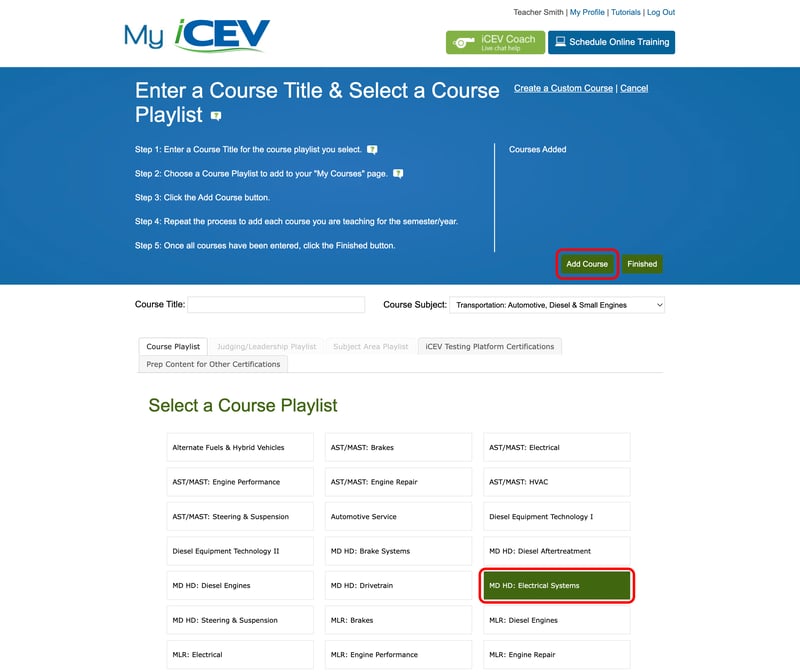
- Select Transportation: Automotive, Diesel & Small Engines
- Then choose MD HD: Electrical Systems
4. Add the Course
Once you have selected the course you would like to add and it is highlighted green:
- Click the Add Course button in the right side of the blue header section
- The course name you chose will now appear underneath the Courses Added: heading
Repeat Steps 2-4 to add more courses to your My Courses page
6. Finish
Once you have added all of your courses:
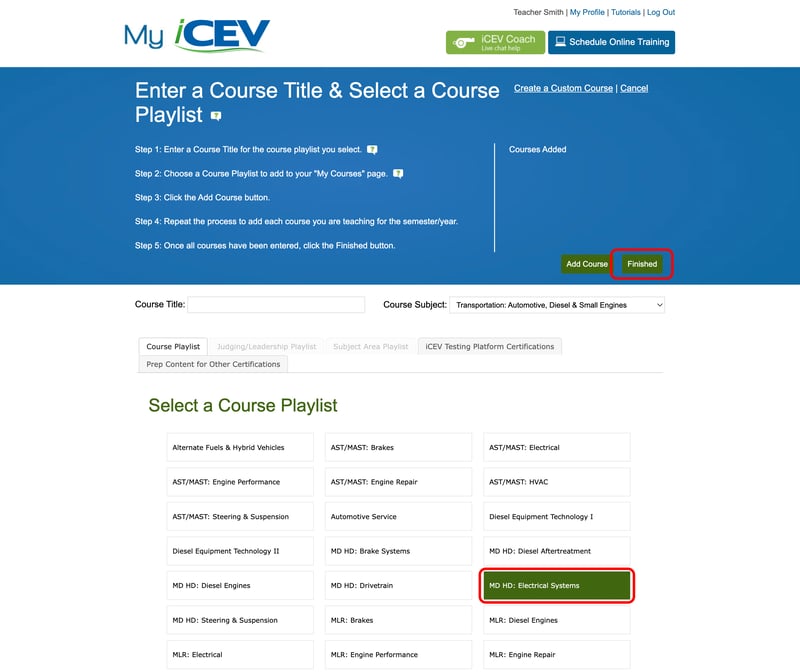
- Click the Save & Exit button. You will be redirected to your My Courses page
- All of the courses you added will appear in your My Courses list
Ready to Help Your Students Prepare for Certification Success?
